0070 Working With Temporal Data Types in MonetDB

Intervals

INTERVAL data types allow us to conduct arithmetic calculations with temporal data types. Keyword DATE is casting operator. This operator is used so that Monetdb transform string to date data type.
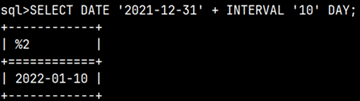
SELECT DATE '2021-12-31' + INTERVAL '10' DAY;

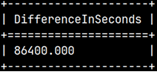
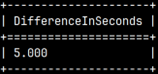
It is possible to subtract two dates or times. Result will be interval in seconds.

SELECT date '2020-09-28'
     - date '2020-09-27' AS "DifferenceInSeconds";
SELECT time '14:35:45'
     - time '14:35:40' AS "DifferenceInSeconds";

Current Date and Time

With these variables we can get information about current date, time and time zone (TZ).

SELECT CURRENT_DATE as "Date"
     , CURRENT_TIME as "Time(6)+TZ"
     , CURRENT_TIMESTAMP as "Timestamp(6)+TZ"
     , NOW as "Timestamp(6)+TZ"
     , LOCALTIME as "Time(6)"
     , LOCALTIMESTAMP as "Timestamp(6)"
     , CURRENT_TIMEZONE as "Interval second";

Transform Strings to Temporal Data Types

There are several ways how we can create temporal data types from the strings. If we have dates, times, or timestamps in ISO format then we can use casting operator, casting function or convert function.

SELECT DATE '1987-09-23' AS "Date"
     , TIME '11:40' AS "Time"
     , TIMESTAMP '1987-09-23 11:40' AS "Timestamp";

—————————————————–
You can also use TIMETZ, TIMESTAMPTZ.
SELECT CAST('1987-09-23' as date) AS "Date"
     , CAST('11:40' as time) AS "Time"
     , CAST('1987-09-23 11:40' as timestamp) AS "Timestamp";
SELECT CONVERT('1987-09-23', DATE) AS "Date"
     , CONVERT('11:40', TIME) AS "Time"
     , CONVERT('1987-09-23 11:40', TIMESTAMP) AS "Timestamp";

If string is not in temporal ISO format, then we have  to use functions str_to_date, str_to_time or str_to_timestamp. These functions have second argument where we describe how to interpret string.

SELECT STR_TO_DATE('23-09-1987', '%d-%m-%Y') AS "Date"
     , STR_TO_TIME('11:40', '%H:%M') AS "Time"
     , STR_TO_TIMESTAMP('23-09-1987 11:40', '%d-%m-%Y %H:%M') AS "Timestamp";

All the specifiers used to describe dates and times can be found on the bottom of this page:
https://www.monetdb.org/documentation-Dec2023/user-guide/sql-functions/date-time-functions/

Here are just the major specifiers:

%SSeconds (00-59).%uDay of week (1-7).%RTime "15:36".
%MMinutes (00-59).%dDay of month (01-31).%TTime "15:36:40".
%HHours (00-23).%jDay of year (001-366).
%mMonths (01-12).%FISO 8601 format "2023-05-13".
%YYears "1981".%VWeek of year (01-53).%sSeconds from 01.01.1970.
%z"±hh:mm" timezone.%ZName of timezone.

Do it Reverse, Transform Dates and Times to Strings

Counterpart to functions above, are functions that transform temporal types to strings. Here we have functions DATE_TO_STR, TIME_TO_STR and TIMESTAMP_TO_STR. Again, we are using specifiers to describe how we want our string to look like.

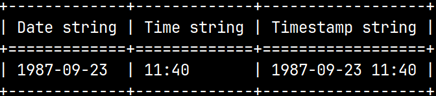
SELECT DATE_TO_STR( DATE '1987-09-23', '%Y-%m-%d') AS "Date string"
     , TIME_TO_STR( TIME '11:40', '%H:%M') AS "Time string"
     , TIMESTAMP_TO_STR( TIMESTAMP '1987-09-23 11:40', '%Y-%m-%d %H:%M') AS "Timestamp string";
Extracting Parts of Times and Dates

It is possible to extract parts of temporal data types by using function EXTRACT.

EXTRACT(YEAR FROM CURRENT_DATE)
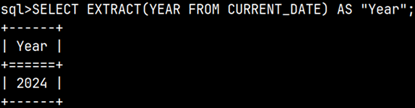
We can extract these parts:

YEARQUARTERMONTHWEEKDAYHOURMINUTESECONDDOYDOWCENTURYDECADE

It is also possible to use specialized functions to extract temporal parts. Some of these functions have double quotes around them.

"second"(tm_or_ts)"second"(timetz '15:35:02.002345+01:00')2,002345
"minute"(tm_or_ts)"minute"(timetz '15:35:02.002345+01:00')35
"hour"(tm_or_ts)"hour"(timetz '15:35:02.002345+01:00')16
week(dt_or_ts)week(date '2020-03-22')12 >ISO week<
"month"(dt_or_ts)"month"(date '2020-07-22')7
quarter(dt_or_ts)quarter(date '2020-07-22')3
"year"(dt_or_ts)"year"(date '2020-03-22')2020

dayofmonth(dt_or_ts)dayofmonth(date '2020-03-22')22
dayofweek(dt_or_ts)dayofweek(date '2020-03-22')7 >Sunday<
dayofyear(dt_or_ts)dayofyear(date '2020-03-22')82

century(dt)century(date '2020-03-22')21
decade(dt_or_ts)decade(date '2027-03-22')202

These two functions can help to extract days or seconds from seconds interval.

"day"(sec_interval)"day"(interval '3.23' second * (24 * 60 * 60))3
"second"(sec_interval)"second"(interval '24' second)24

Max and Min Date or Time

This is how we can find latest or earliest date or time.

greatest(x, y)greatest(date '2020-03-22', date '2020-03-25')date '2020-03-25'
least(x, y)least(time '15:15:15', time '16:16:16')time '15:15:15'

Difference Between Two Timestamps – timestampdiff functions

When subtracting two timestamps we can decide in which measure units to get the result.

timestampdiff(ts_tstz, ts_tstz)select timestampdiff(timestamp '2021-12-31 18:40:40', timestamp '2021-12-30 16:30:20')interval '94220' second
timestampdiff_min(ts_dt_tz, ts_dt_tz)select timestampdiff_min(timestamp '2021-12-31 18:40:40', timestamp '2021-12-31 16:30:20')730
timestampdiff_sec(ts_dt_tz, ts_dt_tz)select timestampdiff_sec(timestamp '2021-12-31 18:40:40', timestamp '2021-12-31 16:30:20')7820
timestampdiff_hour(ts_dt_tz, ts_dt_tz)select timestampdiff_hour(timestamp '2021-12-31 18:40:40', timestamp '2021-12-20 16:30:20')266
timestampdiff_day(ts_dt_tz, ts_dt_tz)select timestampdiff_day(timestamp '2021-12-31 18:40:40', timestamp '2021-12-20 16:30:20')11
timestampdiff_week(ts_tm_tz, ts_tm_tz)select timestampdiff_week(timestamp '2021-12-31 18:40:40', timestamp '2021-02-20 16:30:20')44
timestampdiff_month(ts_tm_tz, ts_tm_tz)select timestampdiff_month(timestamp '2021-12-31 18:40:40', timestamp '2021-02-20 16:30:20')10
timestampdiff_quarter(ts_tm_tz, ts_tm_tz)select timestampdiff_quarter(timestamp '2021-12-31 18:40:40', timestamp '2021-02-20 16:30:20')3
timestampdiff_year(ts_tm_tz, ts_tm_tz)select timestampdiff_year(timestamp '2021-12-31 18:40:40', timestamp '2024-02-20 16:30:20')-3

Truncating Timestamp

This is great function that allows to round our Timestamp to 'millennium', 'century', 'decade', 'year', 'quarter', 'month', 'week', 'day', 'hour', 'minute', 'second', 'milliseconds' or 'microseconds'. In example bellow we rounded our timestamp to months. That is why all the values to the right side of the month are getting their minimal values.

sys.date_trunc(field_str, timestamp)sys.date_trunc('month', timestamp '2020-03-22 13:16:57.734639');timestamp '2020-03-01 00:00:00.000000'

Unix Time

If we want to transform temporal data in and from Unix time, then we can use these two functions. One will transform number of seconds (counted from 01/01/1970, which is beginning of time) to regular timestamp. Second one will do the reverse. It will transform regular timestamp to seconds from the beginning of Unix time.

sys.epoch(decimal(18,3) seconds)sys.epoch(1234567890.456)timestamptz '2009-02-14 01:31:30.456000+02:00'
epoch_ms(dt_or_tm_or_ts_or_interval)epoch_ms(timestamp '2009-02-13 23:31:30.0')1234567890

0060 MonetDB – Data Types

Strings

All CHARACTER data types are using UTF-8.

NameAliasesDescription
CHARACTERCHARACTER(1), CHAR, CHAR(1)0 or 1 character
CHARACTER (length)CHAR(length)Fixed length. String is returned without padding spaces, but it is stored with padding spaces.
CHARACTER VARYING
(length)
VARCHAR (length)"Length" is a maximal number of characters for this string.
CHARACTER LARGE OBJECTCLOB, TEXT, STRINGString of unbounded length.
CHARACTER LARGE OBJECT (length)CLOB (length), TEXT
(length), STRING (length)
String with maximal number of characters.
CLOB(N) is similar to VARCHAR(N), but it can hold much bigger string, although it seems that in MonetDB there is no difference between them.

Binary objects

NameAliasesDescription
BINARY LARGE OBJECTBLOBBinary objects with unbounded length.
BINARY LARGE OBJECT ( length )BLOB ( length )Binary objects with maximal length.

Numbers

Boolean data type can be considered as 0 or 1. So, all data types below are for numbers. "Prec(ision)" is total number of digits. "Scale" are digits used for decimals. For number 385,26; "Prec" is 5 (3+2), and "Scale" is 2. For all number data types, precision is smaller than 18 (or 38 on linux).

NameAliasesDescription
BOOLEANBOOLTrue of False.
TINYINTInteger between -127 and 127 (8 bit)
SMALLINTInteger between -32767 and 32767 (16 bit)
INTEGERINT, MEDIUMINTInteger between -2.147.483.647 and 2.147.483.647 (32 bit)
BIGINT64 bit signed integer
HUGEINT128 bit signed integer
DECIMALDEC, NUMERICDecimal number, where "Prec" is 18, and "Scale" is 3.
DECIMAL ( Prec )DEC ( Prec ), NUMERIC ( Prec )Zero decimals, but we decide on total number of digits ("Prec").
DECIMAL ( Prec , Scale )DEC ( Prec , Scale ), NUMERIC ( Prec , Scale )We decide on "Prec(ision)" and "Scale".
REALFLOAT(24)32 bit approximate number.
DOUBLE PRECISIONDOUBLE, FLOAT, FLOAT(53)64 bit approximate number.
FLOAT ( Prec )FLOAT(24) is same as REAL, FLOAT(53) is same as DOUBLE PRECISION.
In this case precision can be only between 1 and 53 because this
is special kind of precision ( binary (radix 2) precision ).

Time

These are time data types. "Prec(ision)" now has different meaning. "Prec" is number of digits used for fraction of a second. For 33,7521 seconds, "Prec" is 4. In all cases below, "Prec" has to be between 0 and 6.

NameAliasesDescription
DATEDate YYYY-MM-DD.  
TIMETIME(0)Time of day HH:MI:SS.
TIME ( Prec )TIME with fraction of a second (HH:MI:SS.ssssss).
TIME WITH TIME ZONETIME(0) WITH TIME ZONETIME of day with a timezone (HH:MI:SS+HH:MI).
TIME ( Prec ) WITH TIME ZONESame as above, but now with fraction of a second (HH:MI:SS.ssssss+HH:MI).
TIMESTAMPTIMESTAMP(6)Combination of a DATE and TIME(6) (YYYY-MM-DD HH:MI:SS.ssssss).
TIMESTAMP ( Prec )Same as above, but we decide on "Prec(ision)".
TIMESTAMP WITH TIME ZONETIMESTAMP(6) WITH TIME ZONETIMESTAMP(6) with a timezone (YYYY-MM-DD HH:MI:SS.ssssss+HH:MI).
TIMESTAMP ( Prec ) WITH TIME ZONESame as above, but we decide on "Prec(ision)".

INTERVAL

Interval is the difference between two dates and times. There are two measure units to express interval. One is to use number of months. The other is time interval that is expressed in seconds with milliseconds precision. These two types can not be mixed because months have varying numbers of days.

There are three data types if you are using number of months: YEAR, MONTH and YEAR TO MONTH.

SELECT INTERVAL '3' YEAR AS "ThreeYears"
     , INTERVAL '36' MONTH AS "ThirtySixMonths"
     , INTERVAL '0003-01-01' YEAR TO MONTH AS "ThreeYearsAndOneMonth";

If you are using seconds as measurement unit then we have 10 data types:

INTERVAL DAYINTERVAL DAY TO HOURINTERVAL DAY TO MINUTEINTERVAL DAY TO SECONDINTERVAL HOUR
INTERVAL HOUR TO MINUTEINTERVAL HOUR TO SECONDINTERVAL MINUTEINTERVAL MINUTE TO SECONDINTERVAL SECOND

SELECT INTERVAL '1' DAY AS "Day"                                                   --1*24*60*60
            , INTERVAL '1 01' DAY TO HOUR AS "DayToHour"                           --DAY+60*60
            , INTERVAL '1 01:01' DAY TO MINUTE AS "DayToMinute"                    --DAY+60*60+60
            , INTERVAL '1 01:01:01.333' DAY TO SECOND AS "DayToSecond"             --DAY+60*60+60+1,333
            , INTERVAL '1' HOUR AS "Hour"                                          --60*60
            , INTERVAL '01:01' HOUR TO MINUTE AS "HourToMinute"                    --HOUR+60
            , INTERVAL '01:01:01.333' HOUR TO SECOND AS "HourToSecond"             --HOUR+60+1,333
            , INTERVAL '1' MINUTE AS "Minute"                                      --60
            , INTERVAL '01:01.333' MINUTE TO SECOND AS "MinuteToSecond"            --60+1,333
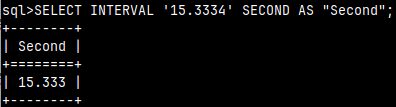
            , INTERVAL '15.333' SECOND AS "Second"                                 --15,333
            ;
For seconds data type, maximal precision is up to milliseconds. Result is always expressed with three decimals.
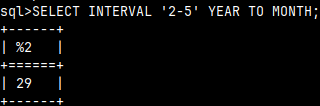
For "YEAR TO MONTH" we can also write "SELECT INTERVAL '2-5' YEAR TO MONTH".

TIME ZONES

Timestamp is combination of date and time. Timestamp time is time without daylight savings time (DST) regime. This time should represent Greenwich time.

For getting correct time, we should provide time zone with each database connection so that Greenwich time is transformed to local time. Timestamps '15:16:55+02:00' and '14:16:55+01:00' are presenting the same time but for users in different time zones. Timestamp '15:16:55+02:00' and '14:16:55+01:00' are both presenting Greenwich time of '13:16:55+00:00' because 15 – 2=13 and 14 – 1= 13.

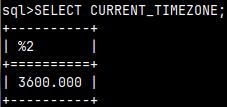
If we want, we can change our connection time zone setting by issuing statement "SET TIME ZONE INTERVAL '01:00' HOUR TO MINUTE". This statement "SELECT CURRENT_TIMEZONE" would tell us what is our current time zone.

0050 MonetDB – Identifiers and Constants

Comments

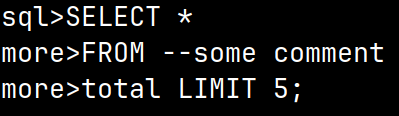
There are two types of comments. One-line comments start with "- -" two dashes and they end at the end of the line. First, we will start the server we previously created with "monetdbd start /home/fffovde/DBfarm1". We will also start our mclient application with "mclient -u voc -d voc". Then we can try such comment as:

sql>SELECT * 
more>FROM --some comment
more>total limit 5; 

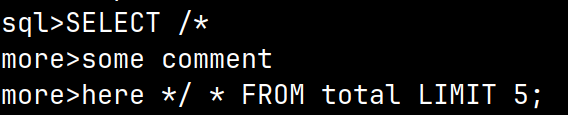
We can also use multiple lines comment. They start with "/*", and they end with "*/".

sql>SELECT /*
more>some comment
more>here */ * FROM total LIMIT 5;

Identifiers and Keywords

Identifiers and Keywords are not case sensitive.  

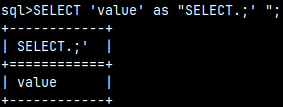
If we have an identifier that is the same word as keyword, then we should place quotes around it. We can have column named SELECT, if this identifier is inside of quotes. This also allows usage of spaces and special characters inside of our identifier.

SELECT 'value' as "SELECT.;' ";    

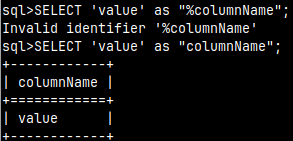
Identifiers can not start with % symbol.

SELECT 'value' as "%columnName";   SELECT 'value' as "columnName";

Constants

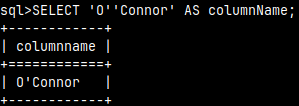
String constants are delimited with single quotes like 'string data'. If our text contains single quotes then such single quotes should be doubled, like 'O''Connor'.

SELECT 'O''Connor' AS columnName;  

We can use UNICODE codes to create constants.

sql>SELECT U&'\0441\043F\0430\0441\0438\0431\043E' as "thank you";  

With UESCAPE it is possible to change default escape sign:

sql>SELECT U&'*0441*043F*0430*0441*0438*0431*043E' UESCAPE '*' as "thank you";  

Time Constants

These constants can be typed as strings, but will still be recognized as time constants.

'2014-02-03'CAST('2014-02-03' AS DATE)
'15:45:56'CAST ('15:45:56' AS TIME)
'2014-02-03 15:45:56'CAST ('2014-02-03 15:45:56' AS TIMESTAMP)

Special Characters

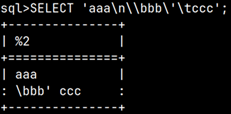
Inside of strings we can use these special characters.

\t  –  this will return TAB.
\n –  new line.
\r  –  carriage return.
\f  –  form feed.
\'  –  single quote.
\\  – backslash.

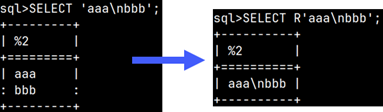
If we want to disable such behavior, we can use raw strings. We just type "R" before string, and escape sequences will be ignored.

Data

Data is expressed as scalar or a table. Scalars are constants, column references, operator results, function results, and subqueries that return one value. Column reference is written as "tableName.columnName". We can omit "tableName" and only write "columnName" if there is no ambiguity.

Table name is written as "schemaName.tableName". If there is no ambiguity, we can write only "tableName".

We can also reference tables and columns through their aliases.

0040 Connect to MonetDB from Python

Installation of Pymonetdb Module on Ubuntu 24.04

Python comes preinstalled on most of the Linux distributions. We can check version of our python with a command:

python3 --version             

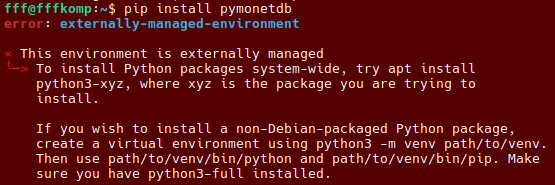
For connection to MonetDB, python is using Pymonetdb module. Ubuntu's default Python (in /usr/bin/python3) is owned and maintained by APT. Ubuntu doesn't want users to use python installers, like "pip", because doing so could corrupt packages that Ubuntu's package manager relies on. This is done to avoid conflicts to packages installed by OS package manager.

For installation of the python packages that are not available in the Ubuntu's repository, we should use virtual environments. We will see bellow that Pymonetdb is provided by Ubuntu, so we don't have to use virtual environment.

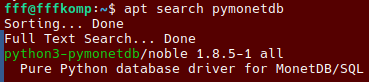
For that reason, we will not install Pymonetdb using "pip" as we would normally do, but we will use apt package manager. In this way we can only install packages that are available in the Ubuntu's repository. First I will update the index of the available Ubuntu's repository packages, and I will search for Pymonetdb module.

sudo apt update
apt search pymonetdb

Modern Ubuntu only has Pymonetdb module that is meant to be used with the Python3.

We will install this module from the Ubuntu repository:

sudo apt install python3-pymonetdb

Pymonetdb module is now installed.

Installation of Pymonetdb Module in a Legacy Way

On the older versions of Ubuntu ( older than 23.04 ) we could install Pymonetdb with the "pip" installer. We already have python installed:

python3 --version           

Pip is a console program used for installing python modules. So, first we need to install pip, if we don't have it.

sudo apt install python3-pip                      

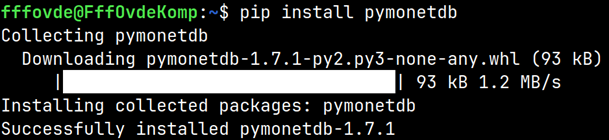
After installing pip, we will use it to install pymonetdb module:

pip install pymonetdb  

Pymonetdb module is installed.

Starting a Database

Before we try to connect to MonetDB, we must start our database:
monetdbd start /home/fffovde/DBfarm1
monetdb start voc

Installing of Spyder IDE on Ubuntu

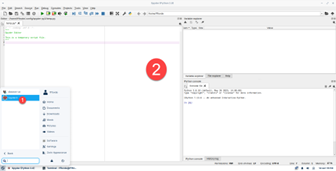
Now we can try to connect to MonetDB from python. For that, I will type python commands into Spyder IDE. We have to first install Spyder IDE on Ubuntu.

sudo apt install spyder                  

We can then start Spyder from the graphical interface (1). This is how spyder looks like (2):

Spyder is a free and open source scientific environment for Python.

Python Script to Connect to MonetDB

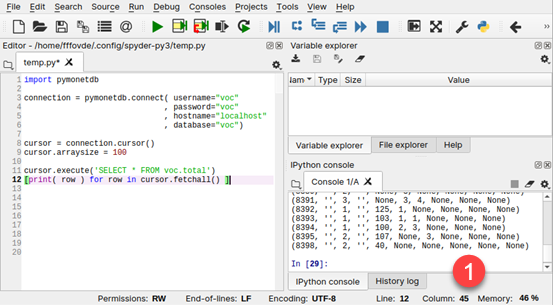
Inside of Spyder IDE, I will add this script. This script will first create connection object. Using that connection object, we will create cursor object. Then we can use cursor object to execute our query.

import pymonetdb
connection = pymonetdb.connect(username="voc", password="voc", hostname="localhost", database="voc")
cursor = connection.cursor()
cursor.execute('SELECT * FROM voc.total')
[print( row ) for row in cursor.fetchall() ]

Result of our query will be list of tuples (like [(a,b,c),(1,2,3)] ), where each tuple is one row of a table. We will use list comprehension to print those rows one by one. At the end, Spyder console (1) will show us result.

Pymonetdb Help

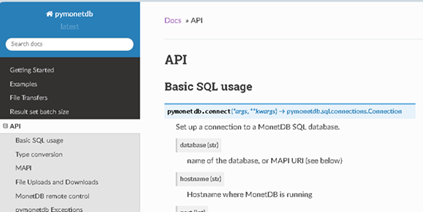
If you want to learn more about pymonetdb, you can go to official documentation on this address:

https://pymonetdb.readthedocs.io/en/latest/index.html

Branding icons of Excel, Word, PowerPoint files

Embedded Custom Icons in Excel File

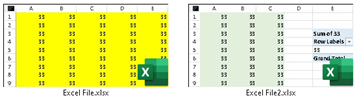
Sometimes, when we download an Excel file from the Internet, we get icons that are actually previews of the contents of the Excel file. We can get icons like this if we enable thumbnails for Office files. We will see below how to achieve this.

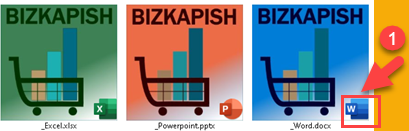
But even better, we can replace those preview icons with our brand icons. So, we get something like the icons below for our Excel files, but also for our Word and PowerPoint files. When we send such files to someone else, that person will receive files with our custom icons. We cannot remove the small images in the corner (1), they are automatically placed by Office, but the rest of the icon is free to customize.

How to Enable Thumbnails for Office Files

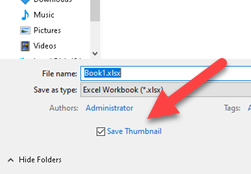
When we save files from Excel, Word or PowerPoint for the first time, there is a check box that will produce the saved files with a preview icon. We just need to check that checkbox before saving our file. Programs will remember our setting so the next time we save some other file, this checkbox will be checked. We have to do this separately for Excel, Word and PowerPoint.

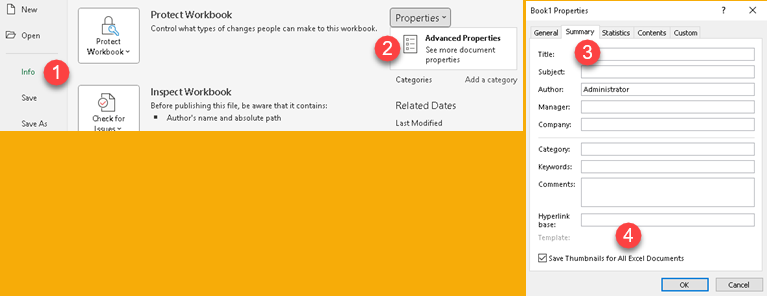
It is also possible to enable this checkbox if we go to File > Info (1) > Properties > Advanced Properties (2). In the new dialog, we would have to go to the Summary tab (3) and there we have to check (4) "Save thumbnails for all Excel documents". "Save Thumbnail" and "Save Thumbnail for All Excel Documents" are the same checkbox and they are always synchronized.

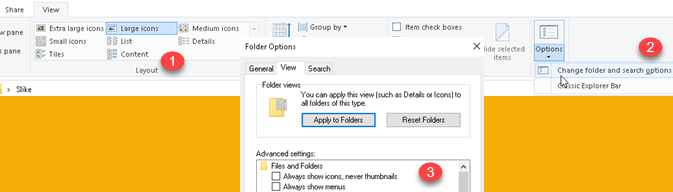
Such preview icons will only be visible on the desktop or within a Windows Explorer window. Within the Windows Explorer window, the View selected should be "Large Icons" or some similar option (1). If we still can't see our preview icon, we should also check inside View > Options > Change folder and search options (2). That will open a new window, where in the View tab we have the option "Always show icons, never thumbnails" (3). We should make sure to disable that option.

Insert a New Icon Manually from Scratch

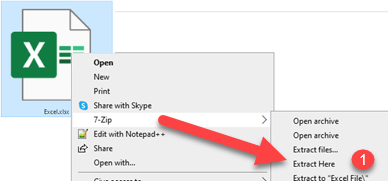
The file formats XLSX, DOCX, PPTX are actually ZIP files. We can use some program that can extract such archives to get the inside of our Office files. In Figure (1) we can see how to use the popular 7-Zip program to extract our archive. For some other programs, you will first need to change the Excel file extension from XLSX to ZIP, and then use that other program to decompress. 7-Zip doesn't need that step, it will happily extract the XLSX file directly.

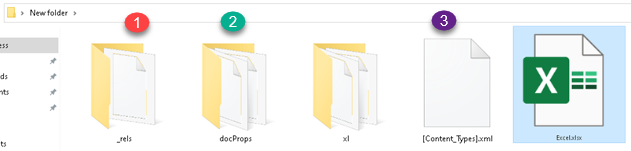
As we can see below, we would get at least three folders and one XML file from one Excel file. There may be some other files inside, but for our project we are only interested in the folders (1), (2) and the XML file (3).

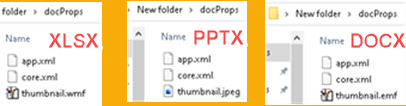
Inside the "docProps" folder we will place our icon. The icon must be in WMF file format for Excel, JPEG file format for PowerPoint, EMF file format for Word. I use a size of 64×64 pixels. The icon names should be "thumbnail.vmf", "thumbnail.jpeg", "thumbnail.emf".

In XML file "[Content_Types].xml", before </Types>, we need to add red text from bellow. For PPTX files, text is almost the same, we just use jpeg format so the text should be "<Default Extension="jpeg" ContentType="image/jpeg"/>". For DOCX files we use "<Default Extension="emf" ContentType="image/x-emf"/>".

…heetml.styles+xml"/><Override PartName="/docProps/core.xml" ContentType="application/vnd.openxmlformats-package.core-properties+xml"/><Override PartName="/docProps/app.xml" ContentType="application/vnd.openxmlformats-officedocument.extended-properties+xml"/><Default Extension="wmf" ContentType="image/x-wmf"/></Types>

Inside the "_rels" folder there is ".rels" XML file. Inside it we do something similar. Before </Relationships>, we need to add red text from bellow.

…nxmlformats.org/officeDocument/2006/relationships/officeDocument" Target="xl/workbook.xml"/><Relationship Id="rId999" Type="http://schemas.openxmlformats.org/package/2006/relationships/metadata/thumbnail" Target="docProps/thumbnail.wmf"/></Relationships>

For Powerpoint files, the only difference for ".rels" file is that we use "thumbnail.jpeg" instead of wmf.

<Relationship Id="rId999" Type="http://schemas.openxmlformats.org/package/2006/relationships/metadata/thumbnail" Target="docProps/thumbnail.jpeg"/>

For word we use EMF.

<Relationship Id="rId999" Type="http://schemas.openxmlformats.org/package/2006/relationships/metadata/thumbnail" Target="docProps/thumbnail.emf"/>

The final step is to zip all the insides of our Excel file back into the ZIP file (1). After that we just change the extension of that ZIP file to XLSX and our custom icon is applied (2).

What if We Already Have a File with a Thumbnail?

In that case, the procedure above is almost the same, but the only modification would be to replace existing WMF (or JPEG or EMF) image with our own. If the office file already has a thumbnail, then there is no need to modify XML files, we just replace the image.

Such Custom Icons are Fragile

If the user opens our file, changes some content, and then he clicks "Save", our custom icon will be lost. There are two scenarios here:

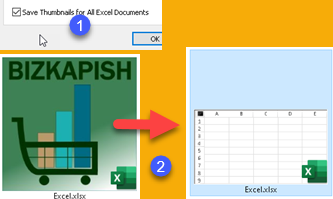
1. If the user has "Save Thumbnails for All Excel Documents" option turned on (1), then our custom icon will change to a preview thumbnail (2).

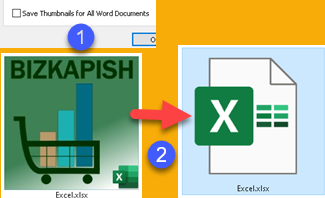
2. If "Save Thumbnails for All Excel Documents" option is turned off (1), clicking on "Save" will revert our custom icon to the standard Excel icon (2).

Changing Default Template

Is it possible to change our default template so that every new Excel file has our custom icon?

Well, that is not possible. You can create a new file from a template, but when you save that file, your custom icon will be removed, so it is not possible to inherit custom icon from the default templates.

How to Automatically Change Office File Icons to Custom Icons

If you have a lot of Office files and want to change their icons to custom icons, then you can use my VBA project which is available for download at the bottom of this blog post. This project will work both on files without preview icon, and on files that have a preview icon. The VBA project will work on all files that have four-character extensions where the first three characters are XLS*, PPT* or DOC*. This means that this VBA project will also change the icons of XLSM and similar files, too.

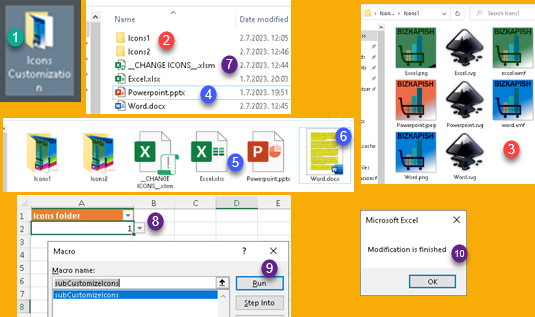
First download "Icons Customization" folder (1). You can place this folder anywhere and you can rename it. Inside it there is a subfolder "Icons1" (2). Within that subfolder you can find WMF, EMF and JPEG files (3). I also uploaded original SVG files there. I transformed those SVG files into PNG files, and then those PNG files into WMF and EMF files. I couldn't get the correct WMF and EMF files directly from SVG files. The "Icons2" folder is the same as folder "Icons1". You can have up to 20 such folders with different icons sets. These "Icons" subfolders shouldn't be renamed.

Files "Excel, Powerpoint, Word" (4) are the files that will get a new icon. You can place more Office files here and all of them will be modified. Note that files for Excel and Powerpoint  (5) are regular files, but the Word file (6) has a preview icon.

Now, open the "CHANGE ICONS" file (7). Choose from drop down menu (8) which icon set you want to use. Then run the "subCustomizeIcons" macro (9). When the project is completed, you will get a message (10). If you have many files and if they are big in size, then this procedure will take longer. Every file must be zipped and unzipped, and this takes time.

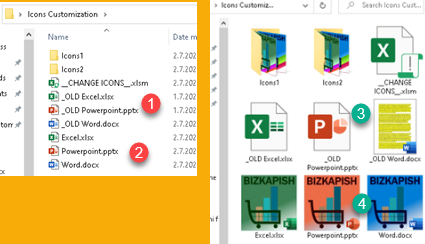
All original files will now be prefixed with "_OLD" (1). The new files will have original names (2). If we switch to "Large icons" view, we will see that our original files are unchanged (3), but our new files have branded icons (4).

From here you can dowload VBA project: