0600 Running MonetDB in Docker Container

Introduction

Virtual Machines

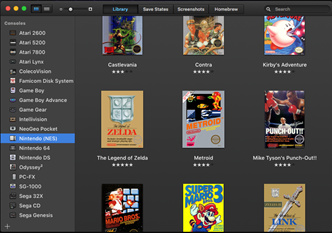
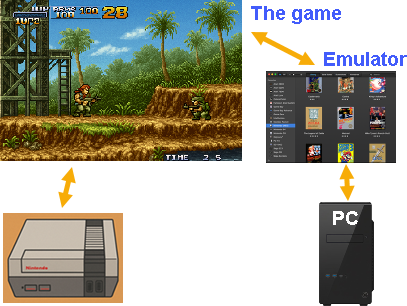
People used to love playing games on old game consoles. People would continue to play those games, but those consoles are no longer for sale, so there are no devices available on which to play these old games.To solve this problem, emulators are born. Emulators are programs that you install on your computer, and they imitate retro game consoles. In that way, people can still play their favorite video games, even without the game console.Emulator is simulating the actual hardware. For video games it doesn't matter if they are running on an emulator or on the real device.

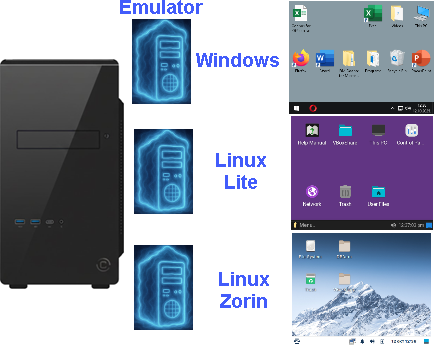
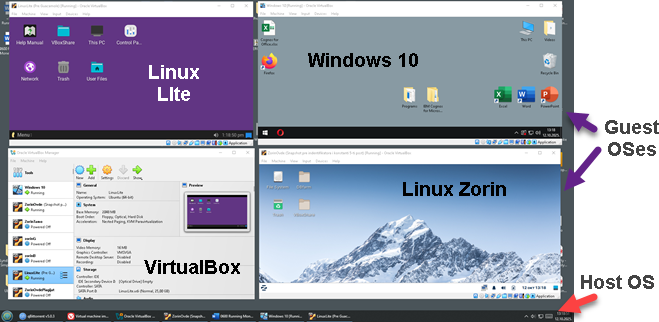
It is also possible to emulate Operational System with all the programs on that system. It is just like we have several computers inside of the one computer case.Emulator for OS is called hypervisor. One such hypervisor is VirtualBox. VirtualBox is application that we install on our computer, and then we create "virtual machines". A virtual machine (VM) is a software-based emulation of a physical computer that runs its own operating system and applications. With VirtualBox, we can use virtual machines like any other application.

Container

Container is something in between portable application and virtual machine.

Portable applicationContainerVirtual machine
– Application that doesn't need installation.
– It should match OS version.
– Lightest and fastest.
– Not isolated from other applications.
– Application with most of its dependencies.
– It should match class of OS (Linux, Windows…).
– Middle weight.
– Mostly isolated.
– Full OS with all the applications.
– Should match hypervisor.
– Heavy weight.
– Fully isolated.

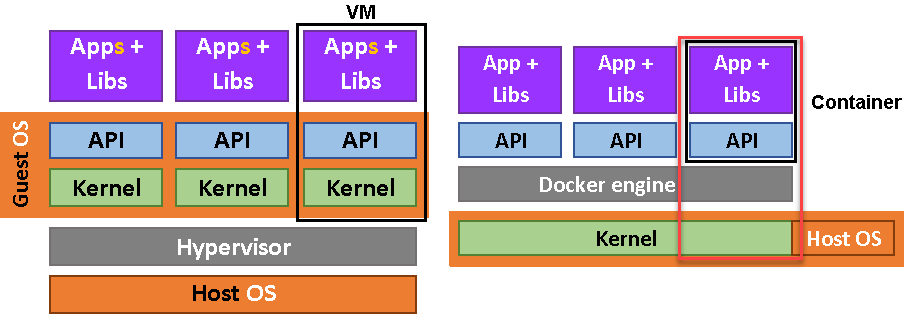
We could say that container is stripped down virtual machine. If we limit virtual machines to only one application, and we force virtual machines to share kernel with the host machine, then we would get containers.

VM – kernel – other apps = container

Containers doesn't use hypervisor. They use docker engine. Docker engine is just an application, just like VirtualBox.  

Containers are similar to portable applications, they can be easily deployed, moved, and upgraded. In addition, containers are isolated from other applications and will not compete for resources between them. Containers are much lighter and faster than virtual machines. Containers are immutable, so it is not possible to update parts of the container. This gives us consistency that we can rely on.

Usage of a Container

Images are templates used to create containers. An image contains everything needed to build a single container. Images are created by application developers. A developer would create an image and then provide it to users, who would then be able to create containers based on the image.

Let's say we want to publish our application as an image. We will package all our source code along with a "Dockerfile" (explained later) into a single folder. We would use the "Build" command to create a "Docker image". The image is the template from which containers are built. We will upload that image to a Docker image repository (registry). "Docker hub" is a well-known cloud image registry. Users can download our image from the registry. Based on that image, the user will launch the container. In the container, the user would find the application we created.

Anatomy of a Dockerfile

If we go to this git hub web page "link", we will find an example of files that are needed to create an image for MonetDB.
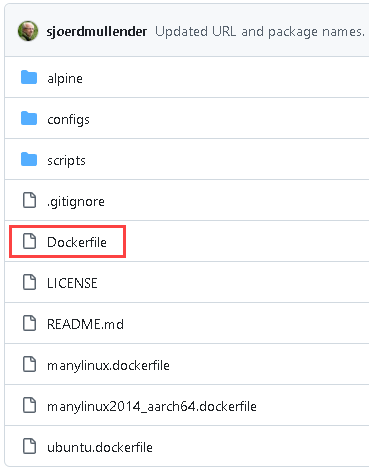
Here we can see source files for MonetDB, and among them there is a file with a name "Dockerfile". This file is an instruction for docker image creation.

"Dockerfile" for MonetDB is a more complex one, so I will show you another one that is simple.     =>
"Node.js" is a framework for making web applications. The Dockerfile below is instructions on how to make docker image based on the "Node.js" application.

"FROM" command will download stripped down linux distro from the "Docker Hub" cloud. That stripped linux distro will give system API for our application. After that, we will define working folder, we will copy our application into that folder, and we will install all dependencies for our app. The last line will start our application when a user starts the container.  

FROM node:22-alpine # ALPINE is a tiny linux distro, with node.js installed.
WORKDIR /app      # we set the working directory inside of the ALPINE linux.
COPY . .   # we copy from the current directory on the host                        
    # machine to "/app" directory inside of the ALPINE linux.
RUN npm install # we install dependencies that are listed inside of our project, into image
CMD npm start   # this command will run when our container starts.

All Dockerfiles are made like this. They usually have the same steps:1) get linux image for API2) define a folder3) copy your application4) download dependencies
5) build/compile6) create user7) expose network ports8) set some environs9) define startup command

Docker file is basically a list of steps we would take on a physical machine to make our application operational. We will not go any deeper into docker technology. In this article we will only learn how to install docker and download and use MonetDB container.

Installation of a Docker

On this web page we can read how to install Docker on Ubuntu. It is a long page, but we can take a shortcut.
https://docs.docker.com/engine/install/ubuntu

On the bottom of that page, we will find a script. We can download and run this script. That means that we can install docker with two lines of code:   curl -fsSL https://get.docker.com -o get-docker.sh
sudo sh get-docker.sh

We should add our user to docker group.
sudo usermod -aG docker $USER

After that we should log out and log in.

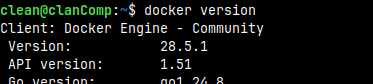
We can now confirm that docker is installed:
docker version

Monetdb Container Installation

Getting a Monetdb Image
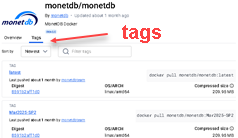
MonetDB containers are hosted on "Docker Hub". MonetDB team will create a new container for each new version of MonetDB. We can find a list of all the MonetDB versions on this page: https://hub.docker.com/r/monetdb/monetdb/tags

The name of each version is made of three elements:
nameOfDockerHubAccount / nameOfApplication : versionNumber  

We can download the latest version to our computer using this command.   docker pull monetdb/monetdb:latest  

We type this command to observe our images. In non-compressed state, our image is 536 MB.
docker images

"Tag" is a version of the image. If we don't provide a tag, we will always get the "latest" version.

Starting MonetDB Container

This is how we can start MonetDB containers. ALPINE linux will expose the server on the default port 50.000, but we must tie that to the host port number. We will use again 50.000 for the host port number.
By default, our farm will be on location "/var/monetdb5/dbfarm" inside of the container. The name of default database will be "monetdb". We can set an environ with administrator password like "-e MDB_DB_ADMIN_PASS=monetdb2".

docker run -p50000:50000 --restart unless-stopped -e MDB_DB_ADMIN_PASS=monetdb2 monetdb/monetdb:latest

The server will stay in the foreground in the terminal. We will open a new tab inside terminal and there we will type:
docker ps    #this will list opened containers

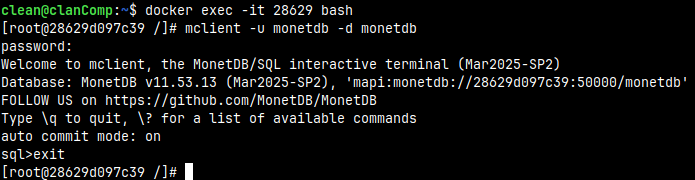
We can connect to bash in the new container. "28629" are start figures of the container ID. We will be connected as a root.
docker exec -it 28629 bash

Administrator is "monetdb", and the default database is "monetdb". Password is "monetdb2" and it is set through environ MDB_DB_ADMIN_PASS.

mclient -u monetdb -d monetdb
# monetdb2 is password

What Will Happen If We Reboot Computer
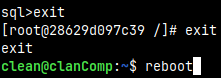
I will exit bash, and then I will reboot my computer. We used option below with the "docker run" command. This option will make our container to automatically start when the computer starts. It is only possible to stop it manually.
--restart unless-stopped
If we don't want container to start automatically, we use the default "--restart no".

After restart "docker ps" command will show containers active on our computer. We can see that our container STATUS is "Up 43 seconds".

If we type "docker ps -a" we would get all the containers on our computer, both stopped and active.

I will stop the container.
docker stop 28629
There are now no active containers, just one stopped container.

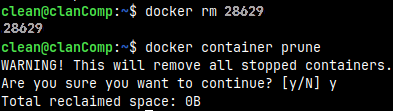
We can now delete stopped container:
docker rm 28629

This command would delete all the stopped containers:
docker container prune

MonetDB Container Options

docker run -d -p50000:50000                              \
   --restart unless-stopped                              \
   -e MDB_FARM_DIR=/var/monetdb5/dbfarm2                 \

   -e MDB_CREATE_DBS=db1,db2                             \
   -v data-vol:/var/monetdb5/dbfarm2                     \
   -e MDB_SNAPSHOT_DIR=/snapshot                         \

   -e MDB_SNAPSHOT_COMPRESSION=.tar.bz2                  \
   -e MDB_LOGFILE=/logfile                               \
   -e MDB_FARM_PROPERTIES=exittimeout=70,keepalive=70    \
   -e MDB_DB_PROPERTIES=nthreads=10,ncopyintothreads=10  \
   -e MDB_DB_ADMIN_PASS=monetdb2                         \
   -e MDB_DAEMON_PASS=daemonPass                         \
   monetdb/monetdb:latest
We will now start the container again, but with fully customized options.
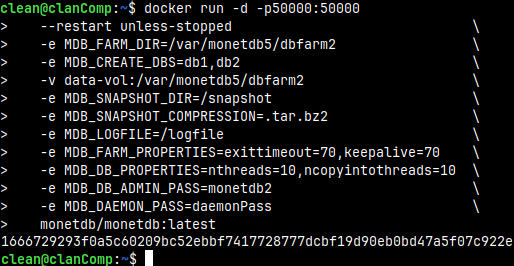
Above we use the "-d" option to detach our container. This means that after we run this command, docker will not remain in the foreground, but we will get the command line again, so we can continue typing commands in the same shell.

At the bottom of the image, we can see ID of the new container.1666729293f….

MDB_FARM_DIR and MDB_CREATE_DBS

We can define in which directory in the container our farm will be created. That is defined with MDB_FARMDIR. With MDB_CREATE_DBS, we can create one or several databases. Between the names of databases there must be no spaces, just the comma.

-e MDB_CREATE_DBS=db1,db2       
-e DB_FARM_DIR=/var/monetdb5/dbfarm2  
                                   
I will again enter container's bash to
check whether we have this folder and databases.
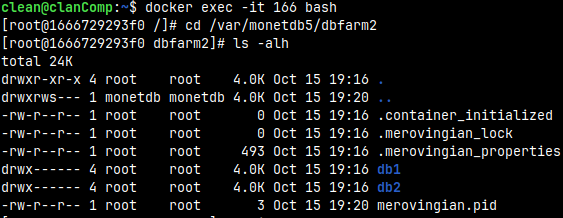
docker exec -it 166 bash

Inside of the bash I will jump do "dbfarm2" folder.  
cd /var/monetdb5/dbfarm2

Inside this folder we will find databases db1 and db2.  
ls -alh

We don't have explicitly define MDB_FARM_DIR and MDB_CREATE_DBS. They can take the default values./var/monetdb5/dbfarmmonetdb

Volume

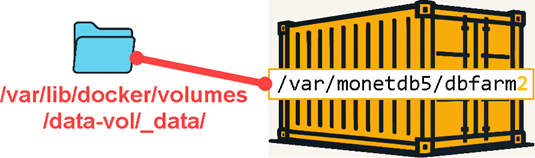
We used option that will create volume. Volume is folder on the host system that is mounted into file system of the container.  

-v data-vol:/var/monetdb5/dbfarm2

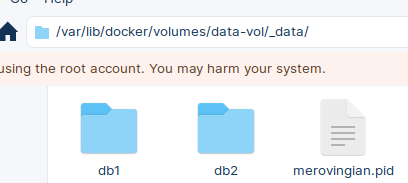
Volumes can be found on the host system at the location:
/var/lib/docker/volumes

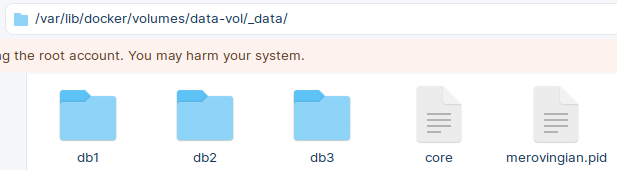
We can open this folder on our host computer, and inside of it we will find our databases. The purpose of the volumes is to provide data persistence. If our container is deleted, everything inside of it will be deleted. But this will not happen if the data is on the host computer and is only mounted to container.

If we want the data to be safe and persistent, we should use volumes.

MDB_SNAPSHOT_DIR, MDB_SNAPSHOT_COMPRESSION and MDB_LOGFILE

We set MDB_LOGFILE to be "/logfile". That is where is MonetDB log:
cat /logfile

By default, logfile will be placed inside of the DBfarm, and will have a name "merovingian.log".

We have set snapshot options:
-e MDB_SNAPSHOT_DIR=/snapshot  
-e MDB_SNAPSHOT_COMPRESSION=.tar.bz2                 
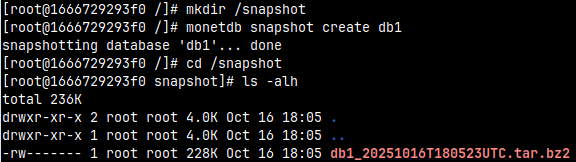
I will make a snapshot with the default settings:

monetdb snapshot create db1

MonetDB will try but will fail because "/snapshot" directory doesn't exist. We must create it.

mkdir /snapshot
monetdb snapshot create db1
cd /snapshot
ls -alh


Snapshot will be created with the assigned compression "bz2".

Snapshots cannot be created if we don't provide snapshots environs. It would be wise to place snapshots inside of the volume to preserve them.

MDB_FARM_PROPERTIES and MDB_DB_PROPERTIES

With MDB_FARM_PROPERTIES environs we set two DBfarm properties.
monetdbd get all /var/monetdb5/dbfarm2 | egrep 'exittimeout|keepalive'

Possible properties are explained inside of this blog post "link". We cannot set properties "listenaddr, control and passphrase". "Listenaddr" is always set to "all". "Passphrase" is set by the environ MDB_DAEMON_PASS. If we set MDB_DAEMON_PASS, then "control" will be set to true.

If I try to read database properties with "monetdb get all db1", I am getting an error "incomplete response from monetdb". I don't know why this is happening. We are also kicked out from the bash. This is a bug.

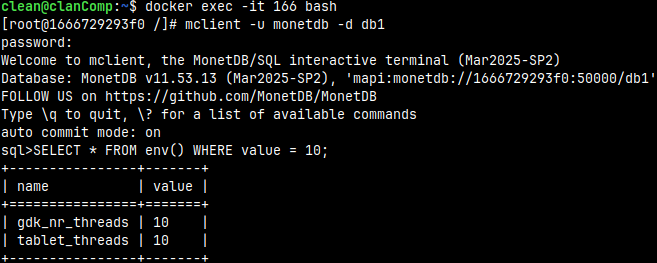
Alternatively, we can read from the system function "env()". I will login again into bash and then into mclient.

docker exec -it 166 bash
mclient -u monetdb -d db1  #password monetdb2
SELECT * FROM env() WHERE value = 10;


In the "env()" table, we can see that the values ​​of the "nthreads" and "ncopyinthreads" properties are set.

Possible properties for a database are explained in this blog post "link".

MDB_DB_ADMIN_PASS and MDB_DAEMON_PASS

MDB_DB_ADMIN_PASS is a mandatory environ. We must set it in order to run MonetDB container.

MDB_DAEMON_PASS is a password for remote Monetdbd control. Remote control of a daemon is explained in the blog post "link". In the context of the containers, this password will allow us to control the daemon in the container from the host operating system.

I will run this command from the host OS to control monetdbd daemon inside of the container.
monetdb -h localhost -P daemonPass create db3

For this to work we need to have some conditions fulfilled on the host operational system:
– We must have MonetDB installed on the host computer.
– DBfarm must be started. Without that we cannot use "monetdb" command.
– DBfarm on the host computer must use port number different than the port number of the MonetDB inside of the container.

monetdbd get port /home/clean/DBfarm1

Host computer has Monetdbd on the port 50.0001.

On the host computer we can visit "volume" folder. Inside of it we will see that the new database "db3" has been created.

How to Stop and Start Container?

We can stop the container with command:
docker stop 16667
docker ps -a
We can start the container with the command:
docker start 16667
docker ps

Clean Up

Deleting Images and Containers

I will now delete everything we have done. First, I will stop and delete container.
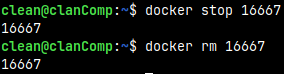
docker stop 16667
docker rm 16667

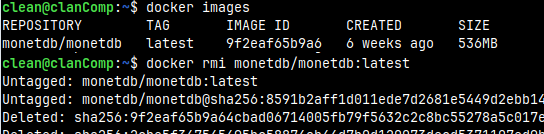
We can also delete the image:
docker images
docker rmi 9f2e

Removing Docker from Your System

Deleting Docker includes these steps:

We will first stop docker services.
sudo systemctl stop docker.service
sudo systemctl stop docker.socket

We can now uninstall all parts of the docker:
sudo apt purge -y docker-ce docker-ce-cli containerd.io docker-buildx-plugin docker-compose-plugin

In the next step, we will remove docker repository and GPG key.
sudo rm -f /etc/apt/sources.list.d/docker.list
sudo rm -f /etc/apt/keyrings/docker.gpg

We can update the list of available packages.
sudo apt update

We will remove orphaned dependencies.
sudo apt autoremove -y
sudo apt autoclean

We can also remove all the remaining docker files.
sudo rm -rf /var/lib/docker
sudo rm -rf /var/lib/containerd
sudo rm -rf /etc/docker
sudo rm -rf ~/.docker

We will delete docker user group.
sudo groupdel docker

Now, we can conclude that docker is deleted:
docker --version

0590 System, Session Procedures and Queries Que

DBfarm1

I will login as admin into "voc" database.monetdbd start /home/fffovde/DBfarm1
mclient -u monetdb -d voc 
    #password monetdb

System Procedures

Table Statistics

In one of the previous blog posts "link", we saw the existence of a system table containing statistics about database tables:

SELECT *
FROM sys.statistics
WHERE minval = 'A';

We saw that this table can be updated partially with these commands. Now, we will see that for each of these commands we can use stored procedure, as an alternative.

 Update schema statistics:Update table statistics:Update column statistics:
CommandANALYZE sys;ANALYZE sys.auths; ANALYZE sys.auths ( name ); 
ProcedureCALL sys.analyze('sys');CALL sys.analyze('sys', 'auths');CALL sys.analyze( 'sys', 'auths', 'name' );

There is also a procedure that will update statistics for all the schemas:CALL sys.analyze();

Table Data Dump

I will read from one system table. We'll see that this table is empty.  
SELECT * FROM sys.dump_statements;
I will now call this procedure:
CALL sys.dump_table_data( 'sys', 'auths' );

We will read again from the "sys.dumpstatements".  
SELECT * FROM sys.dump_statements;

Now we have a row with a statement that can be used to fill "auths" table with the data.

We can empty this table normally:
DELETE FROM sys.dump_statements;

If we call the same procedure, but without arguments, all the tables from the database will be dumped ( image is from "DBfarmDB" database ):  
CALL sys.dump_table_data();
SELECT * FROM sys.dump_statements;

Eval Procedure

I want to find the table in my database that has the biggest ID. I want to read the content of that table. It is easy to find the name of this table. The problem is how to read its content.
SELECT name FROM sys.tables WHERE id = ( SELECT MAX( id ) FROM sys.tables );

CREATE OR REPLACE PROCEDURE TableWithBiggestID()
BEGIN
    DECLARE TableName VARCHAR(50);      
    SET TableName = ( SELECT name FROM sys.tables WHERE id = ( SELECT MAX( id ) FROM sys.tables ) );
    CALL sys.eval( 'SELECT * FROM ' || TableName || ';' );
END;

                                                                                                                                                                                                           
For that task, I will use stored procedure "sys.eval". It will transform text into statement.

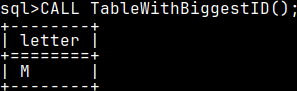
In our procedure, we will find the name of the table with the biggest ID ( table "tabula" ). We will create string "SELECT * FROM tabula;". To execute string, we will transform it into statement with "sys.eval". If we call our procedure "TableWithBiggestID", we will see the content of the table "tabula".
CALL TableWithBiggestID();

This function is only available to administrator.

Vacuum

Vacuuming is a maintenance process where we clean databases of obsolete data and defragment columns. After deleting or updating many rows, old records will not be deleted but will only be marked as deleted. This can lead to excessive disk usage and prevent sequential reading of column values.

We can manually vacuum one table or one column.CALL sys.vacuum('voc', 'voyages');  CALL sys.vacuum('voc', 'voyages', 'number');  

It is possible to schedule column vacuuming at regular intervals. The interval is expressed in seconds.CALL sys.vacuum('voc', 'voyages', 'number', 3600);  
This is how we stop the schedule.
                                                                                                    
CALL sys.stop_vacuum('voc', 'voyages','number');

Session Procedures

Session Procedures for Users

User can read his own session ID.
SELECT sys.current_sessionid();
User can limit memory consumption for his queries. This is measured in MB.

CALL sys.setmemorylimit(500);
User can disable his memory limit if he call this procedure with the argument equal to zero.  

CALL sys.setmemorylimit(0);

Users can set query timeout to 1 second.  

CALL sys.setquerytimeout(1);
If our query is longer than 1 second, error message will appear.
Zero will reset query timeout.
CALL sys.setquerytimeout(0);

We can limit session to 3 seconds.  
CALL sys.setsessiontimeout(3);
This will happen if we run a query after 3 seconds.
Zero will reset session timeout.

CALL sys.setsessiontimeout(0);

Users can choose their optimizer.
CALL sys.setoptimizer('minimal_pipe');
We can find a list of optimizers in the system table "sys.optimizers".Default optimizer is "default_pipe".

We can limit the number of threads that user queries can use.
CALL sys.setworkerlimit(8);
Zero argument will remove this limit.
CALL sys.setworkerlimit(0);

Client Info Procedure for Users

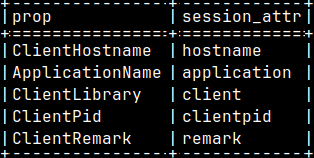
We can declare some properties for the database client we are using. If we read from this system table, we will find a list of the properties that we can declare.

SELECT * FROM sys.clientinfo_properties;
ClientHostname – the name of our computer. ApplicationName – Mclient, DBeaver, Tableau. ClientLibrary – libmapi 11.53.3
ClientPid – number of the client process.
ClientRemark – A comment.

I will change one of these properties.
CALL sys.setclientinfo('ClientHostname', 'OldServer' );
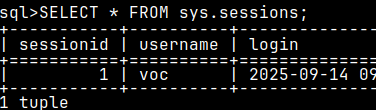
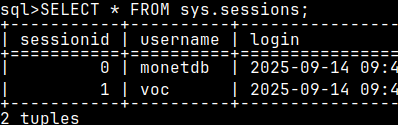
We can read current values of these properties in the "sys.sessions".
SELECT * FROM sys.sessions;

The purpose is to write client data to the "sys.session" table, so we can better understand server usage.

Session Procedures for Admins

I will open another tab in the terminal, and there I will login as a user "voc".mclient -u voc -d voc         --password is voc
If the user reads from "sys.session", he will only get his own session.

SELECT * FROM sys.sessions;

When the admin reads from the "sys.sessions", he will see sessions with all the users. Admin can use IDs of those sessions to manage those sessions. Below we can see how admin can manage user voc session ( ID 1 ).
SELECT * FROM sys.sessions;

CALL sys.setmemorylimit( 1, 100 );Admin can limit memory usage to 100 MB.We disable this limit by setting it to zero.
CALL sys.setoptimizer( 1, 'sequential_pipe');Admin can set optimizer.Default optimizer is "default_pipe".
CALL sys.setquerytimeout( 1, 8 );User's queries will time out after 8 sec.Zero will disable query time out.
CALL sys.setsessiontimeout( 1, 30 );Session will time out after 30 seconds.Zero will disable session time out.
CALL sys.setworkerlimit( 1, 8 );User's queries are limited to 8 threads.Zero will disable this limit.
CALL sys.stopsession( 1 );We can stop user's session. 

Queries Que

The Size of Queries Que

I will quit the session, and I will stop the "voc" database.
quit
monetdb stop voc
After that I will start the database, and I will login to it.
monetdb start voc
mclient -u monetdb -d voc    --password monetdb

I will read from the system view:
select * from sys.queue;
It is also possible to use function:
select * from sys.queue();

The result is a table that has a history of the last run queries. This table was emptied when we restarted the database, so now it only has 2 queries.

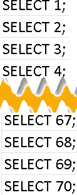
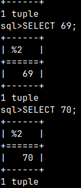
I will create a list of 70 queries, and I will paste all of them in the mclient.After all of them run, I will again read from the "sys.queue" table.

SELECT COUNT(*)
FROM sys.queue;
The result will be 64. MonetDB is keeping the last 64 queries.If I login again as a "voc" user in the other tab of the terminal, I can run a query as a "voc" user.  
mclient -u voc -d voc   --password voc
SELECT 'New';


I will read "sys.queue" table as a "voc" user.
SELECT * FROM sys.queue;
He has 3 queries.

I will go back being admin, and I will again run the statement.

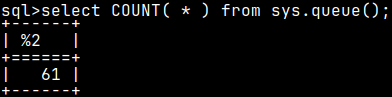
SELECT COUNT( * ) FROM sys.queue();
The result will be 61. MonetDB is keeping only the last 64 queries ( 61 + 3 ), from the all of the sessions.

Admin has ability to read the whole que:
select COUNT( * ) FROM sys.queue( 'ALL' );
With "ALL", admin can read from all of the sessions.
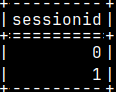
SELECT DISTINCT sessionid FROM sys.queue( 'ALL' );

Changing The Que Size

The number of queries saved is the same as the maximal number of clients that can connect to database. I will quit my session. I will stop my database and then I will change "nclients" property of the database.quit
monetdb stop voc
monetdb set nclients=10 voc
I will log in into database.
mclient -u monetdb -d voc

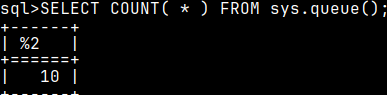
I will again paste 70 queries into mclient.If we now read from the "sys.queue", we will only find 10 queries. This is the proof that "nclients" property will limit number of queries kept inside of this table.

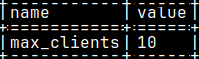
We can read the current value of "nclients" property with this query.  
select * from environment where name = 'max_clients';

Management of Queries

We can provide the name of a user, and that will return only the queries for that user. Currently, all the saved queries belong to admin.
select COUNT( * ) from sys.queue('monetdb');
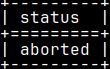
"queue" view will also include queries that are currently running. Such queries will be labeled with "running" in the status column.

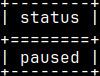
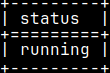
There are five possible statuses.Query is executing. runningQuery is halted.
paused
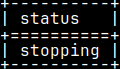
Query is stopping.
stopping
Query is stopped.
aborted
Query is executed. finished

I will open one more tab in the terminal, where I will log in as a admin.

mclient -u monetdb -d voc  --password monetdb
I will use this query on the right. This is recursive CTE that uses LEFT OUTER JOIN. Such query will never end. It is eternal.

I will run this query in the first terminal tab, and I will check the result in the second terminal tab.
WITH RECURSIVE numbers AS
( SELECT 1
   UNION ALL
  SELECT 1 FROM numbers
       LEFT OUTER JOIN sys.auths ON 1 = 1 )
SELECT * FROM numbers;

The last query in my "sys.queue" is number 93 ( column "tag" ). I know that when I run my eternal query, it will get number 94. I will run eternal query.

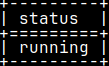
I will run this statement in the terminal second tab. My query will have status "running".SELECT status FROM sys.queue WHERE tag = 94;

I can pause my query from the terminal second tab. Status will change.CALL sys.pause( 94 );  
SELECT status FROM sys.queue WHERE tag = 94; 

I can resume my query. Status will change again.CALL sys.resume( 94 );  
SELECT status FROM sys.queue WHERE tag = 94; 

We can stop the query.CALL sys.stop( 94 );                                    
SELECT status FROM sys.queue WHERE tag = 94;
                                                                                          
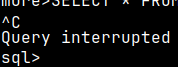
It seems that my query can be only stopped with "Ctrl+C". This is because I used eternal query.

Even when we use "Ctrl+C" to stop query, its status will become "aborted".SELECT status FROM sys.queue WHERE tag = 94; 

If we are admin we can manage queries of other users. For that we must provide the name of a user and his query number ( from column "tag" ).

--CALL sys.pause( 999, 'User1');--CALL sys.resume( 999, 'User1' );--CALL sys.stop( 999, 'User1');

0580 Mclient for MonetDB

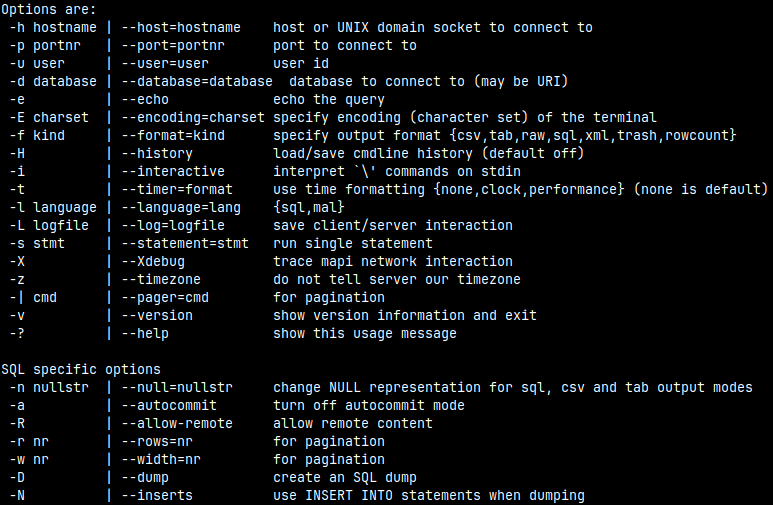
Mclient is the MonetDB command line client that connects to the MonetDB server to execute SQL commands. We have used this client in all the previous videos, but now we will see how we can make better use of it.

General Information

With mclient we can find out the version of our server and we can get help for mclient commands.  

This will show us version:  
mclient -v


This is how we can get help:
mclient -?

Information About Our Database

In one of the previous blogposts "link", I created database farm "DBfarm". Inside of it we have a database "DBfarmDB".   I will now login to that database as an admin and I will create some database objects. The objects will be created in the "sys" schema.  
monetdbd start /home/fffovde/Desktop/DBfarm
monetdb set readonly=no DBfarmDB            #if it is still readonly
mclient -u monetdb -d DBfarmDB           #password monetdb
CREATE TABLE tablo( Number INT );
CREATE VIEW viewo( Number ) AS SELECT Number from tablo;
CREATE SEQUENCE seqo;  

CREATE FUNCTION funco() RETURNS INTEGER
     RETURN SELECT 2;  

CREATE SCHEMA schemo;
 

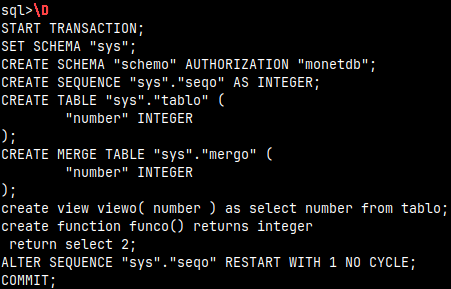
If we just type "\D" inside of the mclient, we will get sql dump in the stdout, for the whole database.
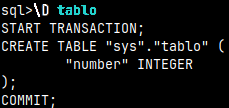
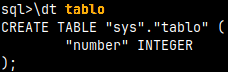
We can type the table name after the "\D" command. This will give us SQL to create that table.  
\D tablo
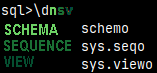
If we want to get a list of selected database objects, we just need to list them after the "\d" command. I will list schemas, sequences and views.

\dnsv

We can get lists of these objects:
n – schemas
f – functions
s – sequences
t – tables
v – views    
Just "\d" will give as tables and views by default. It is the same as "\dvt".

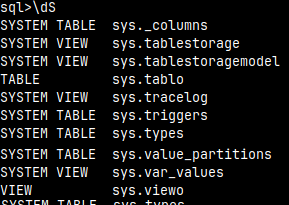
We can combine "\d" command with the letter "S". That will add system objects to lists.
\dSt
"\dS" is equal to "\dSvt".  
We can get SQL dump only for objects with the specific name.
\dst tablo

Name should be written with the lower letters, or inside of double quotes, like "Tablo".
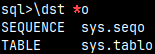
We can use wildcards "*" (several letters) and "_" (one letter).
\dst *o

Wildcards can not be used inside of double quotes. This will not work:
\dst "*o"

Query Execution Control

Query Formatting

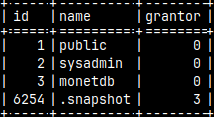
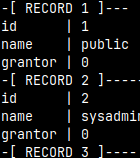
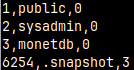
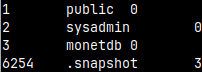
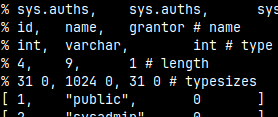
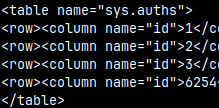
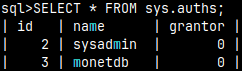
We can control how the result of a query will be presented ( default is "sql" ). Let's run "SELECT * FROM sys.auths;" with different modes.

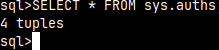
If we don't want to see the result of a query, we can use "trash" and "rowcount" modes.\f trash --trash will return nothing
\f rowcount -- only row count will return

\f sql  --default
\f expanded  -- records are vertical
\f csv -- comma is separator
\f tab -- tab is separator
\f raw --raw database format
\f xml --like xml document

There are some special modes for the CSV.

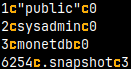
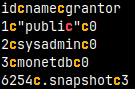
\f csv=c --separator is letter "c", or any other sign
\f csv+c --header is included
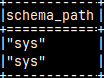
<= Note that there are double quotes around the word "public".For the rest =>, we will use query:   SELECT schema_path FROM sys.users;\f csv
--
quotes are doubled
\f csv-noquote --no doubling

\f sql --default

The Number of Rows

When we run query that will return a lot or rows, we will not be able to see all of them. They will just whiz by before our eyes. We want to control how the rows are displayed. We want to see them page by page. For that we will use "\r" command.

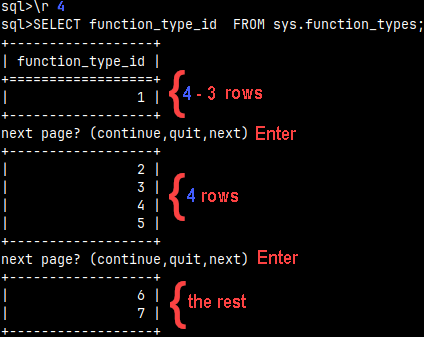
For this example, I will use system table sys.function_types. It has 7 rows.

SELECT * FROM sys.function_types;

I will set rows command to four:
\r 4

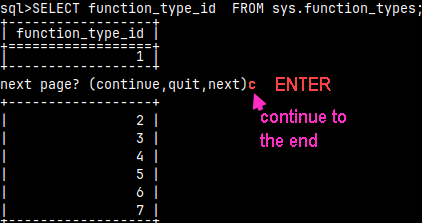
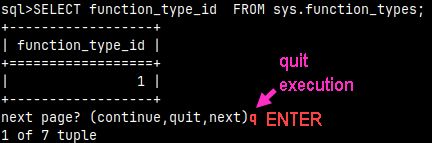
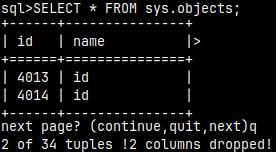
We will get only one row for the first page. For the first page we always get N-3 rows. This is probably bug. If N is three or smaller, then the first page will be empty.   For other pages we will get the complete 4 rows.
We can jump to the next page with "Enter". That is the same as "next".

If we type the letter "c" and then we press ENTER, we will jump to the end of a table.If we type the letter "q" and then we press ENTER, we will immediately exit the execution.For the last example I will make terminal window small.

I will set command to zero:
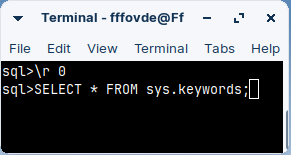
\r 0
I will query this table.
SELECT * FROM sys.keywords;
                                                          
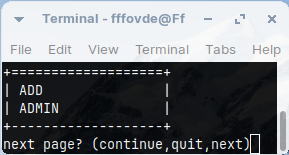
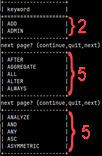
This is the best mode, because now the page is the size of the window.I will press ENTER several times to go through a few pages. Then I will enlarge the window.Only the first page will have 2 rows that are visible in one window. Other pages will have five rows. Obviously we have some "offset by 3" bug.

We will exit paging mode by setting the command to minus one "\r -1".

Width of a Table

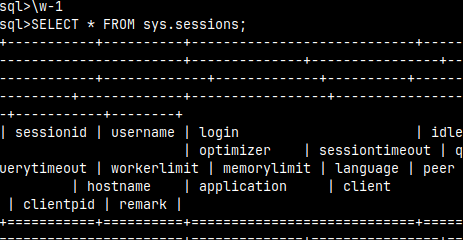
If we set "\w" to minus one, MonetDB will think that we have unlimited width terminal. I've narrowed the window, so presentation will be squeezed and crumbly. It becomes better if window is wider.
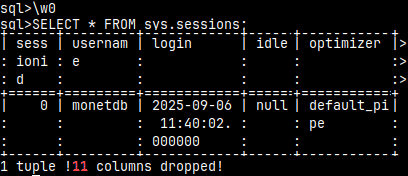
Default value of the "\w" command is zero. I made my terminal window narrow, so in this mode 11/16 columns will not be shown. Only the width of the terminal is used.
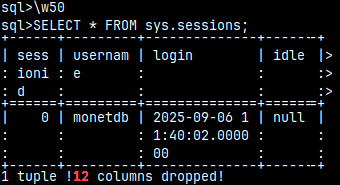
If we set "\w" to some positive number, MonetDB will think that the terminal is only a certain number of characters wide. I'll set it to 50 characters, which is enough for 4 columns.

Auto Commit Mode

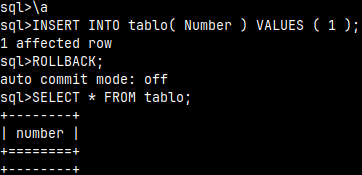
By default, auto commit mode is turned ON in mclient. We can turn it OFF with the command "\a".

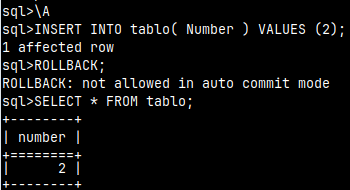
We turn it back to ON with "\A".
\a   
INSERT INTO tablo( Number ) VALUES ( 1 );

ROLLBACK;
SELECT * FROM tablo; --nothing was auto commited
\A
INSERT INTO tablo( Number ) VALUES ( 2 );

ROLLBACK;      --not allowed in auto commit mode
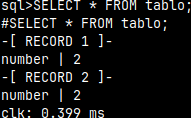
SELECT * FROM tablo;    --value 2 is auto commited

Logging and Monitoring

I will leave the session and then I will log in, just to clear the history.
quit
mclient -u monetdb -d DBfarmDB --
password monetdb
I will turn on logging and tracing on mclient. This is mostly useful for debugging.
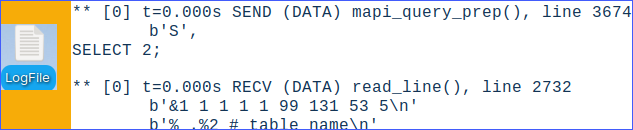
\L /home/fffovde/Desktop/FileLog   --log to this file
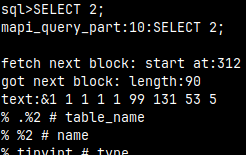
\X    --trace everything that mclient is executing

I will now execute a query:

SELECT 2;
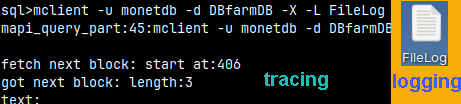
This is tracing. We'll get a lot of lines.
A new "LogFile" will appear with the similar content. This is logging.

We can disable logging and tracing.
\L --we use \L without giving a full path
\X false
                                                                              
I will run a few more queries:
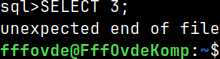
SELECT 3;
SELECT 4;
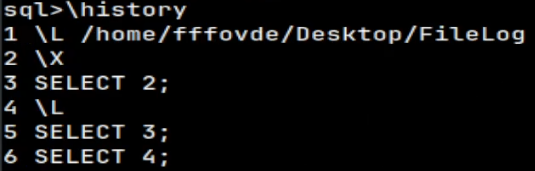
Using the "\history" command, we can list all the SQL and commands we run in this session.

I will again quit the session, and log again,
so I can change current directory.
quit
cd /home/fffovde/Desktop
mclient -u monetdb -d DBfarmDB --
password monetdb

SQL Input and Output

We can redirect the result of our statement to some shell command.
\| grep "alpha"
SELECT * FROM (VALUES('alpha'),('beta'));

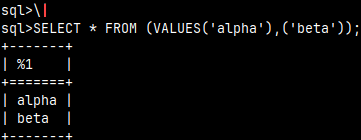
I will disable this command like this. Now our result is normal.
\|     --without shell command
SELECT * FROM (VALUES('alpha'),('beta'));  

We can redirect the result of our statement to a file.
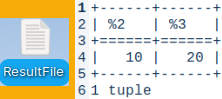
\>ResultFile
SELECT 10, 20;
Every statement we run will now go to the file, and not to the terminal. The file is in the current directory. We can disable the effect of  this command with:
\>       --without the name of a file

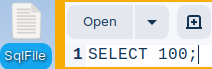
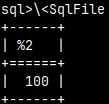
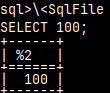
On the Desktop, I will create one textual file with one query inside of it.I can call this query from the file. I'll type:
\<SqlFile
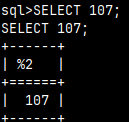
This is usefull when we want to run some prepared SQL script. The problem is that we will get the result, but we will not know what statement caused that result. To solve this we will use echo "\e".

After we turn on echo, every statement will be shown before the result of the statement.
Useless for SQL but great for files.
SELECT 107;
\<SqlFile

I will again quit, and then login back, to disable effect of the echo command.
quit
mclient -u monetdb -d DBfarmDB --password monetdb

Other Backslash Commands

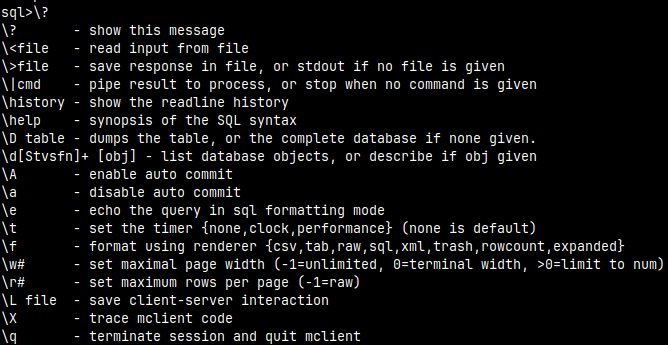
"\?" will give a list of all of the backslash commands.
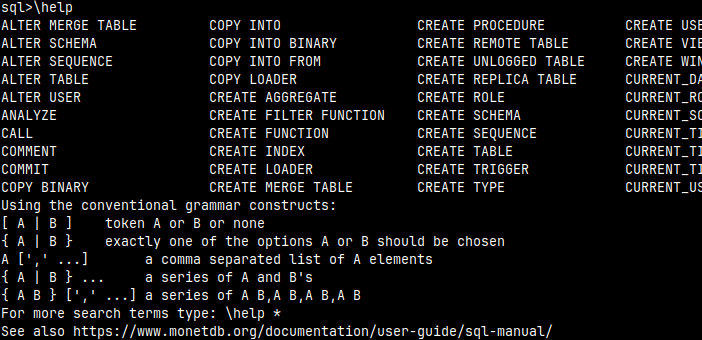
"\help" will give a list of SQL statements.

We already saw how to use timing in this blog post "link". It is also possible to turn on timing inside of the mclient. Options are "none, clock, performance".

\t clock
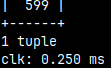
SELECT 599;
\t performance
SELECT 599;
--statements--
sql = parsing
opt = optimizing
run = running
clk = total time
                                   
\t will return the current mode.

\t none
To disable timing.

We can always exit mclient with the "\q", or "quit".

Dash Commands

When we log in to mclient, we can provide an IP address, port number, username and database name. There are many more of these arguments# mclient -h 192.168.100.124 -p 50001 -u monetdb -d DBfarmDB

Already Known Commands

Many commands exist in both backslash and dash version. I will give you example of such commands here.
During this example I will alternately login and quit, because dash commands can be run only during the login.

This will create sql dump of the whole database.

mclient -u monetdb -d DBfarmDB -D  
This is the same as "\D" backslash command, that we saw earlier.

We can enable tracing and logging.  

mclient -u monetdb -d DBfarmDB -X -L FileLog
The same as "\X" and "\L".

We will set that our queries return expanded format, we will turn on echo and the timing.
mclient -u monetdb -d DBfarmDB -f expanded -t clock -e  

Format and Time support all of the possible modes.
The same as "\f, \t, \e".

With "-a" switch we can turn off autocommit for the whole session: "mclient -u monetdb -d DBfarmDB -a".

When we run a query, it will be paged to 5 rows, and the visible width will be 50 characters.  
mclient -u monetdb -d DBfarmDB -r 5 -w 50
We already saw this with commands "\r, \w".

We can apply shell command on all of our queries. Notice that pipe must be escaped.  
mclient -u monetdb -d DBfarmDB -\| 'grep m'
The same as \| grep "m".

History, Null and Timezone

I will login again with some new options:
mclient -u monetdb -d DBfarmDB -z -n "zero" -H
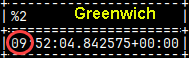
Option "-z" is for disabling the time zone. Statement:
SELECT CURRENT_TIME;
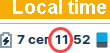
, will give me Greenwich time, not my local time.

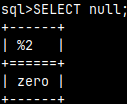
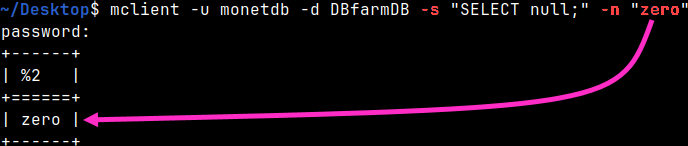
Option "-n" will define how the null will be presented in the terminal. This is only valid when "-f" format is either "sql,csv, tab or expanded".Default format is "sql", we have set nul to be "zero", so the null will be presented as a "zero".
SELECT null;        --result is "zero"

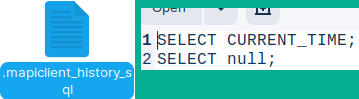
In this session we have run two statements:
--SELECT CURRENT_TIME;
--SELECT null;
Because our session was started with the switch history "-H" both of these statements are recorded in the file:
/home/fffovde/.mapiclient_history_sql

I will now quit this session, and then I will login again:
quit
mclient -u monetdb -d DBfarmDB -H
Because I have used "-H" switch, history of mclient statements will be available for me.
By pressing keyboard arrows, I will list that history.

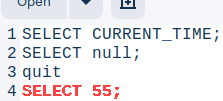
If I run one more statement, that statement will be added to "/.mapiclient_history_sql" file. So, when "-H" switch is active, new statements will be added to history file, and that history will be available to us.
SELECT 55;
We can delete the history by deleting directly from the ".mapiclient_history_sql" file.

Getting Data from URLs

I will create a new table and then I will try to get data from the internet to insert into that table. Mclient will refuse to do that.
CREATE TABLE IndustryList( Industry VARCHAR(50) );
COPY INTO IndustryList FROM 'https://cdn.wsform.com/wp-content/uploads/2020/06/industry.csv' ON CLIENT;

I will quit the session, and then I will login with a remote "-R" switch.
quit
mclient -u monetdb -d DBfarmDB -R   
--password monetdb
COPY INTO IndustryList FROM 'https://cdn.wsform.com/wp-content/uploads/2020/06/industry.csv' ON CLIENT;

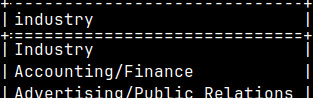
It will work now. I can read from "IndustryList" table.  
SELECT * FROM IndustryList;

SQL Dump with Insert Into

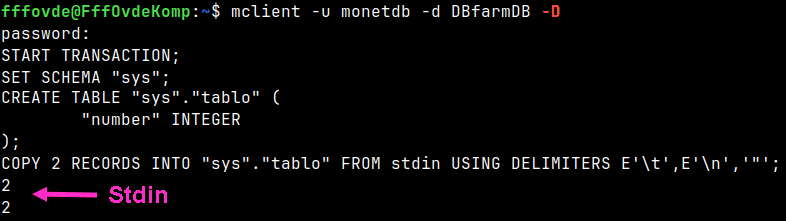
Normal dump will create a script that will fill a table with the data from the Stdin. It will use "COPY INTO FROM stdin" statement.
mclient -u monetdb -d DBfarmDB -D
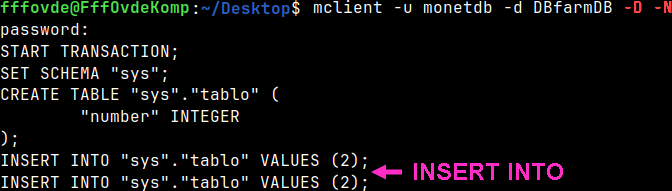
If we want to get "INSERT INTO" statements, then we have to add switch "-N".
mclient -u monetdb -d DBfarmDB -D -N

Running SQL Statements from the Shell

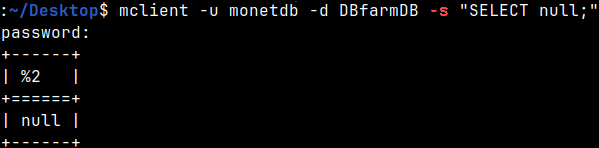
With "-s" switch we can run a statement, instead of logging in.
mclient -u monetdb -d DBfarmDB -s "SELECT null;"

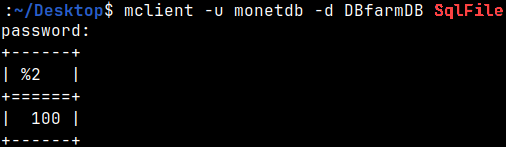
We can also run a script directly from the shell. We previously created this file.
mclient -u monetdb -d DBfarmDB SqlFile

We can use them both:
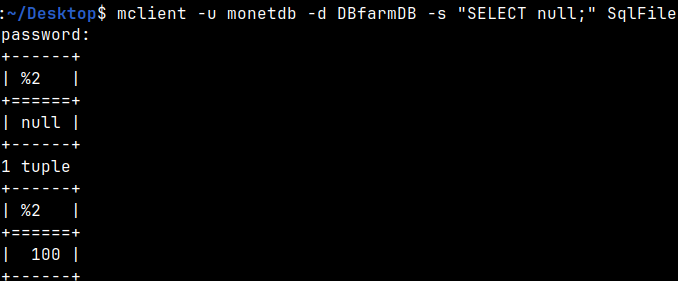
mclient -u monetdb -d DBfarmDB -s "SELECT null;" SqlFile
Many of the previously shown options will work with the shell query, too.  
mclient -u monetdb -d DBfarmDB -s "SELECT null;" -n "zero"


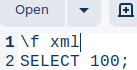
I will add command
"\f xml" in the SqlFile.
This will make our command to fail.
mclient -u monetdb -d DBfarmDB SqlFile
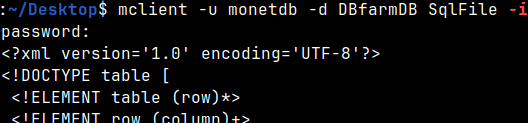
We will add interactive switch "-i". It will work now.            
mclient -u monetdb -d DBfarmDB SqlFile -i

DOTMONETDBFILE

We already talked about DOTMONETDBFILE environment variable, in the blog post about backup "link". All of that is valid for the mclient, too.
user=monetdb
password=monetdb
host=192.168.100.145
port=50000

0570 Monetdb – Database Administration Tool

While Monetdbd is a tool that works with DBfarm, Monetdb is a tool that works with the database. Monetdb can be used to create, lock, release, start, stop, and destroy databases. In reality, Monetdb will just delegate all the work to Monetdbd, and Monetdbd will be the one that will perform all the operations.

Before we learn something about Monetdb, we first have to start DBfarm. We have created DBfarm in the previous post, about monetdbd, "link". Inside of this farm we already have database DBfarmDB.monetdbd start /home/fffovde/Desktop/DBfarm


Database Commands

I will create new database in DBfarm.monetdb create dbA
                                     
Database will be created in the maintenance mode.

Database that is in the maintenance mode can only be started on localhost with this command:
monetdb start dbA

I will login to this database and I will create a new user:
mclient -u monetdb -d dbA    #password monetb
CREATE USER "userA" WITH PASSWORD '123' NAME 'Geriel Damdin';

I will quit the session, and then I will login as a newly created user.quit   #session                         
mclient -u userA -d dbA

While the database is in the maintenance mode, only admin can login to it.

I will now release the database. That will pull database out of the maintenance mode.
monetdb release dbA
mclient -u userA -d dbA 
#user will now be able to login

Currently database is out of the maintenance mode. How can we place our database to maintenance mode again? For that we just have to lock the database.quit    #session     
monetdb lock dbA  
monetdb stop dbA
                     
If database is locked, then only the administrator will be able to work with it.

Sample Databases

For further examples, I will create three more databases.
monetdb create dbB dbC dbD
I will then get them out of the maintenance mode.
monetdb -q release dbB dbC dbD

Most of the commands can work on several databases at once. We just have to name all of the databases in a row.

Notice that after the release command we didn't get any confirmation message. That is because we have used "--quiet" option. This option will always suppress confirmation messages. It will not suppress error messages, for example if we run it again. =>

Database Status

I will show you how to get status of a databases. I will change the status of the dbA and dbB for this example.monetdb start dbA
monetdb lock dbB

monetdb status
If we type the status command, we will get some information about DBfarm databases.
Database dbA is "LR" – locked and running for 1 minute. This database never crashed, so its health is 100%. On average, database dbA was running for 56 minutes.

In the state column we can see that our database can be in one of these states. We can also see for how long is database in that state.

B – bootingR – running.S – stopped.C – crashed.LS – locked and stopped.LR – locked and running.

In the health column we can see ratio "( successful starts/stops ) / ( all starts/stops )". 100% means that we never had unsuccessful start/stop.

In the health column we can see the times (56 min and 24 min). This is the average time the database has been up and running.

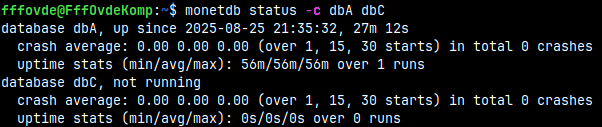
monetdb status -c dbA dbC


We can specify a database name (or several database names) to get the status for only them.
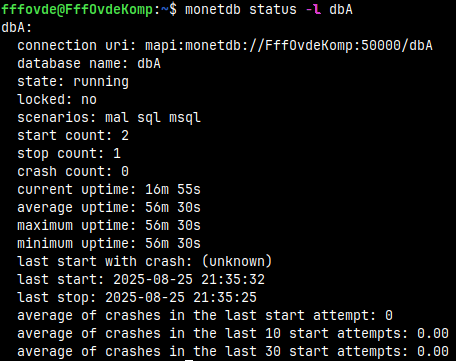
monetdb status -l dbA
If we use options "-c" and "-l" with the status command, we would get several more pieces of information for our databases.

monetdb status -s rl
With the "-s" option we can limit the displayed databases to only those that are running and/or locked ("rl"). The options are b (booting), r (running), s (stopped), c (crashed), l (locked).

Monetdb Information

Option "-v" will return the version of a server.
monetdb -v


We can also use the long syntax.
monetdb --version
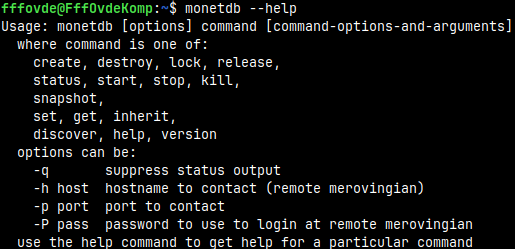
This is how we can get help.  We can only use long syntax for help.  
monetdb  --help

Snapshots

Snapshot to Stdout

This command would write snapshot of a database to stdout.
monetdb release dbA                         #first we have to release dbA
monetdb snapshot write dbA
Our stdout is terminal, so we can not send binary data to stdout.
We can redirect stdout to a file. That way we can use "write" to get snapshot.
monetdb snapshot write dbA > /home/fffovde/Desktop/dbA.tar

Snapshot to File

We can not create a snapshot in a file if property "snapshotdir" is not set. We do it with monetdbd.
monetdbd set snapshotdir=/home/fffovde/Desktop /home/fffovde/Desktop/DBfarm

For "snapshot create" we have to provide full path, and that location must be inside of the "snapshotdir". I will try to backup database dbA.
monetdb snapshot create -t /home/fffovde/dbAsnap dbA

I will try with this full path, that is inside of the "snapshotdir". This will work.
monetdb snapshot create -t /home/fffovde/Desktop/ZZZ/dbAsnap dbA
                                                                                                                            
With "-t" option we can create a snapshot file of one database, with the custom name. Folder "ZZZ" must be made in advance.

Without "-t" option, snapshot will be created with default settings.
monetdb snapshot create dbB
We can not snapshot "tbB" because it is locked.
After we release the file, we will create the snapshot.
monetdb release dbB
monetdb snapshot create dbB
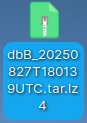
dbB_20250827T180139UTC.tar.lz4Default name is made of the database name and the timestamp.

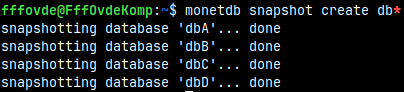
We can use wildcards for the name of a database. In this way we can create snapshots of several databases at once.monetdb snapshot create db*

Restore a Snapshot

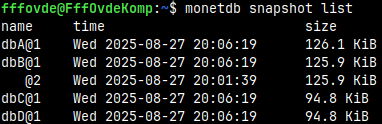
monetdb snapshot listThis is how we can get a list of all of the possible snapshots. For database dbB, we have two snapshots.
Only default named snapshots are listed. Snapshot "dbAsnap" is missing because it has custom name.
We can restore second snapshot of the "dbB".monetdb snapshot restore dbB@2

We can restore database under some other name.

monetdb snapshot restore dbB@2 dbBBB
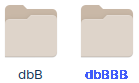
Inside of the "DBfarm" we now have this database twice.

We can also reference snapshot by its full path.
monetdb snapshot restore -f /home/fffovde/Desktop/dbD_20250827T180619UTC.tar.lz4 dbD
In this case, we have to provide under which name we are restoring.
Thanks to "-f" switch, we don't have to confirm overwrite of the existing database.

Delete a Snapshot

This is how we can delete some snapshot.  
monetdb snapshot destroy dbD@1 
We can delete all but the last N snapshots for some database.
monetdb snapshot destroy -f -r 1 dbB
Monetdb will delete the oldest dbB snapshot. We stil have one snapshot more.
We can apply this command with the wild card, on all of the matched databases. I will leave zero snapshots, so we will delete them all.
monetdb snapshot destroy -f -r 0 db*

We have no more snapshots that have default name.
monetdb snapshot list

Database Settings

Read Database Settings

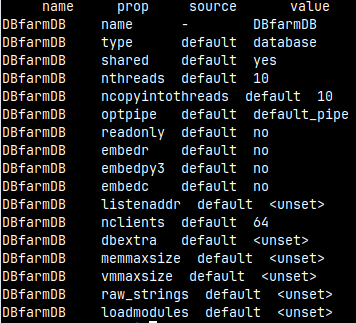
This is how we can read properties of some database.
monetdb get all DBfarmDB  
We can select what property we want to see:
monetdb get optpipe DBfarmDB


For each property, we will see its name, value,
and whether that value is the default value.
name       prop              source      value
DBfarmDB   name              -           DBfarmDB
DBfarmDB   type              default     database
DBfarmDB   shared            default     yes
DBfarmDB   nthreads          default     10
DBfarmDB   ncopyintothreads  default     10
DBfarmDB   optpipe           default     default_pipe
DBfarmDB   readonly          default     no
DBfarmDB   embedr            default     no
DBfarmDB   embedpy3          default     no
DBfarmDB   embedc            default     no
DBfarmDB   listenaddr        default     <unset>
DBfarmDB   nclients          default     64
DBfarmDB   dbextra           default     <unset>
DBfarmDB   memmaxsize        default     <unset>
DBfarmDB   vmmaxsize         default     <unset>
DBfarmDB   raw_strings       default     <unset>
DBfarmDB   loadmodules       default     <unset>

Database Performance Settings

For most of the settings above, before we change them, we have to stop our database. Database "DBfarmDB" is currently stopped.

monetdb set nthreads=4 DBfarmDB
monetdb set ncopyintothreads=6 DBfarmDB
monetdb set optpipe=default_pipe DBfarmDB
Number of threads that database will use. By default, it is equal to number od CPU cores.
Number of threads used for COPY INTO FROM. Default is equal to number of columns copied.
We can find the list of possible optimizers in the system table "sys.optimizers".

After we change some property, the column "source" will be "local", instead of the "default".
monetdb get nthreads DBfarmDB

I will now login to this DBfarmDB database.
mclient -u monetdb -d DBfarmDB
I will run this statement:
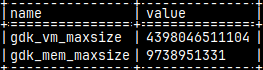
select * from env() where name in ('gdk_mem_maxsize','gdk_vm_maxsize');
This is where we can see current values for properties "memmaxsize" and "vmmaxsize".
These values are in bytes, so maximal virtual memory size is about 4.000 terabytes, and maximal memory size is about 10.000 gigabytes. I will now exit and I will stop the database.
quit
monetdb stop DBfarmDB

#monetdb set memmaxsize=107374182400 DBfarmDB
                                                                                                 
This would limit RAM consumption of this database to 100GB. This is not hard limit; it is just suggestion to memory allocator.
#monetdb set vmmaxsize=107374182400 DBfarmDBThis is hard limit. Limiting virtual memory will limit how much RAM+Swap space this database can use.

Restriction Settings

monetdb set readonly=yes DBfarmDB
monetdb set nclients=10 DBfarmDB
monetdb set idletimeout=3600 DBfarmDB
We can set our database to be read only.
We can limit number of the clients that can connect to our database.
Connection will be closed if idle for this many seconds.
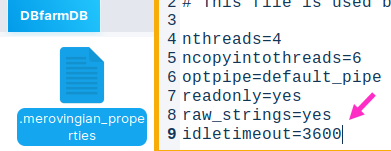
This property "idletimeout" is not listed when we use "get all" command, but inside of the file "DBfarmDB > .merovingian_properties"
, that property is listed. It is also in documentation.

Extension Settings

#monetdb set embedpy3=true DBfarmDB
#monetdb set embedr=true DBfarmDB
#monetdb set embedc=true DBfarmDB
If we want to make UDF functions in python or "C" or "R" language, we have to set these settings to TRUE for specific database. We used this for python in the blog post "link".
For values we can use true/false or yes/no.

In this blog post "link", we have installed library "monetdb-odbc-loader". For such libraries to work in a database, we have to load them. This is done with "loadmodules" property.#monetdb set loadmodules=odbc_loader DBfarmDB

Discovery Setting

I will now open green server. We have created that server in this blog post "link".                                                                       
monetdbd start /home/sima/monetdb/DBfarmG  #I will start daemon
In the previous blog post "link", about monetdbd, we turned on discovery on the voc server for "DBfarm". I will again use discover command on the green server.
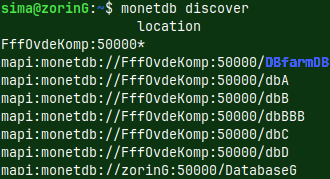
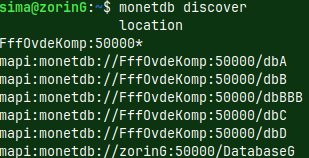
monetdb discover
Discover command will show us all of the databases on the "voc" server, that are inside of the "DBfarm", and one local database on the green server.

We have turned on discovery for the whole "DBfarm" and for that we have used monetdbd. Now, I want to hide only one of those databases from discovery. I will hide database "DBfarmDB".
monetdb set shared=no DBfarmDB
Discovery for "DBfarmDB" is turned off. Discover command will show us other databases from the "DBfarm", but not "DBfarmDB".

Other Settings

I will skip settings "type, dbextra, listenaddr". I don't understand them. I will talk about "raw_strings" setting.

I will login into DBfarmDB with the default password:
mclient -u monetdb -d DBfarmDB
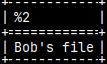
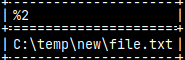
By default, the raw strings are turned OFF. I have talked about raw strings in this blog post "link". I will run some queries to see the default behaviour.

SELECT 'Bob\'s file';
SELECT 'a\nb';
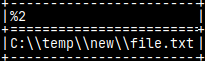
SELECT 'C:\\temp\\new\\file.txt';

I will exit the session, and I will stop the database.
quit
monetdb stop DBfarmDB
I will change "raw_strings" property.
monetdb set raw_strings=true DBfarmDB  #false is default
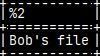
Then, we will again login, and run those queries from above.

SELECT 'Bob''s file';
Backslash will not work.
SELECT 'a\nb';

SELECT 'C:\\temp\\new\\file.txt';

Off course, we can get the same results as before if we place prefix "E" in front of the strings. That will make them NOT raw.

I will quit session and stop the database.quit
monetdb stop DBfarmDB

Set Property to Default

Currently database can connect to the most 10 clients. We can change that back to the default value (64).
monetdb get nclients DBfarmDB
monetdb inherit nclients DBfarmDB

For some properties we can unset them:
monetdb set loadmodules=   DBfarmDB

Something More About Database Commands

We can provide password for monetdb user during database creation.
monetdb create -p password123 dbE
This database will not be created in the maintenance mode. It has non-standard password, so there is no need for that. We can start it directly.monetdb start dbE

Now, that our database is running, we can stop it with the "stop" command. This command will send SIGTERM signal, so it will kindly ask database to close, although the database can refuse that. Instead of the "stop" command, it is possible to us "kill" command. This command will send SIGKILL signal and the database will be violently killed.

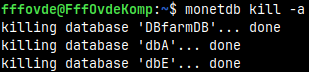
I can kill "dbE" database by its name "monetdb kill dbE", or I can use "-a" switch to kill all of the open databases.
monetdb kill -a
"-a" switch can be used with the commands "lock, release, start, stop and kill".

I will now delete this dbE database:
monetdb destroy dbE

Remote Control

Remote control is explained in the blog post about monetdbd, "link". Take a look there to find out about switches "-h,-p,-P".monetdb -h 192.168.100.124 -p 50000 -P zebra stop DBfarmDB

0560 Monetdbd for Monetdb

Monetdbd is a MonetDB management daemon. We use it to:
– Initialize a directory as a DBfarm. A DBfarm is a folder that can contain several MonetDB databases.
– Monetdbd is used to set and read farm-wide daemon options that are shared between databases.
– Monetdbd is used to start/stop the actual servers (Mserver5 process).
– Users usually connect to the monetdbd daemon first, and then this daemon will redirect them to the selected database.

Monetdbd Informations

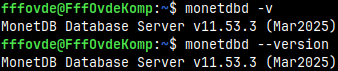
monetdbd -v
monetdbd --version
                                       
This is how we can find version of the monetdbd daemon. We can use short or long command syntax.

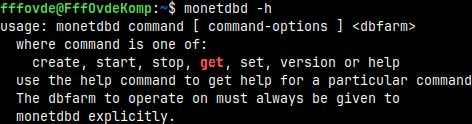
This is how we can get  help for monetdbd.  
monetdbd -h
monetdbd --help
We can provide the name of a command after the "-h" option. That will give us help for that command.

Monetdbd and DBfarm

cd /home/fffovde/Desktop
mkdir DBfarm
monetdbd create DBfarm

                                                     
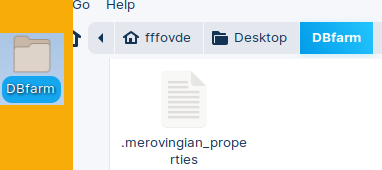
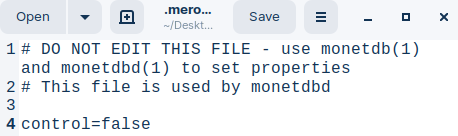
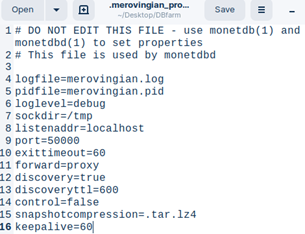
We will create a folder with the name "DBfarm". With the command "monetdbd create", we will initialize this folder. Inside of it, a new file ".merovingian_properties" will appear. Now it is possible to create new databases inside of this folder.

This is the inside of the ".merovingian_properties" file.

Currently no one is listening to default MonetDB port 50.000. I will make DBfarm directory functional.  

monetdbd start DBfarm
Now our daemon is listening to port 50000, and DBfarm is functional.
ss -tlnp | grep 50000
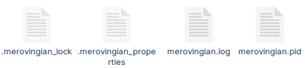
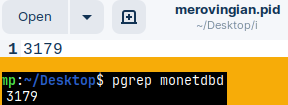
After the first start of the DBfarm, three new files will appear in the DBfarm directory. ".merovingian_lock" file is empty."merovingian.pid" file has process ID for monetdbd process. We can confirm that with "pgrep monetdbd".                                                  

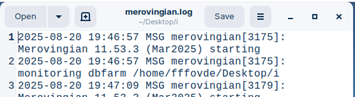
"merovingian.log" file is a file with a log.
We can stop DBfarm with monetdbd.  
monetdbd stop DBfarm
After closing the farm, file "merovingian.pid" will disappear. This file exists only when DBfarm is functional. Now, again, no one is listening to port 50.000.
ss -tlnp | grep 50000
Getting and Setting DBfarm Settings

We can read setttings of
the DBFarm.  

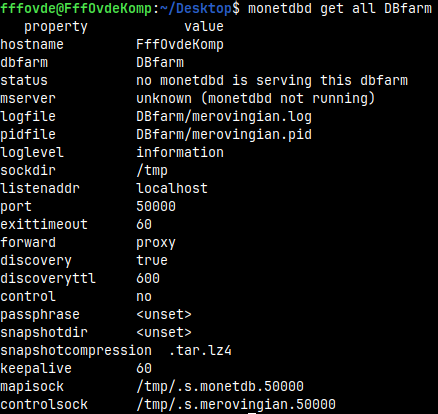
monetdbd get all DBfarm  
hostname              FffOvdeKomp
dbfarm                DBfarm
status                no monetdbd is serving this dbfarm
mserver               unknown (monetdbd not running)
logfile               DBfarm/merovingian.log
pidfile               DBfarm/Merovingian.pid
loglevel              information
sockdir               /tmp
listenaddr            localhost
port                  50000
exittimeout           60
forward               proxy
discovery             true
discoveryttl          600
control               no
passphrase            <unset>
snapshotdir           <unset>
snapshotcompression   .tar.lz4
keepalive             60
mapisock              /tmp/.s.monetdb.50000
controlsock           /tmp/.s.merovingian.50000

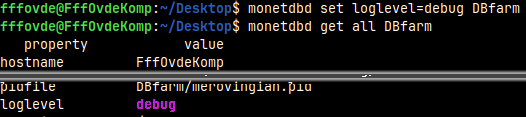
We can easily change any of these settings. 
monetdbd set loglevel=debug DBfarm
                                                          
We can also change the settings while DBfarm is active, but some changes will become valid only after Monetdbd is restarted.

After we first change some property, a list of the properties and their values will appear in the ".merovingian_properties" file.

Not all of the properties that we can observer with the "get all" command will be listed here. Properties that do not appear here can not be changed with the "set" command. Those properties are informative and read only.

We should never make changes in this file manually. We should always use the "set" command.

Monetdbd Settings

We will take a look at settings that we can set with Monetdbd.

 File and Log Settings

We know that in DBfarm folder we have files "merovingian.log" and "merovingian.pid". I will choose to use two other files instead of them.    I will change the settings for "log" and "pid" files:
monetdbd set logfile=/home/fffovde/Desktop/logy.log DBfarm
monetdbd set pidfile=/home/fffovde/Desktop/pidy.pid DBfarm

I will start daemon again:
monetdbd start DBfarm

Now, we have two new files on the desktop.Inside of the "log" file, we have a log for monetdbd. Lines labeled with the MSG, are for information and warnings.

We can decide what will be logged in the log file. We can choose between modes "error, warning, information and debug".

error = only errorswarning = errors and warningsinformation = errors, warnings and informationdebug = the same as information

Error lines will be marked with ERR.Default is "information". This is how we change the mode:# monetdbd set loglevel=error DBfarm

Connection Settings

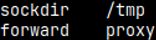
Settings "sockdir" and "forward" should almost never be changed.

Listendaddr is "localhost" by default. That means that our server is not available from the network.If I set listenaddr to "0.0.0.0", our server will become available from the network. I will also change default port number to 50001.

monetdbd set listenaddr=0.0.0.0 DBfarm
monetdbd set port=50001 DBfarm
This setting will become functional only after we restart monetdbd.
monetdbd stop DBfarm
monetdbd start DBfarm

Inside of the DBfarm, I will create and start one database:
monetdb create DBfarmDB
monetdb release DBfarmDB 

monetdb start DBfarmDB  
I will now open the green server. I explained creation of this server in this blog post "link". Then I will try to connect to DBfarmDB from the green server.
mclient -h 192.168.100.124 -p 50001 -u monetdb -d DBfarmDB

We can use any of these modes for "listenaddr". It is also possible to use "hostname", in that case Linux will resolve what will be used.

Loopback address:External host:
only IPv4127.0.0.10.0.0.0
only IPv6::1::
IPv4 and IPv6localhostall

I will change back the port number of the "voc" server to 50000: "monetdbd set port=50000 DBfarm".

Snapshot Settings

In the blog post "link", we have saw how to create a snapshot of our database. We have used stored procedure for that. The same is possible from the command line. Settings for command line snapshots are in monetdbd properties file.

"snapshotdir" is a directory where our snapshot will be made. If this is not set, then we will not be able to make a snapshot.monetdbd set snapshotdir=/home/fffovde/Desktop DBfarm
"snapshotcompression" is a level of compression. We can choose between "tar.lz4,tar.bz2,tar.gz,tar.xz". This is optional setting.monetdbd set snapshotcompression=.tar.lz4 DBfarm
There is a dot before "tar".

I will set these changes, and then we will create a snapshot. We will create snapshot with the "monetdb" console program.

monetdb snapshot create DBfarmDB
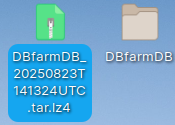
This will create ".tar.lz4" snapshot on our Desktop. Inside of it we will get "DBfarmDB" database.

We can unset a property by providing an empty value:monetdbd set snapshotdir= DBfarm

Remote Control Settings

We can call and control "monetdbd" on remote computer. I will allow remote control for "monetdbd" on the "voc" server.monetdbd set control=true DBfarm
We also have to provide SHA512 password.monetdbd set passphrase=zebra DBfarm
Our password will be written to ".merovingian_properties" file. It will be written as 128-digits hexadecimal number with the prefix "{SHA512}".
If we only have hashed password, then we can provide it directly.monetdbd set passphrase={SHA512}9df34…24fec DBfarm
We have to restart monetdbd for these settings to become functional. We will also start DBfarmDB database.monetdbd stop DBfarm
monetdbd start DBfarm
monetdb start DBfarmDB

Remote control is established by using monetdb.

I will run this command from the green server, with monetdb. Now we can control monetdbd on the "voc" server remotely.monetdb -h 192.168.100.124 -p 50000 -P zebra stop DBfarmDB


Remote Discovery Settings

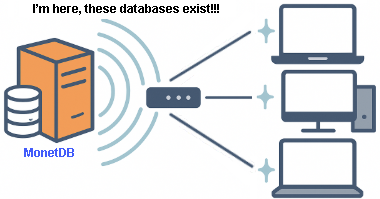
Monetdb can "shout" its existence on the local network by UDP broadcast. In regular intervals Monetdb server will tell other computers on the LAN about its existence. This is how we can discover all of the monetdb servers in our network.

I will tell "voc" server to broadcast its existence every 300 seconds. It will use default port 50000.

monetdbd set discovery=true DBfarm
monetdbd set discoveryttl=300 DBfarm
I will restart DBfarm.  

monetdbd stop DBfarm
monetdbd start DBfarm
                                            

On the green server I will run this command.
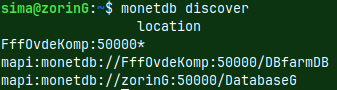
monetdb discover
We can see here that on the "voc" server (hostname FffOvdeKomp), we have database "DBfarmDB". We also see local green database. So, we get a list of all of the available databases.

Start and Stop Settings

monetdbd stop DBfarm
monetdbd start -n DBfarm
I will stop "DBfarm", and then I will start it with a "-n" switch.  This will leave "monetdbd" daemon in the foreground and will not return control to the shell (we will not get prompt in the next line). This is useful for debugging.

We can close "monetdbd" using "ctrl+C" and then Enter.

There is "monetdbd" setting "exittimeout" with the default value 60.


This means that "monetdbd" will ask "mserver" to shutdown politely with the SIGTERM command ( "mserver" can refuse ).
If the "mserver" is not closed after 60+5 seconds, then "monetdbd" will send SIGKILL signal, and "mserver" will be violently shut down.

There are three possible values for "exittimeout".POSITIVE VALUE:
"Mserver", if alive, will be killed 5 seconds after the "exittimeout".
NEGATIVE VALUE:
"Mserver" will only receive SIGTERM signal. It will never be killed.
ZERO:
"Monetdbd" will close, but "Mservers" will not. We should not use this.

When we wait for a really long query to finish, our client will not communicate with the server. Firewall can interpret that like an inactive connection, so it will close the connection. We want to avoid this, so we can use probe signal to keep connection alive.This is done with the "keepalive" setting, with the default value of 60 seconds.
# monetdbd set keepalive=60 DBfarm
This probe signal will be sent exactly 127 times. If "keepalive" time is 60 seconds, that means that are connection will be at least (127 x 60 seconds) ≈ 2 hours alive.

Monetdbd Return Value

Monetdbd will return "0" for successful action, and "1" for unsuccessful. If we try to start already started daemon, we will get an error.
monetdbd start DBfarm; echo $?

Monetdbd Process Signals

I will start the monetdbd again, and then I will read process ID of our daemon.
monetdbd start DBfarm
cat ./pidy.pid

Let's assume that I want to use some other file, instead of "logy.log", for logging, but I do not want to restart monetdbd. I will do that in the two steps.

monetdbd set logfile=/home/fffovde/Desktop/DBfarm/merovingian.log DBfarm
kill -HUP  "$(cat ./pidy.pid)"
I am changing the file for my log.
I am sending SIGHUP signal to monetdbd, to reload settings.

Now the daemon will stop using "logy.log" file, and will use "merovingian.log" file. We didn't have to restart the daemon.

We can kill monetdbd with a signal. All of the signals bellow work the same.
kill -TERM "$(cat "pidy.pid")"
kill -INT  "$(cat "pidy.pid")"
kill -QUIT "$(cat "pidy.pid")"
They will ask our "mserver5" process to gently end (it can refuse). Signals: SIGTERM
SIGINT
SIGQUIT