We will continue using the green and blue databases that we have created in this post => link ( or you can watch the video on the youtube => link ). This was the post about distributed query processing.
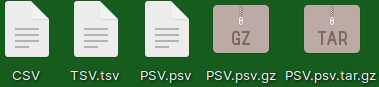
"CSV" file is using commas. It also has commas at end of the rows with data. This is the only file that doesn't have file format extension.
"TSV.tsv" file is using tab as delimiter, but it also has double quotes around the strings.
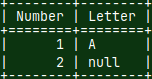
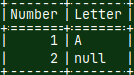
"PSV.psv" file is using pipes and has a null in the "Letter" column.
Files with file format extension ".gz"are just PSV file compressed.
Files must be placed on the server. Returned value of the "file_loader" function is virtual table.
We don't specify delimiters, wrappers and data types for the files. They are deduced automatically.
We can read from CSV, TSV and PSV files, and also ".gz,.lz4,.bz2 and .xz" files.
file_loader Function Syntax
SELECT * FROM file_loader( '/home/abhishek/sample.csv' );
The only argument of our function is the full path toward the file.
SELECT * FROM '/home/abhishek/sample.csv';
Shorter syntax is much better. We don't have to type the function name.
Experiments With the CSV File
We can not read from files that don't have file format extension. SELECT * FROM '/home/sima/Desktop/CSV';
I will add file format extension and then I will try again. SELECT * FROM '/home/sima/Desktop/CSV.csv';
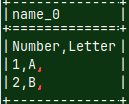
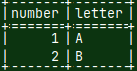
Our CSV file is now reduced to only one column. The whole row of data from the CSV file is imported into one column. This is the consequence of the commas at the end of the row.
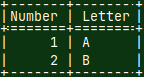
I will remove the surplus commas. Now our query works as expected.
Experiments With the TSV File
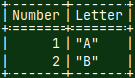
Import from the TSV file will work fine. The double quotes wrappers around strings will be considered as a part of a string. SELECT * FROM '/home/sima/Desktop/TSV.tsv';
We can try to trim double quotes, but our column will not be recognized. SELECT TRIM( Letter, '"' ) FROM '/home/sima/Desktop/TSV.tsv';
Column names are case sensitive, so we have to place column names inside of the double quotes. Only then our query will work. SELECT TRIM( "Letter", '"' ) FROM '/home/sima/Desktop/TSV.tsv';
Experiments With the PSV File
In PSV file we have a null. This null will be imported, but we don't know whether it is a null or a string "null". SELECT * FROM '/home/sima/Desktop/PSV.psv';
We will test the null value. We can see that "null" is a string. SELECT ISNULL( "Letter" ) FROM '/home/sima/Desktop/PSV.psv';
Experiments With the GZ files
We can easily read from the compressed PSV.psv file. SELECT * FROM '/home/sima/Desktop/PSV.psv.gz';
If we compress our file as a "tar" tape archive format then file loader will not work. SELECT * FROM '/home/sima/Desktop/PSV.psv.tar.gz';
Conclusion
We can conclude that file_loader function is not as versatile as a COPY INTO function, which is described in this blog post => link.
Read From Remote Database With a proto_loader Function
We have saw that we can login to MonetDB server that is on another computer. We also saw how we can create remote tables. This time we will see how to ad-hoc read tables that are on some other computer/server.
Testing Local MonetDB Server
This syntax will work on the local MonetDB server, too. We can use localhost to read from the local computer. I can run this statement on the green server. We can recall that local database, schema and table names are "DatabaseG", "schemagb" and "dimg". SELECT ProdID FROM proto_loader( 'monetdb://127.0.0.1:50000/DatabaseG/schemagb/dimg' );
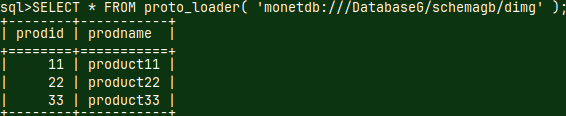
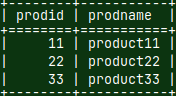
This IP address and port number are default. We can use the link without them. Notice that the database name must use upper letters, but schema and table name must be with lower letters. SELECT * FROM proto_loader( 'monetdb:///DatabaseG/schemagb/dimg' );
We can also use the the link that has "mapi:" in front of it. In this case, we have to provide IP and port number.
SELECT * FROM proto_loader( 'mapi:monetdb://127.0.0.1:50000/DatabaseG/schemagb/dimg' );
Testing Remote MonetDB Server
More interesting thing is ability to read tables from the remote server. I will read table from the blue server ( before that please start the blue server ).
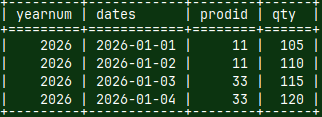
This statement will be executed on the green server and will return the whole table from the blue server. SELECT * FROM proto_loader( 'monetdb://192.168.100.146:50000/DatabaseB/schemagb/factb' );
Syntax with "mapi:" will also work on the remote server.
SELECT * FROM proto_loader( 'mapi:monetdb://192.168.100.146:50000/DatabaseB/schemagb/dimb' );
Creation Of a Remote Table
We can test whether we can create remote table using syntax that starts with "monetdb://". On the blue server I will change current schema and then I will create one table.
SET SCHEMA SchemaGB;
CREATE TABLE Test( Number INT );
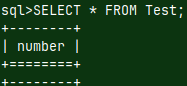
On the green server, I will set current schema to SchemaGB, and I will try to connect to the Test table. SET SCHEMA SchemaGB; CREATE REMOTE TABLE Test( Number INT ) ON 'monetdb://192.168.100.146:50000/DatabaseB'; This will successfully create a remote table. SELECT * FROM Test;
Connect to Any ODBC Database From MonetDB
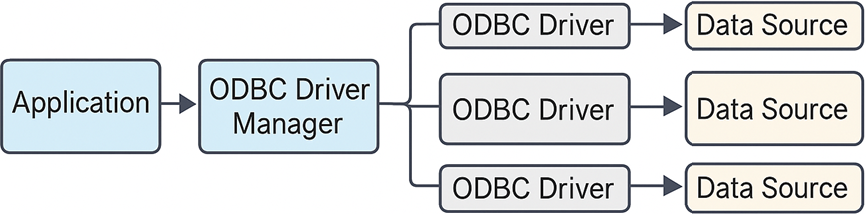
ODBC Driver Manager
An ODBC driver manager is a middleware component that acts as an intermediary between applications and ODBC drivers, translating standardized ODBC API calls into driver-specific instructions. It allows applications to connect to different databases without needing to be rewritten for each one.
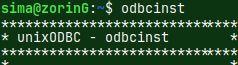
On the green server, we will install ODBC Driver Manager. First check if you alredy have it installed. Just type "odbcinst" in the shell.
I don't have it, so I will install "unixodbc" driver manager. After that command "odbcinst" will show us that the program is working. sudo apt install unixodbc
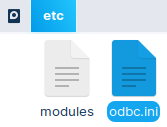
This program will add file "odbc.ini" in the "etc" folder. This file is empty.
/etc/odbc.ini
MonetDB ODBC Driver
We can connect to any ODBC capable server, but we will use this opportunity to see how to connect to MonetDB server. We will use MonetDB ODBC driver to connect to the blue server.
This is ODBC driver we need. We install it on the green server.
sudo apt install libmonetdb-client-odbc
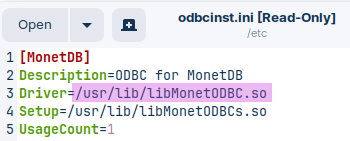
This driver will add "odbcinst.ini" file in the "/etc" folder.
/etc/odbcinst.ini
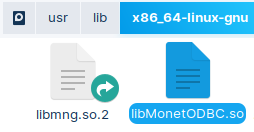
The driver itself will be in this folder:
/usr/lib/x86_64-linux-gnu/libMonetODBC.so
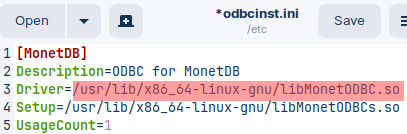
We can see a problem. Our file is in "x86_64-linux-gnu" folder. Our "odbcinst.ini" file is directed toward "/lib" folder. We must fix that. In the shell we run this command to start text editor as sudo, and we fix our link. sudo gedit /etc/odbcinst.ini
Testing ODBC Driver
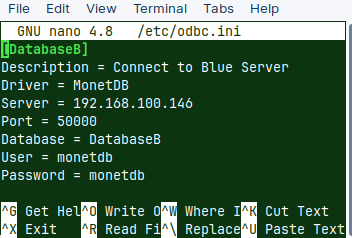
First, we will add our credentials to "/etc/odbc.ini" file.
sudo nano /etc/odbc.ini
Don't use "gedit" graphical text editor program. Use nano. Only then it will work.
[DatabaseB]
Description = Connect to Blue Server
Driver = MonetDB
Server = 192.168.100.146 Port = 50000 Database = DatabaseB User = monetdb Password = monetdb
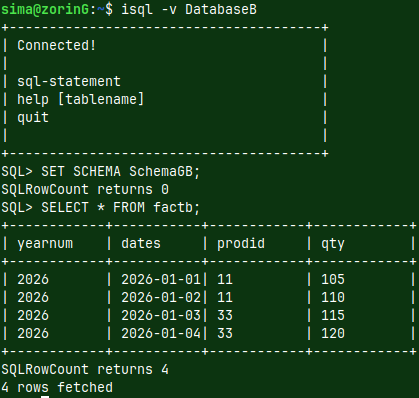
"isql" is console program that comes with "unixODBC". We can use it to test ODBC connection toward the blue server. We can connect to the blue server if we type this into green server shell:
isql -v DatabaseB
After connection, we can set our schema, and we can query our table:
SET SCHEMA SchemaGB;
SELECT * FROM factb;
proto_loader Function For ODBC
But our goal is to use "proto_loader" function to directly fetch data into MonetDB server on the green computer, from the blue server, with ODBC. For that we will install one more package.
sudo apt install monetdb-odbc-loader
Using ODBC loader is still experimental. This functionality is NOT turned on by default. We will now turn it on. First, we exit "DatabaseG".
quit
monetdb stop DatabaseG
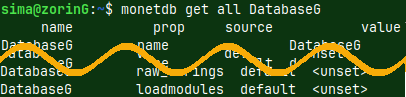
monetdb get all DatabaseG
We can now read properties of the DatabaseG. Property of interest is the last one:
loadmodules
We will change this property like this: monetdb set loadmodules=odbc_loader DatabaseG We can always turn it back like this: monetdb set loadmodules= DatabaseG
We will now log in to our database. This will automatically start the server. During that, we will automatically load "odbc-loader" module.
mclient -u monetdb -d DatabaseG--password monetdb
Using proto_loader Function For ODBC
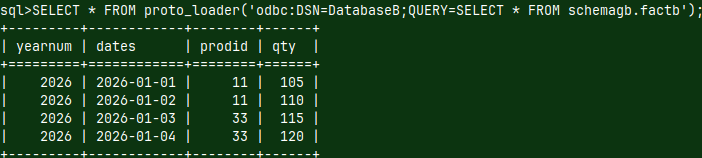
This is how we run ODBC query directly from the mclient. In this way we can connect to any ODBC capable server, not just other MonetDB. We just have to prepare ODBC driver for that other server. SELECT * FROM proto_loader('odbc:DSN=DatabaseB;QUERY=SELECT * FROM schemagb.factb');
All the magic is on the green server. "proto_loader" function will use "odbc_loader" (1) module to send standardized ODBC message to "unixODBC manager" (2). This manager will use MonetDB ODBC driver (3) to call the Blue server (4).
It is also possible to provide all of the necessary parameters directly inside of the ODBC connection string: SELECT * FROM proto_loader('odbc:DRIVER=/usr/lib/x86_64-linux-gnu/libMonetODBC.so;SERVER=192.168.100.146;PORT=50000;DATABASE=DatabaseB;UID=monetdb;PWD=monetdb;QUERY=SELECT * FROM schemagb.factb')
There is also a version that is using DSN file. This version is for Windows only. odbc:FILEDSN=<data source name>;[<ODBC connection parameters>;]QUERY=<SQL query>
Virtual Tables
Virtual tables are tables that don't have data physically stored in MonetDB table. Virtual tables are views, merge tables, remote tables. Tables that we receive through file_loader and proto_loader functions are also virtual tables. We will now see how to transform file_loader and proto_loader virtual tables into more permanent structures.
CREATE TABLE Based on the Loader Function
We can use CREATE TABLE AS to store CSV file into new table: CREATE TABLE permanentCSV ( Number, Letter ) AS ( SELECT * FROM '/home/sima/Desktop/CSV.csv' );
Next, we will read from the permanentCSV table: SELECT * FROM permanentCSV;
CREATE TEMPORARY TABLE Based on the Loader Function
CREATE LOCAL TEMPORARY TABLE temporaryFactB ( YearNum, Dates, ProdID, Qty ) AS ( SELECT * FROM proto_loader('odbc:DSN=DatabaseB;QUERY=SELECT * FROM schemagb.factb') ) WITH DATA ON COMMIT PRESERVE ROWS;
We can also make a temporary table.
We can read from this temporary table.
SELECT * FROM temporaryFactB;
Bulk INSERT Based on the Loader Function
TRUNCATE temporaryFactB; We can pull data from any other ODBC capable server into our temporary FactB table (which is now empty).
INSERT INTO temporaryFactB ( YearNum, Dates, ProdID, Qty ) SELECT * FROM proto_loader('odbc:DRIVER=/usr/lib/x86_64-linux-gnu/libMonetODBC.so;SERVER=192.168.100.146;PORT=50000;DATABASE=DatabaseB;UID=monetdb;PWD=monetdb;QUERY=SELECT * FROM schemagb.factb');
SELECT * FROM temporaryFactB;
COPY command
We already talked about COPY INTO and COPY FROM statements ( blog1 and blog2; youtube1 and youtube2 ). We will now see some special syntaxes of these commands.
COPY FROM stdin
We will first create one empty table.
CREATE TABLE tabStdin( Number INT, Letter CHAR );
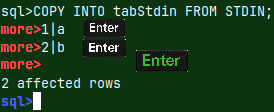
sql>COPY INTO tabStdin FROM STDIN; more>1|a more>2|b more> 2 affected rows sql>
We will then run this statement that copies directly from the mclient. After this statement, the prompt will become "more>". That means that MonetDB is expecting more data. We will type the first row "1|a", then the second row "2|b", and for the third row we will enter nothing. After we press Enter, we will exit and prompt will become "sql>".
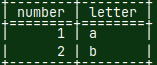
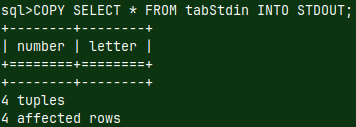
We can now read from our table. Values that we have typed after "more>" prompt are inside of the table. Pipe was used as a delimiter between columns. SELECT * FROM tabStdin;
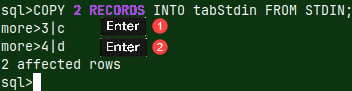
sql>COPY 2 RECORDS INTO tabStdin FROM STDIN; more>3|c
more>4|d
2 affected rows
sql>
If we provide the number of rows that we will COPY, then we just have to type Enter twice.
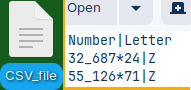
When importing CSV file, we can specify what symbols are used for decimal and thousands separators. Let's say that we have CSV file where decimal point is star "*", and thousands separator is underscore "_".
I will create one table that accepts DECIMAL numbers. CREATE TABLE tabDecimal ( Number DECIMAL, Letter CHAR );
COPY OFFSET 2 INTO tabDecimal FROM '/home/sima/Desktop/CSV_file'( Number, Letter ) DECIMAL AS '*','_';
With DECIMAL clause we can specify what decimal point and thousands separator, our CSV has.
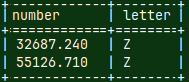
If we now read from our table, there we will find numbers correctly recognized.
In MonetDB, default decimal point is a dot. There is no default sign for thousands separator.
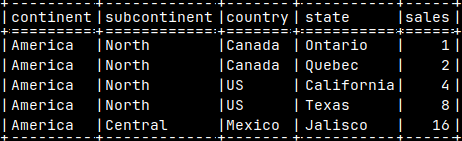
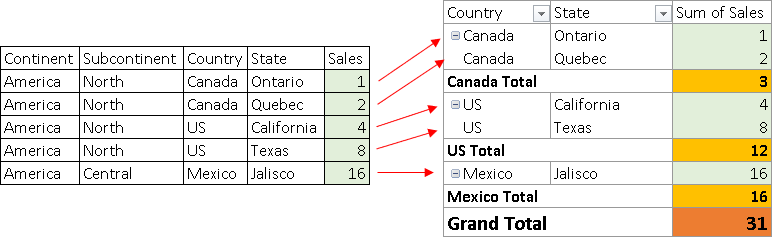
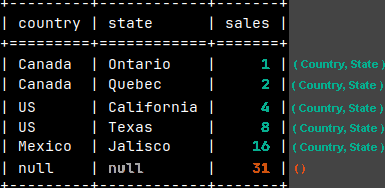
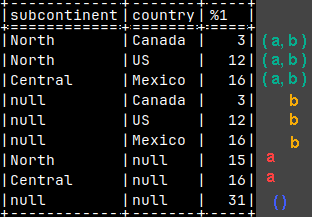
When we create a Pivot table, from the sample table, we will see all of the detail sales (1,2,4,8,16), but we will also see totals (3,12,16,31).
The question is, what query would return all of these numbers, both detail values and totals, if we use MonetDB.
This is one possible solution:
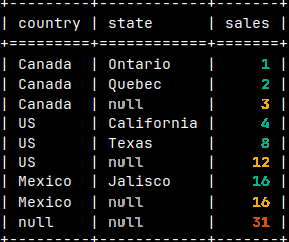
SELECT Country, State, Sales FROM tabSales UNION ALL SELECT Country, null, SUM( Sales ) FROM tabSales GROUP BY Country UNION ALL SELECT null, null, SUM( Sales ) FROM tabSales;
On the image, the rows are sorted so that the table looks like the pivot table.
UNION ALL solution is bad for several reasons: 1) We have three queries to execute and then to combine multiple result sets into one. 2) It is hard to read and modify long UNION ALL query. 3) We have to be careful to properly align columns.
This is the problem that can be solved by grouping sets.
Grouping Sets
"Grouping Sets" are much better and faster syntax to achieve the same goal.
SELECT Country, State, SUM( Sales )
FROM tabSales
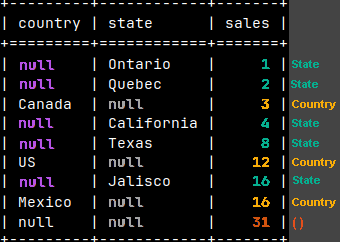
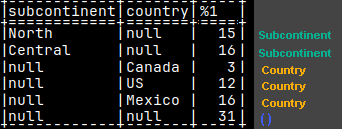
GROUP BY GROUPING SETS ( Country, State, ( ) );
Empty parentheses are for the grand total.
We'll get the same result, except the repetition of country names is reduced. Instead of them we have nulls.
Look what we will get if we place parentheses around Country and State.
SELECT Country, State, SUM( Sales )
FROM tabSales
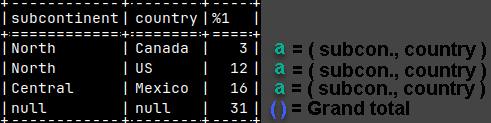
GROUP BY GROUPING SETS ( ( Country, State ), () );
Parentheses are there to define each group.
We can see the effect of parentheses better on this example.
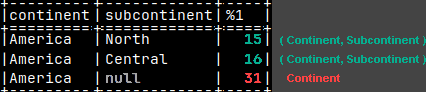
SELECT Continent, Subcontinent, SUM( Sales )
FROM tabSales
GROUP BY GROUPING SETS ( ( Continent, Subcontinent ), Continent );
Continent can be used by itself, but it can be also used in conjunction with Subcontinent to define a group.
It is now clear that each element, inside GROUPING SETS, is a separate definition of a group. Each group can be defined by one column > Continent <, or by several columns placed inside of the parentheses ( Continent, Subcontinent ).
These two examples, that would return the same result, show the logic and brevity of the grouping sets.
SELECT Col1, Col2, SUM( Sales )
FROM Table
GROUP BY GROUPING SETS
    (  ( Col1, Col2 ), Col1 );
SELECT Col1, Col2, Sales FROM Table
UNION ALL
SELECT Col1, null, SUM( Sales ) FROM Table GROUP BY Col1;
Rollup
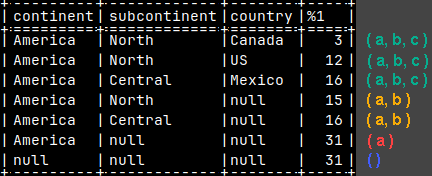
SELECT Continent, Subcontinent, Country, SUM( Sales )
FROM tabSales
GROUP BY ROLLUP( Continent, Subcontinent, Country );
ROLLUP( a, b, c ) is the same as grouping sets "( a, b, c ), ( a, b ), ( a ), ()". This is a way to get hierarchy of the columns. Rollup will give us all of the numbers that we need to create a pivot table.
For ROLLUP, the order of the columns is important.
ROLLUP( a, b, c )                ROLLUP( c, b, a )

( a, b, c )                      ( c, b, a )
( a, b )                         ( c, b )
( a )                            ( c )
( )                              ( )
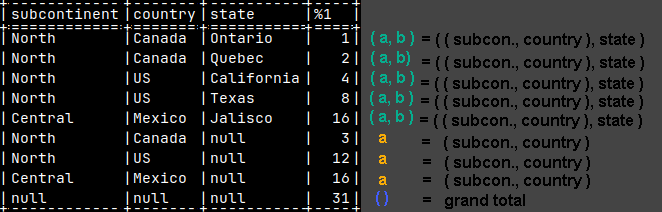
Similar to GROUPING SETS, ROLLUP can also create combinations of columns by using parentheses.
SELECT Subcontinent, Country, State, SUM( Sales )
FROM tabSales
GROUP BY ROLLUP( ( Subcontinent, Country ), State );
CUBE
CUBE works similar to ROLLUP, but have a different logic. CUBE will give us all of the possible combinations. CUBE( a, b, c ) will give us 2^3 grouping sets "(a,b,c), (a,b), (a,c), (b,c), (a), (b), (c) and ()". ———————————————————————————-
SELECT Subcontinent, Country, SUM( Sales ) FROM tabSales GROUP BY CUBE( Subcontinent, Country ); Because we have only 2 columns inside of CUBE in our example, number of combinations is 2^2 = 4 "(a,b), (b), (a), ()".
We can also define groups by using parentheses. SELECT Subcontinent, Country, SUM( Sales ) FROM tabSales GROUP BY CUBE( ( Subcontinent, Country ) ); We now have only one element. We have only two ( 2^1 ) groups "(a), ()".
Addition and Multiplication in Grouping Sets
This is addition: ( a, b ) + ( c ) = ( a, b ) ( c )
This is multiplication. Multiplication is crossjoin between individual values. a1bc1 ( a ) ( b, c ) a1bc2 a1 * bc1 = a1bc3 a2 bc2a2bc1 bc3a2bc2 a2bc3
Syntax for addition is like this. Everything inside of the GROUPING SETS parentheses will be added to each other. In this example we will add ( Subcontinent ) + ( Country ) + ( ).
SELECT Subcontinent, Country, SUM( Sales )
FROM tabSales
GROUP BY GROUPING SETS ( Subcontinent, ROLLUP( Country ) );
So, if we create GROUPING SETS like this, this will be addition. GROUPING SETS ( Continent, ROLLUP( Continent, Subcontinent ), CUBE( Country, State ), () )
Addition can easily create duplicates: SELECT Continent, SUM( Sales ) FROM tabSales GROUP BY GROUPING SETS ( CUBE( Continent ), () );
CUBE will create Grand Total, but we will also get grand total from the "( )" element.
This is a syntax for multiplication. This time we will have commas between GROUPING SETS, ROLLUPS and CUBES, and individual elements. GROUPING SETS ( Continent ), ROLLUP( Continent, Subcontinent ), CUBE( Country, State ), (),Country
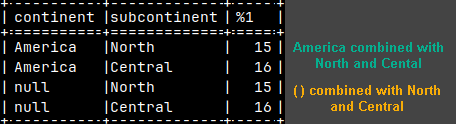
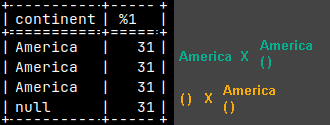
This example will give us 2 x 2 = 4 rows. ROLLUP will give us America, and "( )". GROUPING SETS will give us "North" and "Central". Then we combine them 2 x 2.
SELECT Continent, Subcontinent, SUM( Sales ) FROM tabSales
GROUP BY ROLLUP( Continent ), GROUPING SETS ( Subcontinent );
Multiplication can also easily create duplicates: SELECT Continent, SUM( Sales ) FROM tabSales GROUP BY GROUPING SETS ( Continent, () ), GROUPING SETS ( Continent, () );
Indicator Function – GROUPING
GROUPING function will inform us what rows are subtotals / grand total. In such rows, some columns have nulls because they are consolidated. GROUPING function has an argument which is a column, and GROUPING function will return the result only for that column.
SELECT Continent, GROUPING( Continent ) AS ContiGroup, Subcontinent, GROUPING( Subcontinent ) AS SubcontiGroup , SUM( Sales )
FROM tabSales
GROUP BY ROLLUP ( Continent, Subcontinent );
This function is important because it help us to make distinction between subtotal nulls, and missing data nulls.
Formatting with COALESCE and Sort
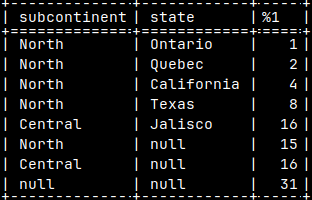
This is not good looking table. Let's fix it.
SELECT Subcontinent, State, SUM( Sales )
FROM tabSales
GROUP BY ROLLUP( Subcontinent, State );
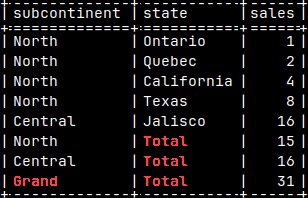
COALESCE will helps us to eliminate NULLS: SELECT COALESCE( Subcontinent, 'Grand' ) AS Subcontinent , COALESCE( State, 'Total' ) AS State , SUM( Sales ) AS Sales FROM tabSales GROUP BY ROLLUP( Subcontinent, State );
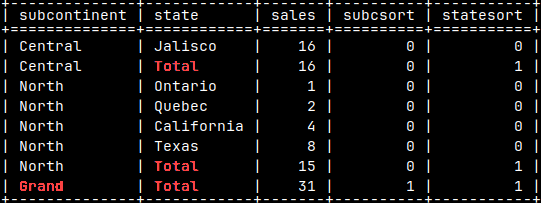
With GROUPING function, we can create columns that will help us to sort the table.
SELECT COALESCE( Subcontinent, 'Grand' ) AS Subcontinent
      , COALESCE( State, 'Total' ) AS State
      , SUM( Sales ) AS Sales
      , GROUPING( Subcontinent ) AS SubcSort
      , GROUPING( State ) AS StateSort
FROM tabSales GROUP BY ROLLUP( Subcontinent, State )
ORDER BY SubcSort, Subcontinent, StateSort;
These auxiliary columns ( SubcSort and StateSort ) can be easily eliminated by wrapping everything with "SELECT Subcontinent, State, Sales".
Comments
Sample Table and Function
Let's create two tables and function.
CREATE TABLE tabComment( Number INTEGER );
CREATE TEMPORARY TABLE tabTemporary( Number INTEGER );
CREATE OR REPLACE FUNCTION funcComment( Arg1 INTEGER )
RETURNS INTEGER
BEGIN
     RETURN 2;
END;
Comments on Database Objects
We can create comments that are tied for database objects. Comments convey information about that object.
COMMENT ON TABLE tabComment IS 'tabComment description'; COMMENT ON COLUMN tabComment.Number IS 'Number column description'; COMMENT ON FUNCTION funcComment IS 'funcComment description'; COMMENT ON SCHEMA sys IS 'sys schema description';
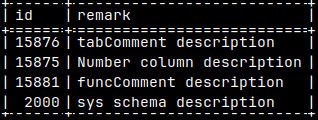
We will then find IDs of our database objects: SELECT * FROM sys.tables WHERE name = 'tabcomment'; 15876 SELECT * FROM sys.columns WHERE table_id = 15876; 15875 SELECT * FROM sys.functions WHERE name = 'funccomment'; 15881 SELECT * FROM sys.schemas WHERE name = 'sys'; 2000
All of these IDs can be found in the system table "sys.comments" together with their comments. SELECT * FROM sys.comments WHERE Id IN ( 15876, 15875, 15881, 2000 );
Deleting a Comment
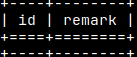
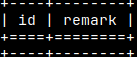
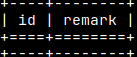
If we delete an object, its comment will be deleted. DROP TABLE tabComment; SELECT * FROM sys.comments WHERE Id = 15876;
We can delete a comment by setting it to NULL or an empty string. COMMENT ON SCHEMA sys IS null; SELECT * FROM sys.comments WHERE Id = 2000;
If a function is overloaded then we have to provide the full signature. COMMENT ON FUNCTION funcComment( INTEGER ) IS ''; SELECT * FROM sys.comments WHERE Id = 15881;
Persistent Database Objects
There are other database objects that we can place a comment on. They are all persistent database objects.
COMMENT ON VIEW view_name IS 'Comment';
COMMENT ON INDEX index_name IS 'Comment';
COMMENT ON SEQUENCE sequence_name IS 'Comment';
COMMENT ON PROCEDURE procedure_name IS 'Comment';
COMMENT ON AGGREGATE aggregate_name IS 'Comment'; COMMENT ON LOADER loader_name IS 'Comment';
We can not create a comment on a temporary object. COMMENT ON TABLE tabTemporary IS 'tabTemporary description';
Note: Before reading this blog post, you should read article about merge tables in the MonetDB ( article ), or you can watch on youtube ( video ). Advice: I suggest you follow this blog as a strict instruction. Any freestyling could mean that you will have problems to create remote tables.
Visual Presentation
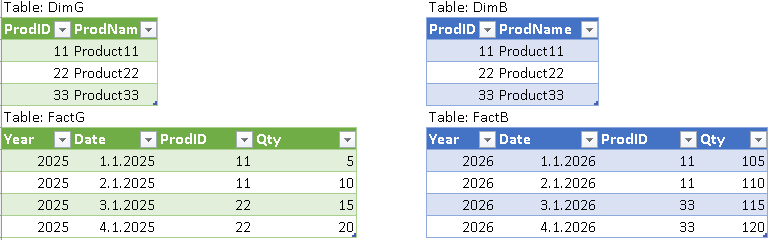
In this case, we will use two MonetDB instances that are placed on two different computers. Both of them will have dimension table with products, and that table will have the same data on both computers (DimG and DimB on the image). I will use (G)reen and (B)lue colors to differentiate servers.
Fact table will be divided into two parts. FactG will be on the green server, and FactB will be on the blue server. They will have different data.
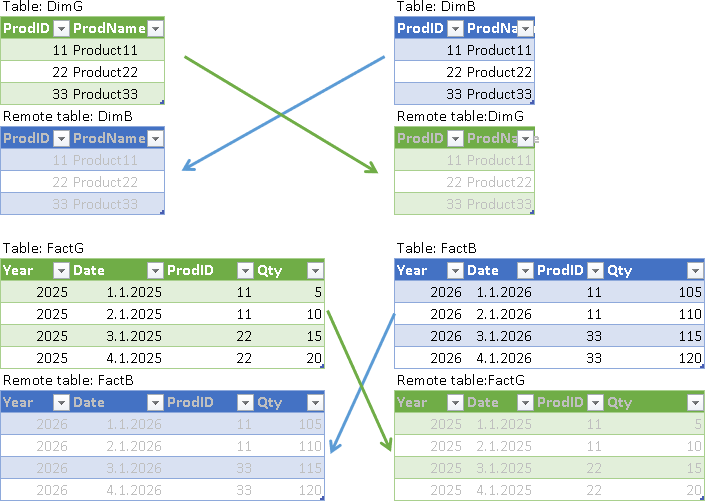
The next step is to create remote tables. Remote tables are references on one server to tables on another server. The purpose of remote tables is to let each server know about all of the tables in the system and how those tables are connected. This allows each server to create a query execution plan, even though that query uses tables from both servers.
Green server
Blue server
Table: DimG Remote table: DimB
Table: FactG Remote table: FactB
Table: DimB Remote table: DimG
Table: FactB Remote table: FactG
As a user, we can now connect to one server (it doesn't matter which one) and we can execute a query that will use tables from both servers.
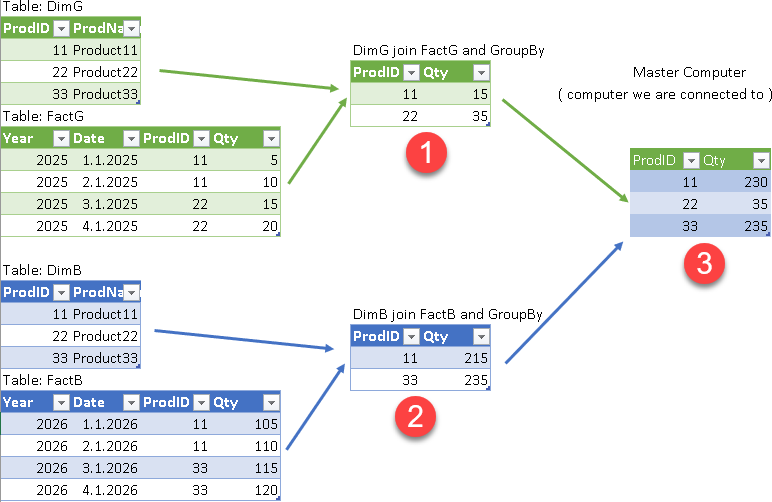
The computer we connect to will create an execution plan for the query. This plan will usually assume that intermediate results (1,2) will be calculated on each server. That way we can divide processing between the servers and increase parallelism.
The intermediate results will then be collected by the master computer (the one that creates the execution plan) and transformed into the final result (3).
The whole purpose of distributed queries is to divide the work between the computers in the cluster and increase performance.
In this part, we will create MonetDB folder, one database, and we will login as administrator.
As admin we will create new role, schema and user. Schema will have that role as authorization. User will have that schema as default schema, and role as default role. That means that user will be able to use all of the objects in this schema.
CREATE ROLE RoleGB;
CREATE SCHEMA SchemaGB AUTHORIZATION RoleGB;
CREATE USER UserGB WITH PASSWORD 'gb' NAME 'Distributed User' SCHEMA SchemaGB DEFAULT ROLE RoleGB;
quit
Letters "GB" mean that this role, schema and user will exist in both the green and the blue server. In order for one user to access tables from both servers, his account must be present in both servers.
Then, we will login as a new user "usergb". We will create two tables, "DimG" and "FactG", and we will fill them with the data.
At the start of this blog post, we already saw content of these tables.
monetdbd stop /home/sima/monetdb/DBfarmG
monetdbd get all /home/sima/monetdb/DBfarmG
monetdbd set listenaddr=0.0.0.0 /home/sima/monetdb/DBfarmG
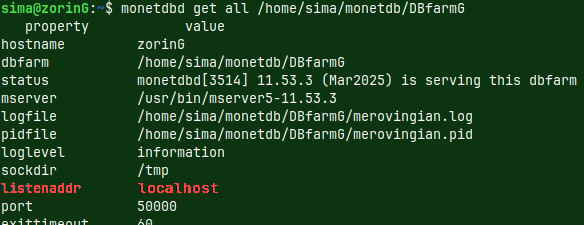
We are back in the shell. I will stop monetdb folder because I want to change one setting. That setting is "listenaddr". This setting is currently "localhost" which means that server is only available from the local computer.
We will change that value to "0.0.0.0" which means that anyone can access MonetDB server.
We will then start our MonetDB folder again: monetdbd start /home/sima/monetdb/DBfarmG
We can test who is listening the port 50.000. ss -tulnp | grep 50000
Below you can see some commands that you can use to configure your firewall so that you can control communication between servers. I will not teach you how to manage the firewall. I will just show you how I configured it. If you have any problems with the firewall, you can reset all the rules with "sudo ufw reset", and then you can disable the firewall with "sudo ufw disable".
I will now set firewall by running these commands in the shell.
"ufw" means "uncomplicated firewall".
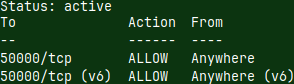
sudo ufw enable --the firewall will be permanently enabled. It is disabled by default. sudo ufw default deny incoming --no one can call us sudo ufw default allow outgoing --we can call anyone -- bellow is command that will open incoming traffic on port 50.000 for tcp protocol. -- it will also limit the range of IP addresses only to IP addresses on my local network. sudo ufw allow from 192.168.100.0/24 to any port 50000 proto tcp -- I don't know whether your local network is using the same range of IP addresses. I will delete this rule. sudo ufw delete allow from 192.168.100.0/24 to any port 50000 proto tcp --I will create a simpler rule that will only limit the port number and tcp protocol. sudo ufw allow 50000/tcp sudo ufw status --we can check the status of the firewall.
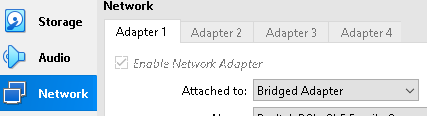
This step is just for the people who are following this tutorial with linux virtual machines inside of the Virtual Box. Go to Settings > Network > Adapter 1, and choose the "Bridged Adapter" option. This will include virtual machines into the local network. This step is needed so that two virtual machines can communicate over the network.
Testing Remote Access to the Green Server
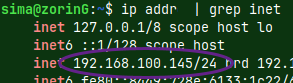
In the green server shell, run this command. This is how you can find IP address of a server. ip addr | grep inet
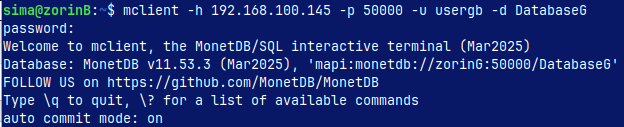
Now you can go tothe blue server, and from there you can run this code. mclient -h 192.168.100.145 -p 50000 -u usergb -d DatabaseG -- password is "gb" This is how we can log to remote green server, over the network.
Blue Server Setup
There is nothing different in preparing of the blue server. I will just repeat the same commands, but with different identifiers.
CREATE ROLE RoleGB; --all identifiers are the same for the privileges, as for the green server CREATE SCHEMA SchemaGB AUTHORIZATION RoleGB; CREATE USER UserGB WITH PASSWORD 'gb' NAME 'Distributed User' SCHEMA SchemaGB DEFAULT ROLE RoleGB; quit;
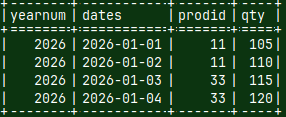
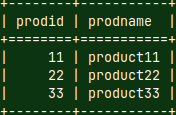
mclient -u usergb -d DatabaseB --now we login as the user CREATE TABLE FactB ( YearNum INT, Dates DATE, Prodid INT, Qty INT ); INSERT INTO FactB VALUES (2026, '2026-01-01', 11, 105), (2026, '2026-01-02', 11, 110) , (2026, '2026-01-03', 33, 115), (2026, '2026-01-04', 33, 120); CREATE TABLE DimB ( ProdID INT, ProdName VARCHAR(50) ); INSERT INTO DimB VALUES (11, 'product11'), (22, 'product22'), (33, 'product33'); quit
monetdbd stop /home/sima/monetdb/DBfarmB monetdbd get all /home/sima/monetdb/DBfarmB monetdbd set listenaddr=0.0.0.0 /home/sima/monetdb/DBfarmB --we make the server available from the network monetdbd start /home/sima/monetdb/DBfarmB ss -tulnp | grep 50000
sudo ufw enable --if needed, we can set firewall sudo ufw default deny incoming sudo ufw default allow outgoing sudo ufw allow 50000/tcp sudo ufw status
We can login to blue server from the green server (password="gb"). mclient -h 192.168.100.146 -p 50000 -u usergb -d DatabaseB
Preparing REMOTE, REPLICA and MERGE Tables in the Green Server
In the green server, we will create REMOTE tables that are just references toward tables in the blue server. mclient -u monetdb -d DatabaseG --only admin can create REMOTE tables (pass="monetdb") SET SCHEMA SchemaGB; --we must be in the same schema as the physical tables in the blue server CREATE REMOTE TABLE DimB( ProdID INT, ProdName VARCHAR(50) ) on 'mapi:monetdb://192.168.100.146:50000/DatabaseB'; --ip address of blue server CREATE REMOTE TABLE FactB( YearNum INT, Dates DATE, ProdID INT, Qty INT ) on 'mapi:monetdb://192.168.100.146:50000/DatabaseB';
CREATE REPLICA TABLE Dim( prodid INT, prodname VARCHAR(50) );
ALTER TABLE Dim ADD TABLE DimG;
ALTER TABLE Dim ADD TABLE DimB;
Tables "DimG" and "DimB" are totally identical. We must notify MonetDB that they are "replicas". For queries MonetDB can use any of these tables interchangeably.
CREATE MERGE TABLE Fact( YearNum INT, Dates DATE, ProdID INT, Qty INT );
ALTER TABLE Fact ADD TABLE FactG;
ALTER TABLE Fact ADD TABLE FactB;
Tables "FactG" and "FactB" are just partitions of the merge table. This is why you should read/watch video about merge tables.
We can now query these two new tables Dim and Fact.
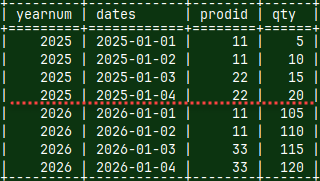
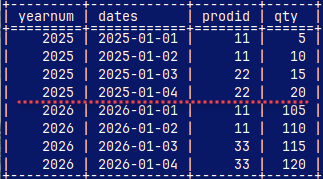
Dim table is unchanged, but Fact table is UNION of FactG and FactB.
SELECT * FROM Dim;
SELECT * FROM Fact;
Preparing REMOTE, REPLICA and MERGE Tables in the Blue Server
I will again repeat all of the steps, but this time for the blue server.
mclient -u monetdb -d DatabaseB --only admin can create REMOTE tables. (pass="monetdb") SET SCHEMA SchemaGB; --we must be in the same schema as the physical tables in the blue server CREATE REMOTE TABLE DimG( ProdID INT, ProdName VARCHAR(50) ) on 'mapi:monetdb://192.168.100.145:50000/DatabaseG'; CREATE REMOTE TABLE FactG( YearNum INT, Dates DATE, ProdID INT, Qty INT ) on 'mapi:monetdb://192.168.100.145:50000/DatabaseG';
CREATE REPLICA TABLE Dim( ProdID INT, ProdName VARCHAR(50) ); ALTERTABLE Dim ADD TABLE DimG; ALTER TABLE Dim ADD TABLE DimB;
For performance reasons, MonetDB does not check if the replica tables are indeed identical. This responsibility is left to the database users.
CREATE MERGE TABLE Fact( YearNum INT, Dates DATE, ProdID INT, Qty INT ); ALTER TABLE Fact ADD TABLE FactG; ALTER TABLE Fact ADD TABLE FactB;
SELECT * FROM Dim; SELECT * FROM Fact;
Horizontally dividing one table between computers in a cluster is called "sharding".
System Tables
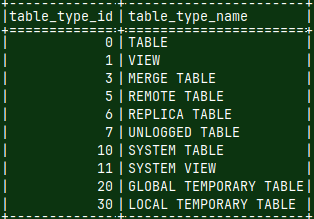
In "sys.tables" we can find all our tables. Based on the system table "sys.table_types" we can see that we have regular (0), remote (5), merge (3) and replica tables (6). SELECT * FROM sys.tables WHERE name IN ( 'factg', 'factb', 'fact', 'dimg', 'dimb', 'dim' );
SELECT * FROM sys.table_types;
Dependencies inside of "fact" and "dim" table can be seen in the system view "sys.dependencies_vw". SELECT * FROM sys.dependencies_vw WHERE depend_type = 2;
The Fruit of Our Labor
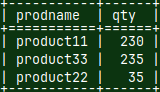
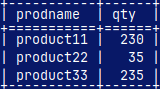
In the green server, I will now login as a "UserGB". This user has privileges over all of the objects in the "SchemaGB". He can query "Dim" and "Fact" tables. mclient -u usergb -d DatabaseG --password "gb" SELECT ProdName, SUM( Qty ) AS Qty FROM Dim INNER JOIN Fact ON Dim.ProdID = Fact.ProdID GROUP BY ProdName;
Finally, we can run a query that will use the power of the two computers and two MonetDB servers.
It is the same for the blue server. mclient -u usergb -d DatabaseB --password "gb" SELECT ProdName, SUM( Qty ) AS Qty FROM Dim INNER JOIN Fact ON Dim.ProdID = Fact.ProdID GROUP BY ProdName;
We finally have a working distributed query processing system.
Load Balancer
The question is how to divide users between two (or more) servers to equalize the load. The easiest way is to have all users born from January to June use the green server, and all users born from July to December use the blue server.
A more professional way is to use a load balancer, something like HAproxy (link). This program will direct users to a server that is currently not under load.
We will start with a blank state. I will delete the users that were created in the Part 1.
DROP USER newUser;
DROP USER mnm;
Initial State
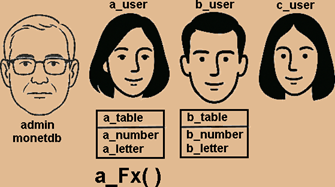
mclient -u monetdb -d voc #password "monetdb" I will create three users. I won't define their default schemes, so each of them will get a scheme named after them. We also have admin user "monetdb".
CREATE USER a_user WITH PASSWORD '1' NAME 'a';
CREATE USER b_user WITH PASSWORD '1' NAME 'b';
CREATE USER c_user WITH PASSWORD '1' NAME 'c';
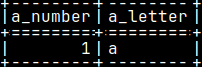
I will now login as "a_user" and I will create a table and a function. They will be created in the schema "a_user". mclient -u a_user -d voc #password "1" CREATE TABLE a_user.a_table ( a_number INT PRIMARY KEY, a_letter CHAR ); INSERT INTO a_user.a_table ( a_number, a_letter ) VALUES ( 1, 'a' );
CREATE OR REPLACE FUNCTION a_user.a_Fx()
RETURNS INTEGER
BEGIN
     RETURN 2;
END;
I will create one table in the "b_user" schema. mclient -u b_user -d voc #password "1"
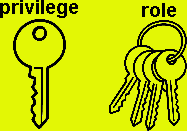
Privilege is a permission to do one action (SELECT, UPDATE…). Role is a collection of such privileges.
Grant Privileges to a User
Grant and Revoke all Privileges on a Table
"b_user" can not use the table "a_table".
"a_user" will grant privilege to "b_user" to use table "a_table". "FROM CURRENT_USER" is the default and can be omitted. That means that the privilege is given by the CURRENT_USER. Other option is that the privilege is given by a role. We'll see that later.
mclient -u a_user -d voc #password "1" GRANT ALL ON a_user.a_table TO b_user FROM CURRENT_USER;
We will now log in as a b_user and we will try to use "a_table". mclient -u b_user -d voc #password "1"
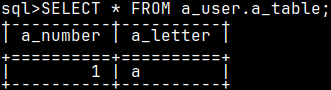
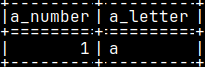
SELECT * FROM a_user.a_table;
"b_user" can not alter the table. Altering of a table is reserved for an owner of a table. "b_user" can only use DML stataments. In MonetDB, owner of a table is owner of a schema where some table is.
ALTER TABLE a_user.a_table RENAME COLUMN a_number TO zzz;
mclient -u a_user -d voc #password "1" REVOKE ALL ON TABLE a_user.a_table FROM b_user;
This is how we can revoke privileges given to "b_user".
Grant and Revoke Separate Privileges
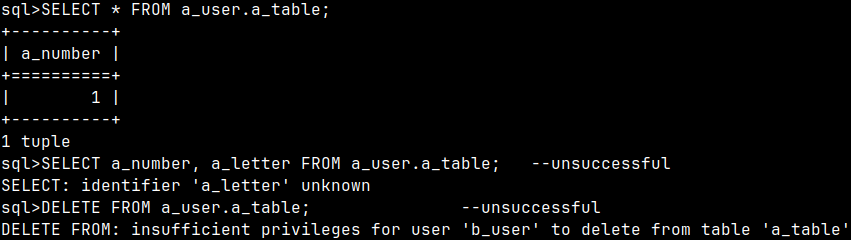
I will again give privileges to "b_user" for the table "a_table". GRANT SELECT ( a_number ), INSERT, UPDATE ( a_number, a_letter ) ON a_user.a_table TO b_user FROM CURRENT_USER; This time, instead of "ALL", I will give each privilege separately. This time I will give him SELECT, INSERT and UPDATE privileges. Beside those we can give him privileges to DELETE, TRUNCATE, and REFERENCE. Any combination is allowed. Notice that for SELECT, UPDATE and REFERENCES we can limit our permission to a list of columns.
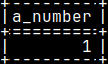
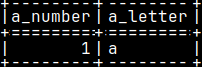
I will then login as a "b_user" and I will try SELECT and DELETE on "a_table". mclient -u b_user -d voc #password "1" SELECT * FROM a_user.a_table; --successful, but only 1 column SELECT a_number, a_letter FROM a_user.a_table; --unsuccessful DELETE FROM a_user.a_table;--unsuccessful
mclient -u a_user -d voc#password "1" REVOKE ALL ON TABLE a_user.a_table FROM b_user; REVOKE SELECT ON TABLE a_user.a_table FROM b_user;
I will try to revoke privileges as a group. I will also try to revoke SELECT privilege for all of the columns. Both will succeed.
"b_user" can reference table that belongs to "a_user". We didn't even have to grant rights. This is a bag. This shouldn't be allowed. GRANT and REVOKE statements are totally useless for REFERENCES privilege, because this privilege is always given.
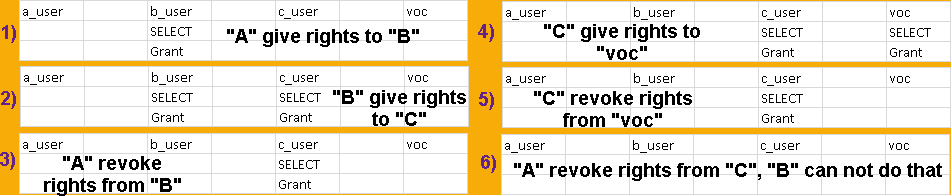
"b_user" received the right to SELECT from the "a_table". But he also received the right to give that right to someone else.
"b_user" can now give SELECT right to the user "c_user". GRANT SELECT ON a_user.a_table TO c_user WITH GRANT OPTION;
So, we have two rights, right to read and right to grant.
mclient -u a_user -d voc #password "1" REVOKE GRANT OPTION FOR SELECT ON a_user.a_table FROM b_user; REVOKE SELECT ON a_user.a_table FROM b_user;
In MonetDB, it is not possible to revoke these two rights separately. Statement like these ones will remove all of the rights from "b_user".
mclient -u b_user -d voc #password "1" GRANT SELECT ON a_user.a_table TO voc;
mclient -u c_user -d voc #password "1" SELECT * FROM a_user.a_table; GRANT SELECT ON a_user.a_table TO voc WITH GRANT OPTION;
Interesting thing is that the user "c_user" will keep both of his rights. He can still read from the "a_table", and can further grant that right.
How to revoke these rights now? User "c" can revoke his rights from the "voc".
REVOKE GRANT OPTION FOR SELECT ON a_user.a_table FROM voc; But, what about "c_user", who can revoke his rights?
mclient -u b_user -d voc #password "1" REVOKE GRANT OPTION FOR SELECT ON a_user.a_table FROM c_user;
"b_user" can not do it any more.
mclient -u a_user -d voc #password "1" REVOKE GRANT OPTION FOR SELECT ON a_user.a_table FROM c_user;
"a_user" has to do it.
This means that "a_user" can revoke the rights on the "a_table" from anyone, anytime. As you can see, giving grantable rights can create a confusion where we don't know any more who has the rights and who hasn't. I think we should avoid using this option.
Grant Privileges to Roles
Grant Privileges to a User Through a Role
As admin I will create a role. mclient -u monetdb -d voc #password "monetdb" CREATE ROLE Role1; GRANT SELECT ON a_user.a_table TO Role1; GRANT Role1 TO b_user;
I will then log as the "b_user". He will be able to read from the "a_user.a_table". mclient -u b_user -d voc #password "1" SET ROLE Role1; SELECT * FROM a_user.a_table;
We saw how to grant rights to the role, how to grant role to the user, and how user can use role with "SET ROLE" statement.
Create Another Administrator
The administrator privileges are contained in the predefined role "sysadmin". Anyone who take that role will have administrative rights.
mclient -u monetdb -d voc #password "monetdb" GRANT sysadmin TO c_user;
We will then jump to be "c_user". mclient -u c_user -d voc #password "1"
"c_user" will try to create a new user. CREATE USER d_user WITH PASSWORD '1' NAME 'd';
He will fail.
He first has to start using this new role. SET ROLE sysadmin;
Now it is working.
If we try to create a new role, we will fail. CREATE ROLE ZZZ;
We are failing because default clause is "WITH ADMIN CURRENT_USER". We have to change this to "CURRENT_ROLE" (sysadmin role). CREATE ROLE ZZZ WITH ADMIN CURRENT_ROLE;
This is where we can see the difference between "WITH ADMIN CURRENT_USER" and "WITH ADMIN CURRENT_ROLE".
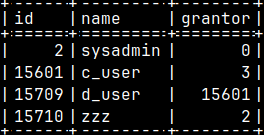
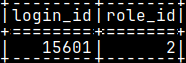
We can see in the sys.auths table that "c_user" created "d_user", because he has "sysadmin" role. The role "zzz" was created by the "sysadmin" role. SELECT * FROM sys.user_role; SELECT * FROM sys.auths WHERE id IN ( 2, 15601, 15709, 15710 );
Grant a Role
We are still "c_user" and we will grant a role to "a_user". GRANT ZZZ TO a_user;
We will fail.
Just like previously, we have to grant a role from a CURRENT_ROLE. GRANT ZZZ TO a_user FROM CURRENT_ROLE;
Now it works.
The "a_user" will be now able to use "ZZZ" role, but he will not be able to grant that role further to the "b_user". I want to change that.
I will revoke "ZZZ" from "a_user". REVOKE ZZZ FROM a_user FROM CURRENT_ROLE;
Then, I will grant him the same role, but with ADMIN rights for that role. GRANT ZZZ TO a_user WITH ADMIN OPTION FROM CURRENT_ROLE;
We'll now jump to be "a_user". mclient -u a_user -d voc #password "1" SET ROLE ZZZ; GRANT ZZZ TO b_user;
This works. Now "b_user" also has "ZZZ" role assigned.
Role Hierarchy
I will create two roles. Then I will create a hierarchy between them.
mclient -u monetdb -d voc
CREATE ROLE ParentRole;
CREATE ROLE ChildRole;
I will now grant "ChildRole" to "ParentRole", with ADMIN OPTION.
GRANT ChildRole TO ParentRole WITH ADMIN OPTION; This is how we create hierarchy. "ParentRole" can delegate "ChildRole".
I will then give some privilege to the ChildRole. Just so we can test it.
GRANT SELECT ON b_user.b_table TO ChildRole;
In the next step, I will grant only the ParentRole to the "c_user".
GRANT ParentRole TO c_user;
We haven't granted ChildRole to the "c_user" but he will still be able to use it by utilizing the hierarchy. mclient -u c_user -d voc #password "1" SET ROLE ParentRole; GRANT ChildRole TO c_user FROM CURRENT_ROLE; SET ROLE ChildRole; SELECT * FROM b_user.b_table;
So, "c_user" will SET the role "ParentRole", and then he will use "WITH ADMIN OPTION" right to delegate "ChildRole" from the "ParentRole" to himself.
After the grant, he can use SET ROLE ChildRole to get access to the table "b_user.b_table".
System Tables
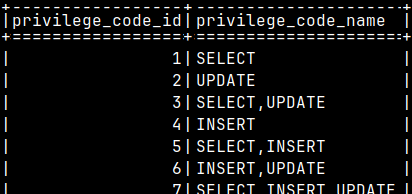
Sistem table "sys.privilege_codes" contains code for all of the possible combinations of SELECT, UPDATE, INSERT, DELETE, TRUNCATE, GRANT.
SELECT * FROM sys.privilege_codes ORDER BY privilege_code_id;
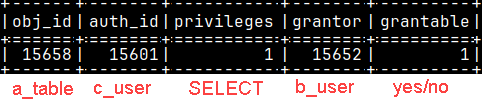
In the table "sys.privileges" we can find the list of the given privileges. On the image we can see that "b_user" gaved "c_user" SELECT grantable rights on the "a_table". SELECT * FROM sys.privileges WHERE obj_id = 15658;
An identity is a symbolic representation of a person, object, or software. It can be a name, a code, or a number. Whenever we read this symbolic representation, we immediately know who/what it is.
Person
Computer
ERP program instance
BI program instance
Aung San
DESKTOP-9A3F2KJ
SAP\36
7892163
From the computer systems perspective, identity is a symbolic representation that can be authenticated and authorized to interact with a system.
Authentication is verifying of the identity.
Person "Aung San" has password "123".
Authorization is a list of things you're allowed to do.
"Aung San" can change and use any object in MonetDB schema "cars_schema".
When we register such identity in some computer system, then we have created an "Account".
For example, library has identity registered as an account.
If we provide our library card, we can be authenticated and then we will be authorized to borrow the book.
User "monetdb"
After the installation of MonetDB, we start with administrator user. His name is "monetdb" and password is "monetdb".
SELECT * FROM sys.auths;
In the system table "sys.auths", we have list of all of the users and roles. Here we can see that ID of the user "monetdb" is number 3.
We can see that this user is admin, because he is the owner of all the system schemas. => SELECT * FROM sys.schemas;
Create a User in MonetDB
We have already seen how to create a user. We need the user's identity ("username") and their authentication ("password"). We will define later what permissions this user has. Only administrators can create new users, so we will login as "monetdb" and we will create new user.
mclient -u monetdb -d voc --password is monetdb CREATE USER "User1" WITH PASSWORD '123' NAME 'Aung San';
"User1" is the username. "Aung San" is the full name of the user.
Auths table has a list of all of the users and roles: SELECT * FROM sys.auths;
We can also find new user in "SELECT * FROM sys.users;".
<= SELECT * FROM sys.schemas; We can also notice that a schema for this new user is created. It has the same name as a user. This is his default schema.
It is not possible to create a user who doesn't have a password.
Preparing a Sample Table
While we are still logged in as administrator, I will create one table. CREATE TABLE schemaTest ( Number INT ); INSERT INTO schemaTest ( Number ) VALUES ( 1 ); SELECT * FROM sys.schemaTest;
GRANT SELECT ON sys.schemaTest TO "User1";
I will also grant the rights to "User1" to be able to read from the table "sys.SchemaTest".
Schemas for the New User
We will quit current session with "quit". Then we will log in as a new user: mclient -u "User1" -d voc --password is 123 SELECT CURRENT_SCHEMA;
If we check the default schema of a user, it will be "User1".
CREATE TABLE schemaTest ( Letter CHAR );
INSERT INTO schemaTest ( Letter ) VALUES ( 'A' );
SELECT * FROM "User1".schemaTest;
We already knew that the new table will be created within the default schema "User1".
I will now alter "User1". ALTER USER "User1" SCHEMA PATH '"sys","User1"';
I will also change the current schema. SET SCHEMA voc;
And then I will read from schemaTest; SELECT * FROM schemaTest;
We will get a table with the "1". That is the table from schema "sys". The reason is that a table is searched for in this order: 1) First search in the current schema. Current schema is "voc" and we will find nothing. 2) Then search in order "sys", "User1" ( SCHEMA PATH attribute ). We will find a table in a "sys" schema and we will return table with the number "1".
CREATE TABLE Test ( Test INT );
If the user "User1" tries now to create a table, MonetDB will try to create a table in the current schema "voc". This will fail because of privilages.
So, unqualified table name is always created in the current schema. Unqualified table in SELECT is searched in schemas in the order "voc" (current schema), "sys" (first schema in the SCHEMA PATH list), "User1" (second schema in the SCHEMA PATH list), and then the other schemas in the SCHEMA PATH list.
Deleting a User
We saw that when we create a user without specifying his schema, a new schema is created.
DROP USER "User1"; –It seems that we can not delete the user because of his schema.
DROP SCHEMA "User1"; — We can not delete schema because it is user's default schema.
ALTER USER "User1" SET SCHEMA sys;
DROP SCHEMA "User1" CASCADE;
DROP USER "User1";
* we have to cascade to delete dependent table "User1".schemaTest.
Solution is that first we change user's default schema. After that we can delete that schema. Then we can delete the user.
Creating a User with Attributes
mclient -u monetdb -d voc
I will quit the session, and then I will login as an administrator. Then I can create another user.
CREATE USER sali WITH PASSWORD '123' NAME 'Sali Noyan'
        SCHEMA sys SCHEMA PATH '"sys","voc"'
        MAX_MEMORY 1073741824 MAX_WORKERS 6
        OPTIMIZER 'minimal_fast';
When creating a new user, we can define many attributes. We can define default schema and schema path. User's query can use maximally 1 GB of memory, and can be processed with 6 CPU threads. Query will use "minimal fast" optimizer.
Default schema
Schema path
Maximal memory for queries
Maximal threads for query
Optimizer used
SCHEMA sys
SCHEMA PATH '"sys","voc"'
MAX_MEMORY 1073741824
MAX_WORKERS 6
OPTIMIZER 'minimal_fast'
We can read from the system table: SELECT * FROM sys.optimizers;
That query will give us a list of the possible optimizers. Optimizers are used to make our queries faster. We should mostly stick with the default optimizer "default_pipe".
Encrypted Password
When we create the user, his password will be encrypted and stored. MonetDB is, by default, using SHA-512 encryption.
If our password is "123" then we can go to the web site https://sha512.online, and there we can encrypt that password into SHA-512 encryption.
Instead of giving MonetDB the task of encrypting password, we can encrypt it ourself. We can, then, create a new user by using that already encrypted password.
If we are administrator, this is how we can create a new user by using encrypted password.
CREATE USER Test WITH ENCRYPTED PASSWORD '3c9909afec25354d551dae21590bb26e38d53f2173b8d3dc3eee4c047e7ab1c1eb8b85103e3be7ba613b31bb5c9c36214dc9f14a42fd7a2fdb84856bca5c44c2' NAME 'Test' SCHEMA sys;
After that, we will quit the session, and then we will log as a new user.
mclient -u test -d voc User will use original password "123". That password will then be encrypted and compared with the stored password.
I will now quit this session and then I will log as an administrator. After that I will delete "test" user.
mclient -u monetdb -d voc--password "monetdb"
DROP USER Test;
Altering Users
We can change the name of a user.
ALTER USER sali RENAME TO merik;
I will change "monetdb" password to "monetdb2" and back. This is for the users to change their own passwords.
ALTER USER SET PASSWORD 'monetdb2' USING OLD PASSWORD 'monetdb'; ALTER USER SET PASSWORD 'monetdb' USING OLD PASSWORD 'monetdb2';
ALTER USER merik
WITH PASSWORD '456'
SET SCHEMA voc
SCHEMA PATH '"sys","voc"'
MAX_MEMORY 1000
MAX_WORKERS 5;
<= This is how admin can change all of the attributes of a user. In this statement each subclause is optional. For example, statement bellow will change only the MAX_MEMORY and MAX_WORKERS. We will turn them of.
ALTER USER merik NO MAX_MEMORY NO MAX_WORKERS;
It seems that is not possible to change OPTIMIZER for a user.
We can now observe changes on the "merik" user.
SELECT * FROM sys.users WHERE name = 'merik';
ALTER with Encrypted Passwords
We can use encrypted version of a password in the ALTER statements.
This can be used by the user: -- ALTER USER SET ENCRYPTED PASSWORD '3c9909afec25354d551dae21590bb26e38d53f2173b8d3dc3eee4c047e7ab1c1eb8b85103e3be7ba613b31bb5c9c36214dc9f14a42fd7a2fdb84856bca5c44c2' USING OLD PASSWORD '456';
This is how admin would change the password of some other user, by using SHA-512. ALTER USER merik WITH ENCRYPTED PASSWORD '3c9909afec25354d551dae21590bb26e38d53f2173b8d3dc3eee4c047e7ab1c1eb8b85103e3be7ba613b31bb5c9c36214dc9f14a42fd7a2fdb84856bca5c44c2';
I will delete the user, "DROP USER merik;".
Roles
Role is a named set of privileges that can be granted to a user. Privileges are permissions to perform an action (e.g., SELECT, INSERT, EXECUTE). Instead of granting individual permissions, we assign a role, and the user inherits all the permissions associated with that role.
In chess, the rights to control each white piece are united under the role of "White".
The rights to control each black piece are united under the role of "Black".
In one match you can accept the role of White, but in another match you can be Black player. Each role can give different rights to the same chess player.
Creation of a New Role
When a new role is created it only has a name. We will see later how to add privileges to a role.
I will create a new user: CREATE USER newUser WITH PASSWORD '123' NAME 'newUser name' SCHEMA sys; New role with the id "15554" will appear in the sys.auths table. This role can not be given to other users; it is the personal property of the "newUser". This personal role will not appear in the sys.roles table.
SELECT *
FROM sys.auths;
SELECT *
FROM sys.roles;
This is how we create the real role. CREATE ROLE newRole; It will appear both in sys.auths and sys.roles.
These kinds of roles can be asign to users.
Default Role
Default role is automatically active for the user upon login and used to determine their default permissions.
In sys.users table we can find data about "newUser" user. SELECT * FROM sys.users WHERE name = 'newuser';
His default role is 15554. That is the personal role created together with that user. SELECT * FROM sys.auths WHERE name = 'newuser';
We can change the default role. I will set "newRole" as a default role for the "newUser".
ALTER USER newUser DEFAULT ROLE newRole;
We can read default role again. Role with ID 15557is "newRole". SELECT name, default_role FROM sys.users WHERE name = 'newuser';
We can assign a default role to a user when the user is created.
CREATE USER mnm WITH PASSWORD '123' NAME 'mnm'
    SCHEMA sys
DEFAULT ROLE newRole; SELECT name, default_role FROM sys.users WHERE name = 'mnm';
Granting a Role
We are currently admin. We can find that out like this: SELECT CURRENT_USER, CURRENT_ROLE;
Admin is using his personal role. This is his default role.
Admin must first grant himself a right to use "newRole". "SET" will not work without that.
SET ROLE newRole;
I want to give admin the right to use newRole. GRANT newRole TO monetdb;
Admin now has the right to use "newRole". We will then make this role the current_role. SET ROLE newRole;
We can now test, what is the current role. SELECT CURRENT_USER, CURRENT_ROLE;
We have successfully changed current role for admin.
Each user, beside the default role, can have several other roles assigned. He can easily switch between them. For example, "SET ROLE monetdb;" will return original admin role to him.
We can find a list of granted roles in the system table: SELECT * FROM sys.user_role; User with ID 3 is admin. User with ID 15581 is "mnm".
When we have created the "mnm", we have set his default role to "newRole" ( 15557 ). That role is then automatically granted to him. We have also ALTER the user "newUser". We gave him default role "newRole" ( 15557 ), but in that case this role was not granted to him automatically. This is not good. If we alter the user default role, that role should be automatically granted to him. It is wrong that user, after he log in, have a default role that he was not granted. We can solve this problem by granting the role separately.
GRANT newRole TO newUser;
SELECT * FROM sys.user_role;
Deleting a Role
We can easily delete the role. DROP ROLE newRole; SELECT * FROM sys.roles;
























 Now, it worked.

















 Admin is using his personal role. This is his default role.
 We have successfully changed current role for admin.

