OpenSSL

L0060 Certificate Signing Request (CSR)

Self signed certificates are great for communication between nodes that we have full control of. If we want to make our servers available over the internet, and make them exposed to users, then mutual trust and security must include Certificate Authority. We need CA to sign our certificate.

What is CSR?

If we need CA to sign our certificate, we first must send it what to sign. That is CSR. A CSR (Certificate Signing Request) is essentially an application you submit to a Certificate Authority asking them to issue you a signed certificate. This is one file that we send to CA, CA will verify information from that file, and after successful verification, it will send us back signed certificate.

First, we create a private key, we type identity information, and from them we create a CSR request.
After that, we send CSR ( and some money ) to Certification Authority, and then we wait for their answer.

During that time, CA will verify the data that we have send them.

What CSR Contains?

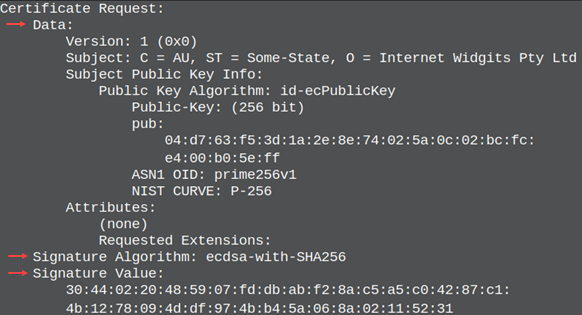
CSR is, in many ways similar, to selfsigned certificate. It has the same three sections.Data:Signature Algorithm:Signature Value:

In the Data: section we have identity data and we have our public key. We used algorithm from the Signature Algorithm: to create that public key and accompanied private key, and we used that private key to sign the CSR.

Signature Value: is the same as in the self signed key. We used our private key to sign everything from the Data: and Signature Algorithm:  sections.. Signature Value: section contains other two sections signed with our private key.

Signature Value: is used to prove that we control the private key that match the public key from the Data: section. Without this anyone would be able to create CSR with our public key.

There are some things that are missing compared with self signed certificate. It has no Issuer filed, no validity period ( "not before" / "not after" ). CSR is unsigned certificate that is incomplete until CA sign it.

The CSR does not contain a private key. The private key is never shared with anyone. Our CA doesn't have to know our private key.

CSR Verification

Certification Authority will check whether Signature Value: match the public key. Beside that, verification depends on the type of the certificate. There are 3 kinds of certificates: DV, OV, EV. There are also IV certificates.

Domain Validated ( DV )  
                       
These are the cheapest certificates. They will only validate that we control some internet domain.
Organization Validated ( OV )  

Beside domain validation, CA will check does our organization really exist. They will search for it in the government business registries and official company databases. They will visit its web site, and will call phone numbers of the organization.
Extended Validation ( EV )  

EV is similar to OV, but it is much more expensive and the validation process is more complex. CA will check the physical location of the company. They can send someone for a visit. They will ask government about legal status of the company. They will ask for identity of the person sending a CSR, and they will check if that person has authority to request a certificate in the name of the company. This kind of a certificate is usually an overkill and even big corporation will use OV certificate instead of it.

Individual Validation (IV) is a type of certificate used to verify a person. The CA will verify your personal identity (passport, ID card, driver's license), verify your physical address, and verify your phone number. This type of certificate is sometimes used to prove that someone owns an internet domain or email address. It is sometimes used to sign documents or software code.

Creation of an RSA Key

Before we create a CSR, we must create a private key.cd /home/fff/Desktop
openssl genpkey -algorithm RSA -pkeyopt rsa_keygen_bits:2048 -out private.key
                                                                                                                                                                 
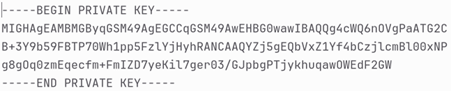
Private key will have PEM format.


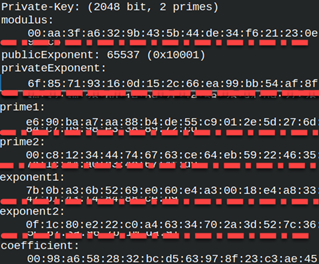
We can read content of this PEM file with "pkey" command =>
openssl pkey -in private.key -text -noout
Creation of a CSR File

Based on the private key we will create a CSR file. We use req command to create CSR file.  
openssl req -new -key private.key -out request.csr  
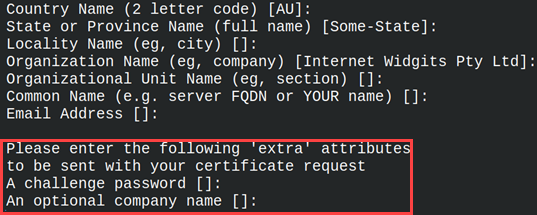
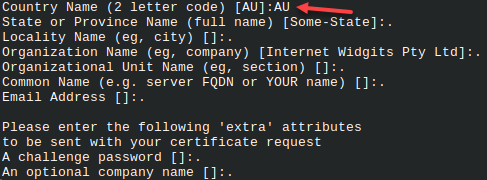
Just like for a certificate, we will be asked to provide Country, State, City, Department and other data. I will just type Enter each time and I will go through all of the question without providing any data.  

On the image above we can see two unfamiliar prompts. At the bottom we will be asked for a "challenge password" and an "optional company name". These are the fields that today don't have any purpose and we should ignore them. They are not used anymore.

CSR file will have familiar PEM format.
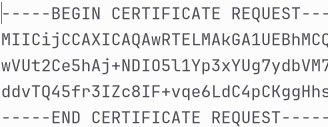
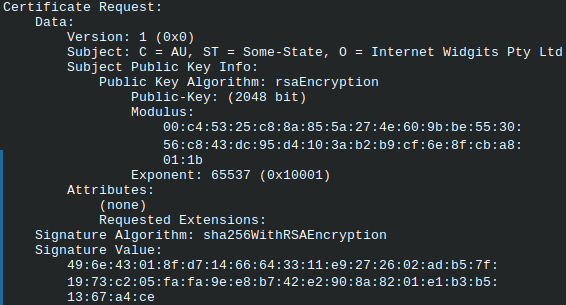
For request we use "req" command. We can use it to read text of the CSR file.
                                                                            
openssl req -in request.csr -noout -text
Notice that fields "C,ST,O" are filled with default values. We have a country, state and organization. This will happen any time we use Enter to walk through CSR prompts. Default values will be used.To make these fields empty we must type dots.

I will create the same CSR file again, but this time I will type dots.
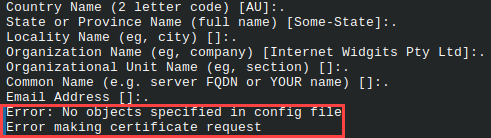
We will get an error, because we must provide at least one field value.
I will run it again, but this time with I will provide a Country.
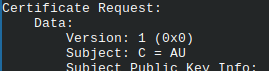
We can now read from the request. We will see that only the field for a Country has a value.
openssl req -in request.csr -noout -text

How to Create a Key and CSR File with One Command?

It is possible to simplify creation of a key and CSR. We use this command line. We also used "–subj" option to avoid getting questions.
openssl req -new -newkey rsa:2048 -noenc -keyout private.key -out request.csr -subj "/C=AU"

Encryption

When we use "req" command to create a key and a CSR file, we must provide "-noenc" to avoid encryption of a key. When we use "genpkey" command to create standalone key, then we don't have to provide "-noenc" option, because the key will be unencrypted.

openssl genpkey -algorithm RSA -pkeyopt rsa_keygen_bits:2048 -out private.key -aes-128-cbc  
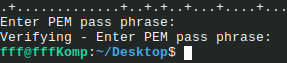
To encrypt the key, we must provide encryption algorithm. Password must be over 4 characters.

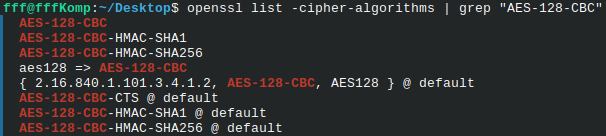
If you want to use some other cipher for key encryption, you can search for it with this command. The cipher we used is also here.  
openssl list -cipher-algorithms | grep "AES-128-CBC"

Creation of an EC Key

We can create EC private key with "genpkey" command.openssl genpkey -algorithm EC -pkeyopt ec_paramgen_curve:prime256v1 -out private.key
We already learned that instead of providing a curve, we can provide algorithm name. Algorithm will assume the curve used.openssl genpkey -algorithm ed25519 -out private.key
                                                                                                                                                                            

Based on the EC key, I will create a CSR file with "-subj" option.openssl req -new -key private.key -out request.csr -subj "/C=AU"

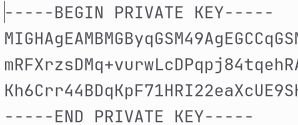
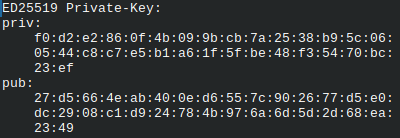
I will read the content of a private key.  
openssl pkey -in private.key -text -noout  
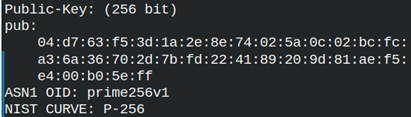
Interesting thing is that we will get both Private and Public key. Opposite from RSA keys, EC public keys are directly derived from the private keys. We get both keys because EC keys are short and it is easy to derive public key from a private key.

Verification of a CSR File

Public key and Signature Value: in CSR file must match. We can verify that with this command.
openssl req -in request.csr -verify -noout

Extraction of a Public Key

We have already saw how to extract public key from a private key.openssl pkey -in private.key -pubout
By using redirection we can save this key into a file:  

openssl pkey -in private.key -pubout > public.pub
We can do the same with "-out" option.openssl pkey -in private.key -pubout -out public.pub

I will remind you that we can extract public key from a certificate. We did this in an article about self-signed keys.# openssl x509 -in certificate.crt -pubkey -noout
The last extraction is from a CSR file.
openssl req -in request.csr -pubkey -noout
                      

L0050 OpenSSL Self Signed Key

Self signed key is useful when we want to protect communication between two devices that are under our control. In this case there is no "mutual friend" ( Certificate Authority ) that will sign our certificate.

As a result, we will get one private key and 1 certificate. Our private key will be used to sign a certificate.

Self Signed RSA Key

This is OpenSSL command that will create RSA private key and self signed certificate. Let's dissect this command.
cd /home/fff/Desktop
openssl req -x509 -sha256 -noenc -days 365 -newkey rsa:2048 -keyout private.key -out certificate.crt

req -x509This command is asking for creation of a self signed certificate.
-sha256Certificate data hash will be made by using SHA algorithm.
-noencPrivate key will not be encrypted. This is needed if we want to use our key automatically.
-days 365Our certificate will be valid from today ( 20.06.2026. ) till 20.06.2027.
-newkey rsa:2048We will create RSA asymmetric key with size of 2048 bits.
-keyout private.keyIn the current directory we will get a file with a private key.
-out certificate.crtIn the same directory we will get certificate file.

In terminal, we will now get a list of questions about certificate owner.
"RS" – 2 code abbreviation of a country name.
"Belgrade" – state or province.
"Belgrade" – city.
"Example Corp" – the name of the organization.
"Analytics Department" – department inside of the organization.
"Polychronis Hikari" – personal name. This is certificate for a person.
"hikari@gmail.com" – email address of that person.

Reading of Private Key and Certificate

We will use "x509" command to read our certificate:          openssl x509 -in certificate.crt -text -noout

We can notice that Issuer and Subject are the same. That is because this is self signed certificate. Algorithm used is SHA256 and RSA. The certificate is valid for 365 days from today.

For reading the private key, we use "pkey" command with similar options as for a certificate.
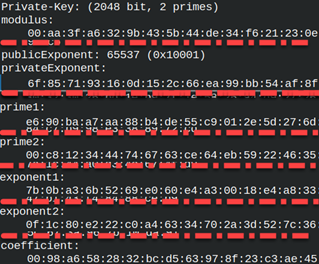
openssl pkey -in private.key -text -noout

The result will have a list of hexadecimal numbers. All of these numbers belong to RSA key. We can notice Modulus (N), Private (E) and Public (D) exponents, Prime 1 (P) and Prime 2 (Q). We used letters N, E, D, P, Q as variables for the explanation how RSA calculation works.

For reading of this key, we don't have to provide a password because the key is not encrypted.

CN Property Clarification

CN means "common name". CN is a text property. CN Property exists in the Subject and Issuer elements of the certificate.

Issuer:   CN = Let's Encrypt R12This is the name of a certification authority.
Subject: CN = example.com
               CN = Polychronius Hikari
               CN = My Root CA
Here we write domain name, or a person name, or the purpose of a key. The goal is to identify for what purpose will this key be used.

Long ago, CN for Subject was important because this was the place where we wrote a domain name. Internet browser would then verify this domain name with URL that client is trying to connect to. Long ago CN was one of the most important parts of a certificate.

The problem with CN is that was accepting only one domain. Users were not able to have many domains signed by the same certificate. Today the CN is not validated by modern internet browsers. Instead of CN we use SAN ( "Subject Alternative Name" ). SAN is part of extensions in a certificate. SAN has ability to accept several domain names.

Providing CN and SAN Value in "req -x509" Command

We can provide "C,ST,L,O,OU,CN,emailAddress" data with "-subj" option. We can provide SAN data with "-addtext" option.
openssl req -x509 -sha256 -noenc -days 365 -newkey rsa:2048 \
-subj "/C=RS/ST=Belgrade/L=Belgrade/O=Example Corp/OU=Analytics Department/CN=Polychronis Hikari/emailAddress=hikari@gmail.com" \
-addext "subjectAltName=email:hikari@gmail.com,DNS:polychronis.example.com,IP:127.0.0.1" \
-keyout private.key -out certificate.crt

For SAN data, we must define type of the protocol ( "email, DNS, IP" ). I will run the command above. This time we will not get prompts to provide "C,ST,L,O,OU,CN,emailAddress" data. We can read our certificate.

At the bottom of "Data:" section we have extensions. Here we can see the value of SAN extension.
SAN is not the only extensions that can be defined with "-addext" option. All extensions can be provided this way.

Root Domain, Wildcard Domain, Multidomain

-addext "subjectAltName=DNS:www.example.com"
                                                                     
This is valid for "https://www.example.com", but not for "https://example.com" and                                                                                                        "https://shop.example.com".

DNS:www.example.comRoot domains are only valid for the specific domain with precisely the same name.
DNS:www.example.com,DNS:maps.google.comMultidomain is set of several domains. We can use the certificate for all of them.
DNS:*.example.comThis is wild card domain. It is only useful for one level subdomain. Think about it as "<anything>.example.com". This wildcard domain will not work for "example.com" and "a.b.example.com", but it will work for "www.example.com" and "shop.example.com".

We can combine these domain names in different ways.DNS:www.example.com,DNS:maps.google.com,DNS:*.*.example.com

Encryption

I will create private key with encryption. I will use "-subj" option to avoid getting questions. "/C=RS" is the only mandatory field.
openssl req -x509 -sha256 -subj "/C=RS" -days 365 -newkey rsa:2048 -keyout private.key -out certificate.crt

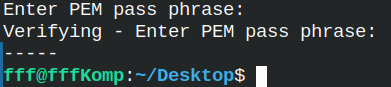
This time I will get prompts for a password. Password must have at least 4 characters.
For reading this private key we must provide password.
openssl pkey -in private.key -text -noout

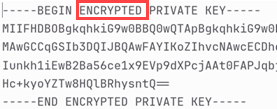
When a key is encrypted, the header of the key is changed. It says ENCRYPTED.We can decrypt private key like this:
openssl pkey -in private.key -out unencrypted.key

We can encrypt the key again.
openssl pkey -in unencrypted.key -aes256 -out private.key

Password

openssl pkey -in private.key -out unencrypted.key -passin pass:"pass123"
openssl pkey -in unencrypted.key -aes256 -out private.key -passout pass:"pass123"

                                                                                                                              
We can encrypt and decrypt the key again, but this time, we can provide a password inside of the OpenSSL command.

Important thing is that we must provide the source of a password. Source can be stdin, a file or a an environ.

echo "pass123" > pass.txt
export MYPASSWORD="pass123"
I will create a file with a password, and I will also create one environ with a password.

We can decrypt the key with the password from the file.
openssl pkey -in private.key -out unencrypted.key -passin file:"pass.txt"
We can encrypt it with the password from an environ.
openssl pkey -in unencrypted.key -aes256 -out private.key -passout env:MYPASSWORD

Self Signed Eliptic Key

The command that will create EC keys is similar. This time we have another option "-pkeyopt".
openssl req -x509 -sha256 -subj "/C=RS" -noenc -days 365 -newkey ec -pkeyopt ec_paramgen_curve:prime256v1 -keyout private.key -out certificate.crt

For EC keys we must choose a "curve". This is parameter that is deciding the strength of the key.ec_paramgen_curve:prime256v1           # most popular for web sites ec_paramgen_curve:secp384r1            # stronger, for governments and banks ec_paramgen_curve:secp521r1            # strongest, but rarely used
openssl ecparam -list_curvesWe can list all of the curves by using this command. There are dozens of these curves.

When we use "-pkeyopt", we choose a curve. Instead of that we can choose algorithm directly. Algorithm already has a curve specified. These are newer algorithms. For algorithms we are using option "-algorithm". These are two used the most.-algorithm X25519
                              
-algorithm ED25519
                              

EC keys are much smaller than RSA keys. On the image we can see the whole key. That is why EC is faster than RSA.

Exporting a Public Key

We can get a public key based on the private key.
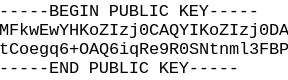
openssl pkey -in private.key -pubout  

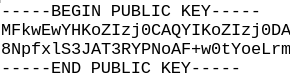
-----BEGIN PUBLIC KEY-----
MFkwEwYHKoZIzj0CAQYIKoZIzj0DAQcDQgAE12P1PRoujnQCWgwCvPyN8q1CR/Pl
tCoegq6+OAQ6iqRe9R0SNtnml3FBPUijajZwLXv9IkGJIJ2BrvXkALBe/w==
-----END PUBLIC KEY-----
We can get public key from the certificate.
openssl x509 -in certificate.crt -pubkey -noout  

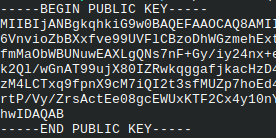
-----BEGIN PUBLIC KEY----- MFkwEwYHKoZIzj0CAQYIKoZIzj0DAQcDQgAE12P1PRoujnQCWgwCvPyN8q1CR/Pl tCoegq6+OAQ6iqRe9R0SNtnml3FBPUijajZwLXv9IkGJIJ2BrvXkALBe/w==
-----END PUBLIC KEY-----

Linking Private Key and the Certificate

We can see above that exported public keys, from the private key and from the certificate, are the same. We can use that fact to detect linked private keys and certificates. Because public keys can be long, we will create digest from them, so we can easily compare those digests.

openssl pkey -in private.key -pubout | openssl sha256  

SHA2-256(stdin)= 0a44ba248fa6ca1ba6d392f93f00858d6abc84b4c8ffa59471d9ee8c003e63b7
openssl x509 -in certificate.crt -pubkey -noout | openssl sha256  

SHA2-256(stdin)= 0a44ba248fa6ca1ba6d392f93f00858d6abc84b4c8ffa59471d9ee8c003e63b7

Now we can eyeball that this private key and this certificate are linked together.

Exporting and Reading Public Key

This is how we can export public key to a file.
openssl pkey -in private.key -pubout -out public.pub
Pkey is a command for reading a private key. If we use option "-pubin", we can also use it to read public keys.
openssl pkey -in public.pub -noout -text -pubin

L0040 Certificate and S_client

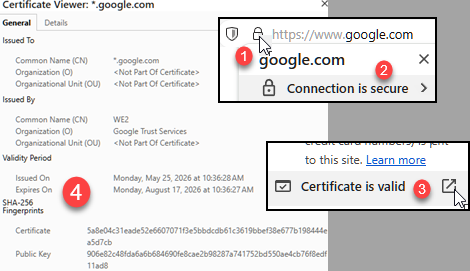
In the internet browser we can observe certificate of some web site. First, we click on the padlock in the address bar (1). We click on "Connection is secure" (2). Then we click on the icon (3). After that a new dialog with a certificate will open (4). We can also observe certificate with OpenSSL. OpenSSL has command "s_client" that is used to test and monitor TLS connection. When we use this command, terminal will enter interactive mode where we can type HTTP, SMTP, POP3, LDAP commands. This assumes that "s_client" is connected to some server application and can now communicate with that application using its protocol. For example, SMTP is computer protocol used for sending emails. We are not going to use this client in interactive mode in this article. We will use it only to observe TLS information.

Certificate

S_client Interactive Mode

This command will connect OpenSSL to web site as a TLS client.
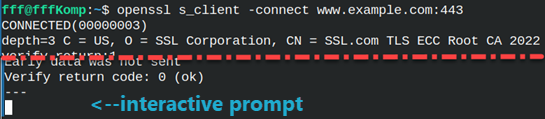
openssl s_client -connect www.example.com:443  
As a result, we would get a lot of text, and after that text we will get a prompt. Prompt means that we are in the interactive mode.
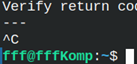
I will click "Ctrl+C" to exit this prompt.
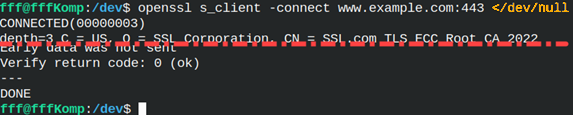
"/dev/null" is a feature of terminal. This means that s_client will not receive commands from a keyboard, but from a file. File "/dev/null" is empty file. This will send EOF ( end of file ) signal to s_client and s_client will immediately exit interactive mode. I will use this to avoid interactive mode.
openssl s_client -connect www.example.com:443 </dev/null

Reading the Certificate with S_client

OpenSSL command "x509" is for working with certificates. Text returned by the "-connect" command can be piped to "openssl x509" command.
openssl s_client -connect example.com:443 </dev/null | openssl x509

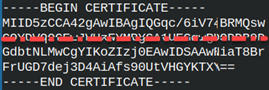
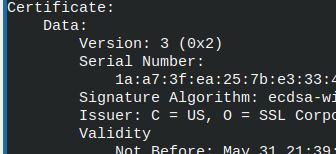
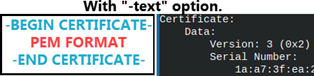
Certificate will be returned in PEM format. This is base64 encoded format. This format prints each 6-bits with a printable character.We want nicely presented text, like on the image to the right. To get this text we have to use "-text" option.

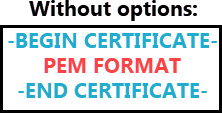
Without options we have PEM format.
With "-text" option we have PEM, and human readable format.
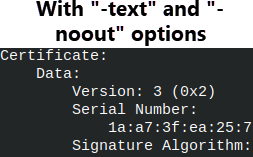
With "-text" and "-noout" we only get human readable format.

So, the full command will be like this. "-text" will give us nicely formatted certificate, and "-noout" will suppress PEM format.
openssl s_client -connect example.com:443 </dev/null | openssl x509 -text -noout

Main Sections of a Certificate

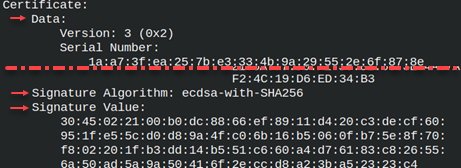
Certificate is divided into 3 sections.– Data: This is certificate in a readable form.
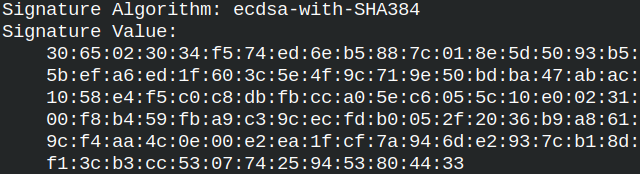
– Signature Algorithm: This algorithm CA used to sign the certificate.
– Signature Value: This is certificate signed ( encrypted ).

CA used "Signature Algorithm" to encrypt "Data" and the result is "Signature Value". Here we have all of the elements to identify the owner and to verify his identity.

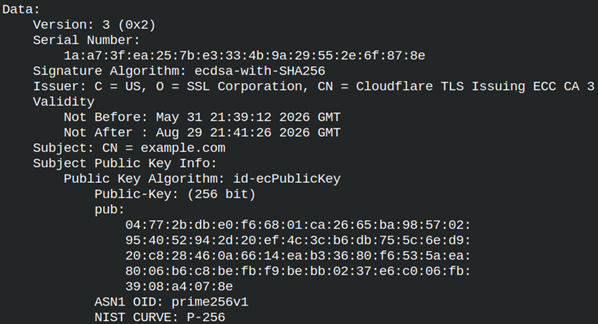
Data part is mostly hidden on the image above, but that is the biggest part of the certificate. It contains info about CA and certificate owner, data about certificate itself, and the public key of the certificate owner.

Data Section Content

Version – there are several generations of certificates specification. Today we use version 3.
Serial Number – our CA is using this number to distinguish our certificate from other certificates issued by the same CA.
Signature Algorithm – CA used ECDSA asymmetric key to sign our certificate.
Issuer – Data about CA. We can see the country ( "C" ), organization legal name ( "O" ), common name ( "CN" ). "CN" is for less formal name of the organization.
Validity – Period in which our certificate is valid.
Subject – this is where we place the name of domain ( example.com ).
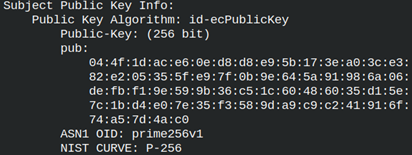
Subject Public Key Info – data about certificate owner public key. Here we can see algorithm, the size of a key and the key itself.

Below this we have extensions. Extensions are specialized elements and we will talk about in some other article.

Reading Only Some Sections of a Certificate

We can limit our command to read only some elements.

openssl s_client -connect example.com:443 </dev/null \
       | openssl x509 -noout -serial -issuer -subject -pubkey
openssl s_client -connect example.com:443 </dev/null \
       | openssl x509 -noout -dates    

S_client

ServerName Option

Cloud providers can host several web sites behind one IP address. Each of those sites can have its separate certificate. Cloud provider must know in advance what certificate to send to the user.   This is why for s_client we must use option "-servername".  

openssl s_client -connect www.google.com:443 -servername maps.google.com


Look below how we are getting different answer depending on the servername we use.
openssl s_client -connect www.google.com:443 -servername maps.google.com </dev/null | openssl x509 -noout -subject
>>>>>
             subject=CN = *.google.com              <<<<<
openssl s_client -connect www.google.com:443 -servername www.google.com </dev/null | openssl x509 -noout -subject
>>>>>
             subject=CN = www.google.com              <<<<<

Quiet and Brief Options

With "-quiet" option we will start interactive mode, without getting certificate.
openssl s_client -connect www.example.com:443 -quiet
"-brief" option is similar, but we are still getting some essential data.  
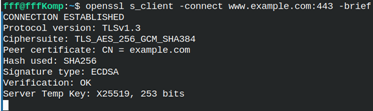
openssl s_client -connect www.example.com:443 -brief

"-Brief" allow us to see what cipher suite and protocol version the client and the server made an agreement to use ( TLSv1.3: TLS_AES_256_GCM_SHA384 ).

Protocol and Cipher Suite Options

We can force the protocol s_client will use.
openssl s_client -connect www.example.com:443 -brief -tls1_2
We can enforce specific cipher suite.
openssl s_client -connect www.example.com:443 -brief -tls1_2 -cipher AES256-SHA256
We can block protocol TLSv1.3.
openssl s_client -connect www.example.com:443 -brief -no_tls1_3

Certopt Option

We already saw that certificate includes public key of the certificate owner, and it has sections Signature Algorithm and Signature Value. We can use option "-certop" to suppress those elements. We can suppress both elements or only one of them.

openssl s_client -connect www.mwl.io:443  < /dev/null | openssl x509 -text -noout -certopt no_pubkey,no_sigdump

This part will be missing because of "no_pubkey".
"no_sigdump" will make two last sections to be excluded.

Certificate Chains

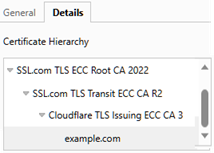
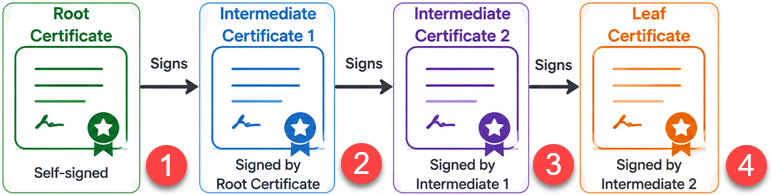
In our browser we will take a look at certificate for the web site "www.example.com". In the "details" tab we can see so-called "certificate chain". Chain certificate means that sometimes we need more certificates to prove that the certificate we own is valid. These certificates are connected in a hierarchy with root certificate at the top ( CA certificate ), and leaf certificate at the bottom ( example.com ). Between them we can have several intermediate certificates.

If we want to read all of these certificates we need "-showcerts" option.
openssl s_client -connect www.example.com:443 -servername www.example.com -showcerts

     We will get 4 "BEGIN/END CERTIFICATE" elements =>
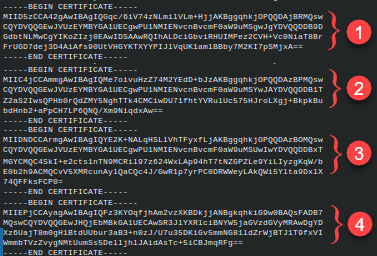
Certificate chain can not be presented in nice readable form with the use of "x509" command, only in PEM format.

Certificate Export

The whole chain of certificates can be exported to a file with simple redirection.
openssl s_client -connect www.example.com:443 -showcerts < /dev/null > /home/fff/Desktop/certificates.chain
We can save leaf certificate nicely formatted with x509 command and "-out" option.
openssl s_client -connect www.example.com:443 < /dev/null | openssl x509 -text -out /home/fff/Desktop/certificate.crt  
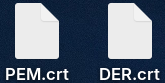
We saw that our certificate can be in the PEM format. There are other formats, like DER format which is a binary form of format. We can specify in which format to export certificate with "-outform" option.
openssl s_client -connect www.example.com:443 </dev/null | openssl x509 -outform PEM -out /home/fff/Desktop/PEM.crt
openssl s_client -connect www.example.com:443 </dev/null | openssl x509 -outform DER -out /home/fff/Desktop/DER.crt

Errors

We can test TLS errors on the web site "www.badssl.com". Option "-verify return error" will suppress showing of the certificate and will return much smaller message where we can easily notice what is the problem with the certificate.

openssl s_client -connect expired.badssl.com:443 -verify_return_error

Hostname Verification

If we go to a website ( x.com ) and download its certificate, but inside the certificate we see another domain ( y.com ), our internet browser will show us a big warning. This will not happen with the s_client tool. S_client will only check if the certificate is signed by a trusted CA and if it has expired. For domain check we must use "-verify_hostname" option.  

For this domain, certificate and domain match.
openssl s_client -connect www.example.com:443
It is the same with "-verify_hostname" option, but this time we get a verification message.
openssl s_client -connect www.example.com:443 -verify_hostname www.example.com
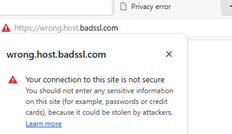
For this web site we will get a warning because we have mismatch.
openssl s_client -connect wrong.host.badssl.com:443 -verify_hostname wrong.host.badssl.com  
Web site we are visiting has two level subdomains ( wrong.host.badssl.com ), but certificate is only for one level subdomain ( host.badssl.com ).

OpenSSL TLS Server

Key Generation

I will create a private key and certificate. I need them for a demonstration. You don't need to understand the command below for now.
cd /home/fff/Desktop
openssl req -x509 -newkey rsa:2048 -noenc -subj "/CN=localhost" -keyout key.key -out certificate.crt

We will get two files. Inside of them are base64 encoded key and certificate. I will now show you how to create TLS server with OpenSSL.

TLS Server in OpenSSL

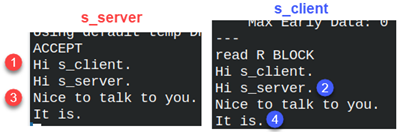
In one terminal tab I will start a server with a command "s_server", and in another terminal tab I will connect to that server by using "s_client". Both of them will use the key and certificate we have created in the previous step. We will start them both in the interactive mode.

openssl s_server -port 4433 -key key.key -cert certificate2.crtopenssl s_client -connect localhost:4433
We can see on the image to the left how our server looks like. Our server has a prompt.
In another tab we have s_client prompt.

We can now have secure instant chat between the server and the client. Everything we type in the server will be immediately visible on the client, and vice versa.   This is how we use keys with any application. Server needs access to private and public key, and client only to public key.  

We can force server or client only to accept specific cipher suites and TLS generations.
openssl s_server -tls1_3 -ciphersuites TLS_AES_256_GCM_SHA384 -key key.key -cert certificate.crt        #default port is used
openssl s_client -tls1_3 -ciphersuites TLS_AES_256_GCM_SHA384 -connect localhost:4433

L0030 OpenSSL Algorithms and Ciphers

TLS Protocol

The Internet Engineering Task Force (IETF) organization publishes the TLS security protocol, which is used to ensure the integrity and privacy of communications over a computer network. This protocol describes how various algorithms ( "cryptographic primitives" ) are used to achieve this goal. OpenSSL is one of the softwares that implements this security protocol.

TLS means "Transport Layer Security". The old name of this protocol was "Secure Socket Layer" ( SSL ). That is why we have the name "OpenSSL".

Cipher Suites Nomenclature

"Cipher suites" are security protocol algorithms ( "cryptographic primitives" ) that are usually used together.

We can run this command to list cipher suites.
openssl ciphers -v
Command "ciphers" will list the cipher suites, and option "-v" will give us a verbose presentation.

The name of one cipher suite is divided into 4 parts.
– The first part ( ECDHE ) is the name of the algorithm used for key exchange.
– The second part ( ECDSA ) is algorithm for asymmetric cryptography.
– The third part ( AES256-GCM ) is algorithm used for symmetric encryption.
– The fourth part ( SHA384 ) is a hashing algorithm.
                                                                                                                        
ECDHE–ECDSA–AES256-GCM–SHA384

These elements are called "Cryptographic primitives", because the are building blocks from which protocols are made.

Only the third algorithm ( AES256-GCM ) is a cipher ( encryption ) algorithm, but traditionally we call them all together a "cipher suite".

In the second column we can see different versions of the TLS security protocol ( TLSv1.3, TLSv1.2 ). These versions are generations of this protocol from different years. Notice hat TLSv1.3 version cipher suites don't list all of the security algorithms. Key exchange algorithm and Asymmetric key algorithm are not included.

In the previous versions of the TLS standard, list of the cipher suites was huge. That was the consequence of the fact that there are many security algorithms and they can be combined in different ways. In order to simplify things, TLSv1.3 did two things:
1) It retired old security algorithms that are safe no more.
2) The name of the cipher suite is now broken into three parts ( ECDHE,      ECDSA,      AES256-GCM–SHA384 ). Key exchange algorithm and asymmetric key algorithm are separated. This is possible because key exchange and asymmetric key algorithms are technology that is independent from the rest of algorithms. We can choose them independently.

Cipher Command

"Cipher" command is used to list cipher suites. I will use Linux command "wc" ( word count ) to count how many cipher suites will this command return. We will test some ways how to limit number of the returned cipher suites.

openssl ciphers -v | wc60We will see 60 suites. These are the suites that OpenSSL recommend for us.
openssl ciphers -v DEFAULT | wc60The same as above.
openssl ciphers -v ALL | wc140This will list all of the supported suites. There are 140 suites in total.
openssl ciphers -v HIGH | wc140This will return only strong cipher suites. All 140 cipher suites are considered strong. Options "MEDIUM" and "LOW" are no more working because such suites are deleted from TLSv1.3.
openssl ciphers -s -v | wc
                                                            
30Option "-s" is for supported suites. This will return 30 suites. Some suites are not applicable on our current configuration. This could be because we disabled some suites in our configuration file, or because OpenSSL is compiled with some algorithms missing, or some other reason.
openssl ciphers -v 'RSA SHA384'38We will filter only for these "cryptographic primitives". Only the suites that are using RSA, for asymmetric key, or SHA384, for hash, will be returned. We will get 38 suites.
openssl ciphers -v 'RSA DEFAULT' | wc22We can combine different conditions, for example RSA and DEFUALT.

All Possible Cipher Suites

Long lists of cipher suites, that includes deprecated historical suites, can be found on these web pages:

https://www.iana.org/assignments/tls-parameters/tls-parameters.txt
https://ciphersuite.info/search/?q=aes

Lists of Individual Algorithms

We can get lists of individual algorithms with these commands:

openssl list -key-exchange-algorithmsList all key exchange algorithms.
openssl list -public-key-algorithmsList all asymmetric key algorithms.
openssl list -cipher-algorithmsList all symmetric key algorithms.
openssl list -digest-algorithmsList all hash algorithms.

Recommended Algorithms

Key Exchange Algorithms

TLSv1.3 only supports DHE and ECDHE. ECDHE* is better than DHE because the keys are smaller and there is less CPU usage.* EC – Elliptic curve. This helps algorithm to be faster.
* DH – Diffie-Hellman algorithm. The key is never transported over network.
* E – Ephemeral. Keys are temporary. Each session uses different keys.

ECDHE and DHE provide "perfect forward secrecy". Because the keys are short-lived, even if someone steals the keys, they will only be able to decrypt communications from one session. They will not be able to decrypt messages from previous sessions.

Asymmetric Key Algorithms

Today we use either RSA or ECDSA keys. RSA keys are supported everywhere and are much more compatible. Otherwise ECDSA keys are better.
RSA is short for "Rivest–Shamir–Adleman". ECDSA is short for "Elliptic Curve Digital Signature Algorithm".

ECDSA has smaller keys, certificates, and signatures. It uses less CPU. This makes the TLS handshake between the client and server faster. This is especially important for mobile devices, high-traffic websites, and cloud services. RSA is still more popular for most websites today, but for high-performance internet services, ECDSA has taken the lead. For new installations, ECDSA is often the first choice.

For the same level of security, ECDSA keys are much smaller than RSA keys. Even worse, RSA keys scale poorly. If the ECDSA key is doubled, then the RSA key must be 5 times larger to achieve the same level of security. This is why RSA keys will be deprecated in the near future.ECDSARSA
112-bit2048-bit
128-bit3072-bit
192-bit7680-bit
256-bit15360-bit

Symmetric Encryption Algorithms

We use either CHACHA20 or the AES algorithm. CHACHA20 is a better and faster algorithm. The AES algorithm is an older algorithm and most modern processors have hardware acceleration for this algorithm. As a result, the AES algorithm is, in real-world use, faster than CHACHA20.

This is only true for computers. Phones and other mobile devices historically did not have AES hardware support, and that is why most phones today use CHACHA20.

Most servers are set up to offer AES encryption first, and CHACHA20 encryption as an alternative. One is for computers, the other for phones.

You can use the command "lscpu | grep aes" to check if your computer CPU has dedicated AES circuits.

Hash Algorithms

Today we use SHA hash algorithms.

Cipher Modes

You probably noticed that AES algorithm is somehow connected with "GCM" ( AES256-GCM ). To understand GCM we must talk about cipher modes. Symmetric encryption algorithms can be divided into "stream ciphers" and "block ciphers". "block ciphers" can be further divided into different "cipher modes".

Plaintext and Ciphertext

Plaintext is unencrypted message, like "Hello world!". Ciphertext is encrypted message, something like "lloeH lr!wod".

Stream Ciphers

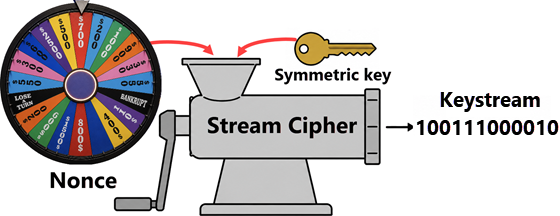
For stream encryption we need symmetric key, "nonce" and plaintext. Nonce can be any number selected for specific each session. Each session will use different nonce. "Nonce" means number used once.

Algorithm will use nonce and symmetric key to create random stream of ones and zeros. That stream is called "Keystream". Thanks to nonce, this keystream will be different each session.

Keystream will be combined with the message with XOR logic. This will create the "ciphertext".

Plaintext  = 101011111001
Keystream  = 100111000010   # XOR
Ciphertext = 001100111011

For decryption, we need nonce, symmetric key and ciphertext. Nonce is public value and will be delivered to receiver. Using the same ingredients, he will generate the same "keystream". He will then apply XOR between ciphertext and the keystream to get plaintext.Ciphertext = 001100111011
Keystream  = 100111000010   # XOR
Plaintext  = 101011111001         

Why do we Need Nonce?

Let's say that we have 2 plaintexts and a keystream. Keystream only depends on the symmetric key.P1 = 1100P2 = 1010K = 0111
Without nonce, the keystream will be the same for both messages. We will calculate ciphertexts.C1 = 1011C2 = 1101 

Because keystream is the same, the attacker can find out the difference between two plaintexts which is the same as the difference between ciphertexts. Here is the proof.P1 XOR P2 =  C1        XOR  C2
P1 XOR P2 = (P1 XOR K) XOR (P2 XOR K)
P1 XOR P2 =  P1 XOR P2 XOR   K XOR K   # XOR is commutative and associative
P1 XOR P2 =  P1 XOR P2 XOR   0         # because K XOR K = 0
P1 XOR P2 =  P1 XOR P2

                                                                                                                  
So, the difference between 2 plaintexts is:P1 XOR P2 = C1 XOR C2 = 1011 XOR 1101 = 0110

Hacker now knows the difference between two messages. If the hacker guess or discover the content of message P1, he immediately knows the content of the message P2. This is why we need Nonce.

Block Ciphers

Block ciphers will divide data into blocks and each block will be encrypted separately. Block Ciphers are divided into different "cipher modes".

ECB Cipher Mode

ECB Cipher Mode ( Electronic Code Book ) is simple. We divide our message into blocks and we encrypt each block with symmetric key.

Plaintext "110010100111" is divided into 3 blocks.110010100111
We use symmetric key on each block to get 3 ciphertexts.

Problem with ECB is that patterns from the plaintext are preserved in the ciphertext.

CBC Cipher Mode

CBC (Cipher Block Chaining) was invented to solve the problem with ECB revealing data patterns.

We have three plaintexts.Initializing vector IV is randomly created artificial "plaintext".IV = 1011P1 = 1000P2 = 1110P3 = 1001

We will XOR each plaintext with the previous one.P1 XOR IV = 0011P2 XOR P1 = 0110P3 XOR P2 = 0111
We can now use key to encrypt messages. The patterns will be hidden.

Encryption of each block depends on the previous block. That is why we can not parallelize this calculation. That makes the calculation slow.

CRT Cipher Mode

"Counter" mode is using approach similar to stream ciphers. First, we generate one keystream. We add counters to that keystream.

Keystream = "0110"0110001011000201100030110004
We encrypt these combinations "keystream+counter" by using symmetric key.0110001002101000103011004001

Now we have encrypted keystreams that can be XOR-ed with the plaintext.

The random part of the keystream is saved with the first block of data, and is sent to receiver. Receiver will need that keystream for decryption. So, the keystream is not hidden, but what is important is that for each block we will use different keystream because of the counter.

Each "keystream+counter" combination can be encrypted on different CPU core, so we will achieve high parallelization.

GCM Cipher Mode

All previous cipher modes are solving the problem of encryption. We can also solve the problem of integrity. Someone can tamper with our ciphertext so the edited message will be sent, and the receiver will not be able to notice that.

Galois/Counter mode is made to solve two problems. This Cipher Mode introduce so-called "Authenticated encryption". This is complex algorithm that can at the same time both encrypt the data and authenticate it. GCM is based on the CRT cipher mode.

Experience showed that separate algorithms for encryption and authentication are not the best approach. Hacker can use separation of these two algorithms to find cracks in our protection. It is much better to do encryption and authentication in one step.

Beside "Authenticated encryption" we also need same unencrypted data, that is needed for decryption. Such data we call "Associated data". Together "Authenticated encryption AE" and "Associated data AD", make AEAD. When we look at some of the cipher suites, we will see this AEAD label:

MAC

On the image above we can see "Mac=AEAD" for one suite, and "Mac=SHA384" for another. "Mac" means "Message Authentication Code". "Mac" refers to a way how we provide integrity of data.

When we talked about signatures, we said that signature is encrypted combination of the hash and identification data. For calculation of a hash, we need hash algorithm like "SHA384". This was the old way of providing integrity. Before, encryption and hashing were separate activities.

"HMAC" is hashed based "Mac". This refers to those old algorithms. In modern cipher suites we don't use "HMAC". We use newer technologies which are labeled as AEAD. AEAD is faster and more secure than "HMAC".

Today we use methods that provide Encryption and Authentication in one algorithm. That is what AEAD algorithms are about. Modern cipher suites use something like "AES256-GCM" or "CHACHA20-POLY1305" because these are modern AEAD algorithms.

When we look at the first cipher suite from the image above "DHE-RSA-AES128-GCM-SHA256", we can see that "Mac=AEAD". In this case SHA256 refers to hash algorithm used for something else ( for example, for initializing vector, or for keystream ), and is not used for providing the integrity of messages.

Stream vs Block Ciphers

There is not much difference between stream and block ciphers. For example, POLY1305 is a stream cipher. It is used together with CHACHA20 encryption and that is why is popular on phones. GCM is block cipher, and is used on computers with AES, because computer CPUs have hardware support for AES.

L0020 Symmetric and Asymmetric Keys

Authentication Problem

How to Encrypt a Document with Asymmetric Keys?

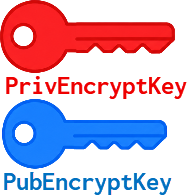
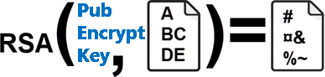
Using RSA algorithm, I will create private and public key. I will call them PrivEncryptKey and PubEncryptKey.I will personaly deliver my PubEncryptKey to coworker.She will use RSA algorithm and PubEncryptKey to encrypt the document.

She will email me this encrypted document. The only person who can decrypt this document is the one with the PrivEncryptKey. If I receive this document, I will be able to decrypt it.

This solved the privacy problem, but what about authentication? When I receive an encrypted document, I want to know with certainty who is the person who sent me the document.

How my Coworker Can Prove Her Identity?

In this case, we won't be doing any encryption. This time, we're looking for a way to authenticate Anna when she sends the document.

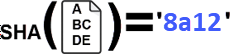
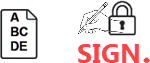
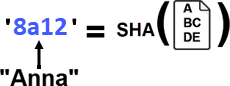
My colleague will create hash code of the document using SHA algorithm.Our goal is to somehow bind that hash code with the identity of the person sending the document.
'8a12' + "Anna"

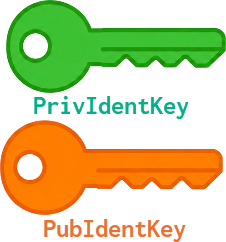
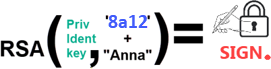
My coworker will create another pair of keys. I will call them PrivIdentKey and PubIdentKey.Anna now has two keys. She will personally give me her PubIdentKey. I will use this key to validate her identity.Anna will use PrivIdentKey to encrypt "hash+identity". She is using RSA algorithm. The result of encryption is a signature. Anna signed document hash code.

She will now send me 2 things: the document, and the signature.I already have Annas PubIdentKey. I will use that key to decrypt her signature. This will give me document hash code and her identity.

We now know that Anna signed the hash code. The last step is to prove that the document Anna have sent to me, is connected to that hash code.I will now calculate the hash code of the document using the same SHA algorithm. If that result is the same as the hash code from the signature, that will tell me that this document was sent by Anna.

Visible Sign on a Document

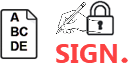
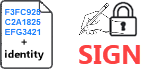
Identity information is not just about cyber security. Identity is important for classification, organization, and storage of documents. So, it's nice to visibly tag documents with some identity information.

Two-side Communication, Encrypted and Authenticated

To achieve both Encryption and Authentication we need two pairs of keys. One pair belongs to receiver and is used for encryption ( PrivEncrypKey, PubEncryptKey ). The other pair belongs to sender and is used for authentication ( PrivIdentKey , PubIdentKey  ). This is enough for one-side communication. In the real world, for two side-communication 4 pairs of keys are used. Having separate pair of keys for each function, makes key management much easier.

You can notice that there is no real need for 4 pair of keys. Two pairs would do the job, because Encryption keys can also be used for Authentication, but just like I said, it is easer if we have a separate pair of keys for each function.

What is Wrong with the Simple Example?

There is a problem with this simple example that will occur when the other person is far away. We cannot deliver our public keys in person. If we send those keys by email, that defeats the purpose. Then the communication will be insecure again, the other person will have no guarantee that the public key is authentic. To solve this problem, we need Certification Authority. A CA is a "mutual friend" who is trusted by both parties.

Certification Authority ( CA )

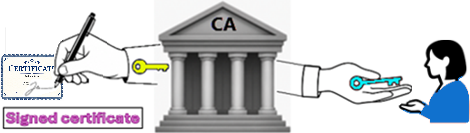
A certification authority is an organization that is large, reputable, and trustworthy. It can be a government, a private company, or the organization we work for. The certification authority will sign our public key, thus proving its authenticity.

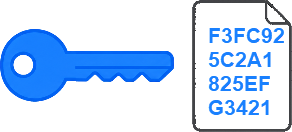
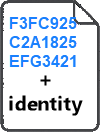
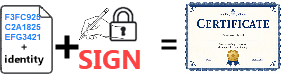
Each key, including PubEncryptKey, is one big hexadecimal number. That is why we can treat PubEncryptKey as a file.Inside of that file we will add identity data. We want to bind public key of a person with his identity data.We can now calculate a hash code that includes the public key and identity data.

CA organization has its own private and public key.CA will do the binding. CA will use its private key to encrypt hash code. That will give us a guarantee that the public key is genuine.

Certification is the same as signing. Instead of some business document, this time we are signing combination of a person's public key and his identity information.Public key, identity and signature together make a Certificate.

The CA will use its private key to make the certificate. It will also securely deliver its own public key to the remote person safely. The validation process is now a two-step process:
– First, use the CA's public key to verify the person's certificate.
– Use the public key, which was contained within the certificate, for encryption/authentication.

CA, together with their clients makes PKI. PKI is "Public Key Infrastructure". PKI includes software, hardware, policies, standards, professional associations and everything else that is needed to manage digital certificates.

Symmetric Keys vs Asymmetric Keys

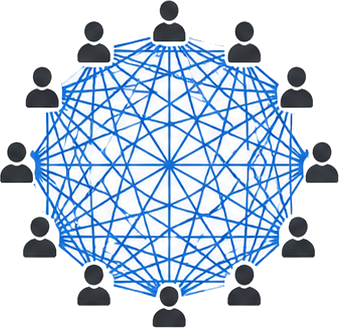
We can't use symmetric keys for authentication, but this is not the biggest drawback. The biggest drawback of symmetric keys is their scalability. If we have 100 people who need to communicate securely, and any two of them need to have their own unique key pair, then the number of keys needed is astronomical. If we were to use the same key for 100 people, then the probability that the key will be compromised is high.

Asymmetric keys scale much better. Each person needs to have their own key pair, and that is enough for communication between any two people.

But, on the other side, there are two important advantages of the symmetric keys.
1) Encryption and Decryption with symmetric keys is much faster.
2) Encrypted files have the same size as unencrypted files. This is not true for asymmetric cryptography where encryption enlarge the file size.

Hybrid Cryptography

The solution to "Symmetric vs Asymmetric" conflict is to combine Symmetric and Asymmetric cryptography:

1) Use symmetric encryption when you want to share a lot of data, especially if you have a secure way to share symmetric key between people.
2) Use asymmetric encryption for sending small but highly sensitive pieces of data.

You can already see that these two methods complement each other. This is especially true when dealing with servers. Servers are made to provide huge quantities of data, so they really need this hybrid cryptography. This is how secure client-server communication works:

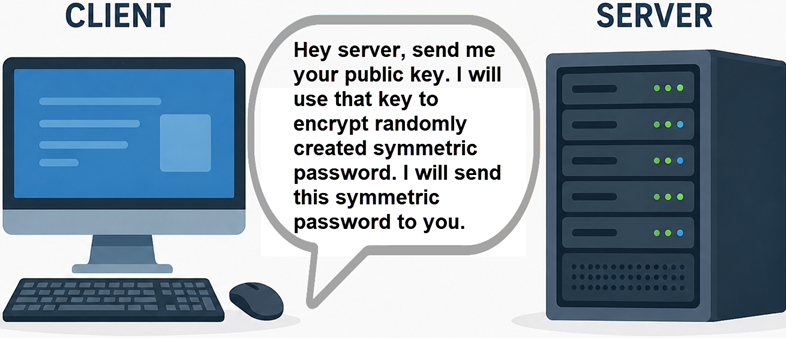
Server uses asymmetric cryptography for initial exchange of the symmetric keys. After that, data is exchanged using more efficient symmetric cryptography. This combination is called "hybrid encryption". The process is like this:
1. Client asks Server for its certificate.
2. Server sends the Client the signed certificate.
3. Client use CA public key to check that certificate.
4. Client creates random symmetric key.
5. Client encrypts that key using the server public key.
6. Client sends that encrypted symmetric key to server.
7. Both sides now have the same key and they continue communicating by using symmetric cryptography.

How Does the Client Check Server Certificate?

Inside the server certificate we have a lot of different information. Client will compare them:
– Is IP/domain of the server the same as in the certificate.
– Is certificate valid. Certificate is valid only between the dates written inside of the certificate.
– Is certificate prematurely revoked. Revoked certificates are listed in online registries. The client must check online if our certificate is revoked.
Owner: db.company.local
Public key: ABC123...
Issued by: MyCompanyCA
Valid until: 2028

Serial number: 883
                                       

Key Exchange

Symmetric cryptography does not have a secure way to exchange keys between two parties. Asymmetric cryptography is great at this. We saw that the RSA algorithm can be used to exchange keys (the key is just another document). Today we have an even better algorithm for this purpose. The Diffie-Hellman algorithm is another asymmetric cryptographic algorithm that is based on a private and a public key. This algorithm is special because it allows users to decide on a shared symmetric key, without ever sending that key over the network. This is great because no network hacker can steal our symmetric key.

Diffie-Hellman Algorithm ( DF )

Prime Number "P" and Generator "G"

First, we must choose one prime number. I will choose 23. When we divide random number X with this number 23, the reminder will be one of the numbers 0,1,2…20,21,22.0   <=    MOD( X, 23 )   <=   22

Next, we need "Generator" number. This number can generate all of these numbers 1-22 ( zero is always excluded ). I will use number 5. Let's test:

5^1MOD23
5
5^2MOD23
2
5^3MOD23
10
5^4MOD23
4
5^5MOD23
20
5^6MOD23
8
5^7MOD23
17
5^8MOD23
16
5^9MOD23
11
5^10MOD23
9
5^11MOD23
22
5^12MOD23
18
5^13MOD23
21
5^14MOD23
13
5^15MOD23
19
5^16MOD23
3
5^17MOD23
15
5^18MOD23
6
5^19MOD23
7
5^20MOD23
12
5^21MOD23
14
5^22MOD23
1

We will get results 1, 2, 3, 4, 5, 6, 7, 8, 9, 10, 11, 12, 13, 14, 15, 16, 17, 18, 19, 20, 21, 22. We got each number 1-22 exactly once.

In production, we need huge numbers for "P" and "G". It is hard to find numbers that match requested criteria. That is why today we use modern version of DF algorithm that is called "Elliptic-curve Diffie-Hellman". This algorithm always uses the same predefined numbers for "P" and "G".

Numbers "P" and "G" are public numbers. We don't have to hide them. Both parties know what are those numbers, and both parties are using the same pair of these numbers.

Private Numbers

The next step is that each party must choose their private key. That should be a number between 1 and ( P – 2 ). I will choose numbers 4 and 7, both of those numbers are less then 21 ( 23 -2 ). Parties must keep these numbers hidden.

Public Numbers

Each party will now independently calculate their public numbers using the formula "G ^ Private MOD P".

Party A:    5 ^ 4 MOD 23 = 4
                                       
Party B:     5 ^ 7 MOD 23 = 17

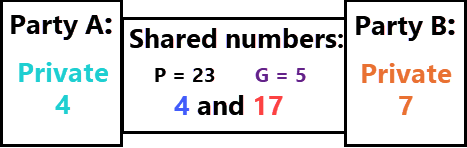
Parties will exchange their public numbers. Only private numbers are hidden, everything else is shared =>

Calculating Symmetric Key

Each party will now calculate the same symmetric key.
For calculation they need their private key, public key of the opposite party, and "P".
Party A:
( Public B ^ Private A ) MOD P
Party B:
( Public A ^ Private B ) MOD P
Let's confirm that shared keys will be the same.( 17 ^ 4 ) MOD 23 = 8( 4 ^ 7 ) MOD 23 = 8